by Michael Cropper | Apr 24, 2016 | Data and Analytics, Digital Marketing |
Sorry, I’m calling it. Businesses purchasing subscriptions to companies that are offering free data at a hugely premium price need to stop paying for this now. Stop wasting your money. Hell, give it all to a charity of your choice, it will be better money spent.
The company I’m talking about, for anyone working in digital will be well aware who this is, but for legal purposes let’s just call them a fictitious name which bears no resemblance to any company or person which happens to have a similar name, EnquiryForensics.
The offer for these types of companies is that you can “See who is looking at your website”. In summary, no you can’t. The only information that these types of companies generally provide is information that someone in Company X was looking at your website, then joining this data together with generic contact details for this company or publically accessible contact information for various staff within this organisation. This does not tell you who specifically is looking at your website. There are a whole host of data protection issues with tracking individual user website usage which is why services like Google Analytics are obliged to anonymise certain aspects of the data.
So beware, any company trying to sell you access to a tool or service which can show you who is looking at your website in a company, it is likely a snake oil salesman or company. You can generally get whatever data that have completely for free, and here’s how.
Google Analytics is Awesome
I’m not going to go into depth about Google Analytics. In summary though, Google Analytics tracks over 560 points of data for every website visitor and when you know where to look, you too can start to see how valuable this data is.
Identify the Companies Looking at your Website
Simple. Within Google Analytics, go to the following report: Audience > Technology > Network. This report will show you the companies who have been looking at your website, which can be extremely valuable for any type of B2B business as you can then feed this into your outreach pipeline and support the work your business development manager is doing on a daily basis. Look;
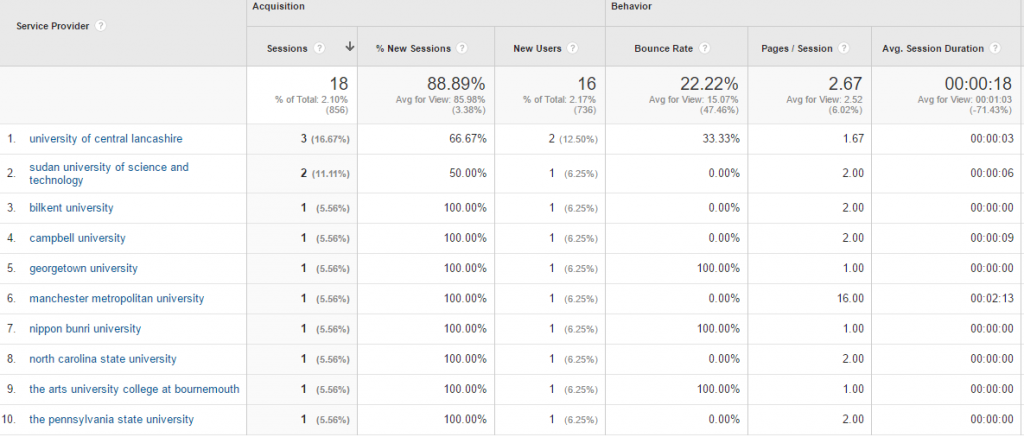
It’s all there. The companies who have been looking at your website which you can filter through to your hearts contempt. For any companies listed within here which are SMEs, a quick Google search for the company name and check on LinkedIn will soon allow you to identify the relevant person to speak with in the company who could be interested in your products and services.
Even better, you can then begin to filter down by looking at these individual companies and see what pages they viewed on your website too, so that you get a better understanding of what they are looking for.
The key here is not to be too creepy though when you reach out to these people.
All in all, you rarely ever need to pay for premium services and tools which allow you to identify who is looking at your website. With a bit of know-how, you can have access to all of this type of information for free.
If you want to find out how Google Analytics can help your business, get in touch.
by Michael Cropper | Apr 15, 2016 | Ecommerce, WooCommerce, WordPress |
WooCommerce is the leading ecommerce technology in the WordPress ecosystem, yet many people, both beginners and experienced users, struggle with adding products to WooCommerce in the right way. I say the right way, as getting this part wrong can lead do long term issues and time consuming mistakes to fix when data isn’t entered in the right way. WordPress and WooCommerce are database driven technologies, meaning that to be used effectively data must be stored in the correct place for it to be used effectively.
To put this into something that is simple to understand. Imagine you’re a chef, a really good one too. You don’t just see a carrot as a carrot which can be eaten. You see the carrot as an ingredient which can make many things. Now imagine a whole host of ingredients that you have in your fridge ready to cook into anything you fancy. The ingredients in this instance it essentially the data behind a product, the pieces of information. If you take all of your ingredients and keep them in separate containers, you can continue having the flexibility to choose what you cook when you like, i.e. putting your product data in the right place within WooCommerce. Compare this with if you took all of your ingredients and mashed them up into a single container. You simply wouldn’t be able to work with that data in any effective way at all. Whatever you made, you’re stuck with essentially. This is why it is important to create your products in the right way when adding to WooCommerce, so you can work with them effectively longer term.
So let’s look at how to add a product to WooCommerce in WordPress. We’re not going to be talking about how to SEO the product you’re adding. For information around SEO, have a read through a few guides we already have on the topic including the Really Simply Guide to Search Engine Optimisation or our guide on How to Get the Most from Yoast SEO in WordPress.
Basic Product Data
The basic product data you’re working with within WordPress includes the following details which all need to be entered with specific information as this determines how they display to the customer on the website.
- Product Name: This is used to describe your product in a short succinct way. This data is used to generate your Meta Title (see SEO guide above), your Permalink (see below) along with your main Heading 1 tag on the page (see SEO guide above).
- Permalink: This is the full website URL which is generated for the specific product such as, www.example.com/product/product-name-here/
- Main Product Description: This is the main content which describes the product in as much detail as possible. The more detailed you can be with your product, the more visible your products will be on Google, the more information is provided to potential customers which can boost conversion rates and generate more sales.
- Product Short Description: This is a section which often sits next to your main product images, it is the piece of content which is designed to provide key unique selling points about the product to entice customers to read further and ultimately purchase the product.
- Product Image: This is the main product image which will be visible on the page when it is first loaded. This is also the image which will be used throughout the website when your product is linked to for example from the Category pages. Make sure it’s a good quality image and it is clear what the image is.
- Product Gallery: The more high quality images detailing every aspect of your product you can add the better. Product with more high quality images often significantly out perform in terms of sales when compared with products with low quality images or lower number of images.
- Product Categories: This is how your product is going to be categorised on your website. Think of a logical way to categorise your products, just in the same way supermarkets do. You wouldn’t find a fresh apple in the clothing section. Categorise your products by core areas to help your users navigate around the website with ease. If you want your product to appear in multiple categories, select multiple categories when adding your product to the website.
- Regular Price: This is what you are selling your product for. Depending on how you have configured your WooCommerce settings, this price may include or exclude VAT so make sure you get this one correct.
At the basic level, this is the only information you need to add a product to WooCommerce in WordPress. Make sure you are as detailed as possible when adding products to help users in the best way possible.
Advanced Product Data
Now we’ll look at some of the finer details as WooCommerce is an extremely powerful platform for powering ecommerce shops. To try and keep this as simple to understand as possible, let’s look at the different product options based on the type of product that is being sold, whether that is a single item, a grouped item, an external or affiliate item, or a variable product. Each of these allows you to customise many options for your products to offer your customers the best products possible. When adding a product to WooCommerce, all of the following data is within the following section;
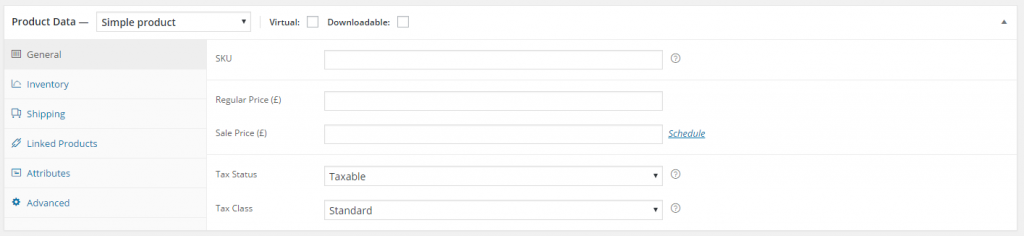
For simplicity, if a piece of information has already been discussed previously, I’ve omitted this from the data below to avoid repeating myself.
Simple Product
General Tab
- SKU: This is your Stock Keeping Unit, the unique identifier which you can link to your own internal systems about the products you keep. This is a number that you can identify yourself. For example you may use something as simple as 001, 002, 003 or something much more complex. This piece of information is useful as your ecommerce store grows and you begin to add more products to the website. Customers may enquire about a specific product and being able to refer to the SKU can help you quickly identify what product they are talking about.
- Sale Price: Everyone loves a discount, right! If you want to run a special promotion, here you can select what discounts you want to apply to the individual product. You can even schedule the discount to be only applicable between certain dates so you don’t have to remember to turn the discount on and off.
- Tax Status: Tax is a complicated area which you need to discuss with your accountant and website developer to understand how this works for your business. With so many tax rules for businesses depending on who they are selling to and what they are selling, this is too big of a topic to cover here. The important point to note though is that you can edit the tax settings at the individual product level should you need to do this.
- Tax Class: As above.
Inventory Tab;
- Manage Stock: Select this option if you are using WordPress to manage stock levels. This can be useful if your WordPress website is your only point of sale for your products so you can be sure this information is accurate. The challenge over time comes when you are selling on multiple platforms both online and offline, stock management becomes a bit of a nightmare to get perfect which is a topic we’ll be covering in the future. If you do wish to manage stock levels for the product, simply tick the box.
- Stock Quantity: Self-explanatory, i.e. how many of this product do you have in stock to sell
- Allow Backorders: For many businesses, items which are out of stock are often only out of stock for a day or two. In which case you may prefer to allow backorders for products to generate the sale and post out as soon as the product is back in stock. This can often be better than losing the sale completely.
- Stock Status: If you prefer to manage this manually, you can simply change the stock status from either ‘In Stock’ or ‘Out of Stock’ accordingly which can be useful should an item suddenly become unavailable or otherwise.
- Sold Individually: This setting allows you to restrict the number of this specific item a customer can order on a single order. This can be useful for products you wish to offer to customers for free with their orders. For more advanced customisations related to order freebies there are other plugins and technologies to look at which significantly boost this functionality.
Shipping Tab;
- Weight: Self-explanatory
- Dimensions: Self-explanatory
- Shipping Class: Within the main WooCommerce settings, you can customise shipping classes to make things easier to calculate. This can be very useful if groups of your products all fall under the same shipping category. In which case you can then simply select which shipping class they fit under and the price will be automatically reflected.
Linked Products Tab;
- Up-Sells: Up-sells are products which will be recommended to customers who are interested in this product. This could be another product which is either more profitable which could be a very similar product with more features and functionality.
- Cross-Sells: Cross-sells are products which are recommended to customers who are interested in this product. This could be a product which is often used with this product. For example if someone is looking to purchase a winter hat, then they may also be wanting to purchase a winter scarf which matches this one.
- Grouping: This allows you to select if this product is part of a group of products which can be sold as a bundle. There are additional WordPress plugins which achieve this functionality which give you much more flexibility to customise grouped products.
Attributes Tab;
- Name / Value: This data is used to create additional attributes for your products which could include items such as colour and size. For example, you would add a Colour attribute which included items such as Blue | Green | Orange etc. And then add another attribute which is for Size which included items such as Small | Medium | Large etc. This data is really important to structure correctly as this data can be used in the future to filter search results on pages on your website based on these attributes. Make sure you don’t include all of this structured data about your products within the main description only as this data isn’t filterable in the same way data within the Attributes area is.
Advanced Tab;
- Purchase Note: This allows you to send customer specific information about this product once they have purchased which can be extremely useful if someone has purchased a product which may need additional information about how to set up for example.
- Menu Order: Ignore this, there are better ways to arrange menus
- Enable Reviews: Products with customer reviews significantly out-perform products with no reviews. Encourage customers to leave reviews of the products they have purchased which will then be displayed on the main product page.
Grouped Product
This product type allows you to create a product bundle which includes many products which can be easily purchased. The main problem is that this at the same price as if customers were to add them to the shopping cart individually. While this is certainly a nice feature, there are much more advanced plugins available for WooCommerce which allow you to create custom product bundles with associated discounts and special offers.
All of the settings within the Grouped Product type have already been discussed above.
External / Affiliate Product
This product type allows you to list products from external websites on your own website. This can be great if you are looking to run an affiliate based website which many small business owners do. When adding an External / Affiliate Product to your website, the purchase doesn’t actually happen on your website, the button on the product page simply takes the potential customer to the external website you specify which allows them to make the purchase directly with the product owner.
The couple of additional settings included with this product type include;
- Product URL: This is where you want to send customers to when they want to buy the product. You may want to check that if you are an affiliate that you have the relevant affiliate ID included within the link you add in here should the technology require this.
- Button Text: This allows you to customise the button text as people aren’t adding the item to the cart, they are essentially viewing more information about the product.
Variable Product
Variable products are where the more advanced features and functionality live which can help you truly customise your product page to do many of the things you have seen available on big brand websites. Again, many of the settings within here are identical to what has already been discussed so these have been omitted. The settings which are additional within here include;
- Attributes: As previously mentioned, this could include Colour or Size for the product along with many other options which are relevant to the product you are selling. When using this, make sure you select the checkbox stating that the product attribute is ‘used for variations’, this is really important and is a prerequisite to the next step, adding Variations. You need to save the product attribute that you have created.
- Variations: Think of product variations as a way to sell the same product with many different customisable options. Imagine ordering a pizza at a restaurant, £9.99 for a basic pizza. Add 50p for more chicken, add 50p for chilli sauce etc. It’s the same concept for variable products within WooCommerce. With variable products you can charge different amounts based on these different variations. For example, you may have a basic product with a variation of ‘{Product} with {Additional Feature X}’ which you can charge a premium for. You may not want to add this as a product in its own right as it is essentially the same product, so by using product variations it is possible to simplify this process to allow customers to select the features they wish to purchase for this product in a simple way. Make sure you add a Variation Description within here to explain to your customers how this variation is different than the main product or they will not be able to understand how this more expensive product is different.
Overall
In summary, adding a product to WooCommerce in WordPress is actually quite involved and is extremely flexible based on your individual requirements. Make sure you are adding in all of the relevant information for your products to make your life much easier in the long run as you build on the features and functionality on the website.
If you are having challenges with your WooCommerce WordPress website, get in touch and we’ll talk you through the options available to get you going in the right direction. WooCommerce and WordPress are complex systems which take a while to get used to.
by Michael Cropper | Apr 13, 2016 | Data and Analytics, Digital Marketing |
Blogging is a core part of any digital marketing strategy which is why we talk about this on a regular basis to businesses. We’ve already produced a Really Simple Guide to Blogging, so have a read of that resource once you have finished reading this blog post.
We get asked a lot about how important is blogging, really? Well I thought it was worth putting a few numbers behind this to put this into perspective about why we talk about this so much;
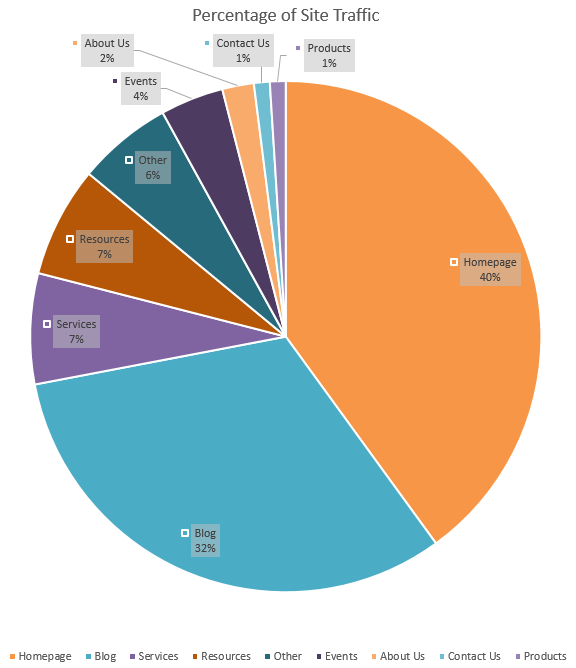
As you can see from the data above from our own website, when looking at the Blog and Resource pages which drive traffic to the website, this accounts for almost 40% of website traffic. Now to put this into perspective, imagine if you currently aren’t blogging on a regular basis. You are missing out on an enormous amount of traffic to your website. Assuming you aren’t blogging, by starting blogging based on these figures you could grow traffic to your website by almost 70%, imagine a 70% growth in traffic to your website. Pretty awesome, right?
Sure, things are a little more complex than this in the real world and for ecommerce websites this split is likely to be significantly different, but hopefully this gives you a few figures to highlight the importance of blogging. Get in touch if you would like to talk to us about how blogging can help boost your digital strategy.
by Michael Cropper | Apr 9, 2016 | Developer |
When developing basic websites, never need to be able to access your local machine form the internet. Whatever language or platform you are using, you’ll likely have your local development environment at something like http://localhost:8080 or similar. This allows you to test the code you are writing with ease without keep uploading it to your web server which is a more time consuming process.
When you start getting involved with building more advanced web applications, opening up your localhost environment to the internet is such a valuable tool, I can’t stress this enough. Particularly when working with technologies like webhooks, payment gateways and other integrated technologies. This is required because these websites need to send data back to your application outside of the initial request, and they cannot send this data to your local machine without being able to access it. You see, your local machine is protected by multiple firewalls, within your router as a hardware firewall and also with the firewall software running on your machine. So even if the outside website did know your IP address to send the data to, they wouldn’t be able to get through your firewalls anyway.
This is why you need to be able to access localhost from the internet which is only possible with specialist software designed to do exactly this. There are several different tools available to allow you to do this, personally I find the ease of use of Ngrok making it the only choice for me. To understand how Ngrok works, a couple of images shown on their website helps explain this in more detail as this is quite a technical topic to get your head around if you haven’t used before;
How to Access Localhost form the Internet with Ngrok
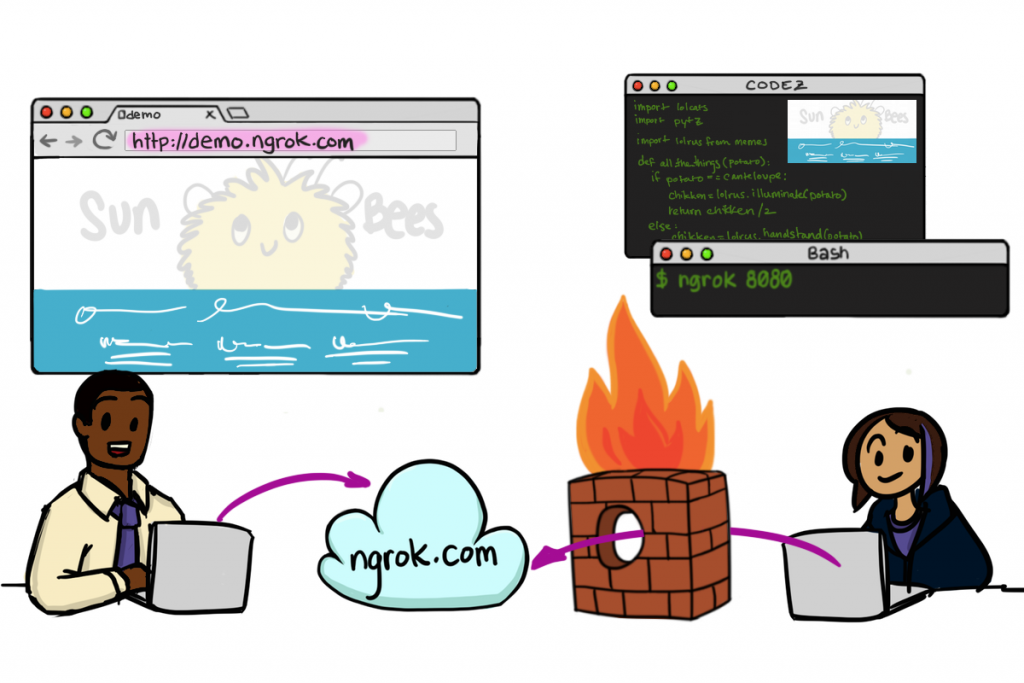
Image source
How to Send Data from Webhooks to Localhost with Ngrok
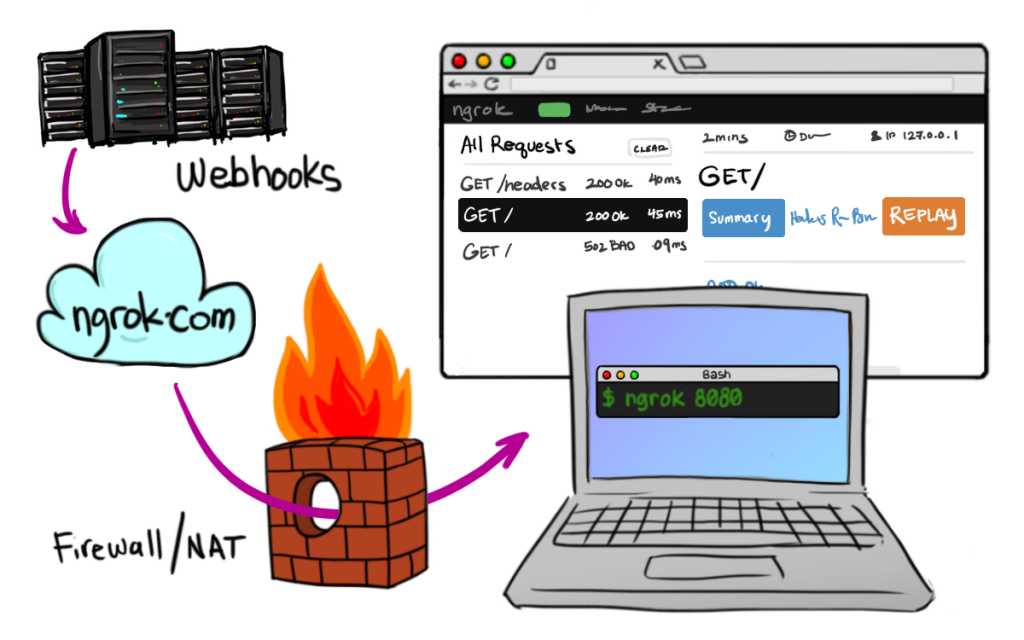
Image source
Ngrok have a list of platforms that it works on and this can be set up in as little as 30 seconds, it is seriously awesome. So anyone wanting to know how to access localhost from the internet or send webhooks data to your local machine, then take a look at Ngrok. They have free versions of the software and paid subscriptions which are dirt cheap.
by Michael Cropper | Apr 6, 2016 | Developer, WordPress |
The WordPress REST API Version 2 is brand new in the developer world which means that the documentation is extremely limited. Hopefully this can help a little for others trying to debug problems like this.
Posting comments to WordPress via the REST API Version 2 is actually relatively straight forward once you figure out how to do this. For those looking for a quick solution, using POST on the following URL will do just that, post a comment on this blog post you are reading right now.
https://www.contradodigital.com/wp-json/wp/v2/comments?author_name=Your%20Name%20Here&author_email=your-email-address@website-address-here.com&author_name=Your%20Name%20Here&content=Your%20Comment%20Here&post=1604252
Now for a few comments on the technical aspects to understand how this works.
Read the WordPress API documentation under the Create a Comment heading. As you will see, the documentation is minimal to say the least. It’s something the WordPress Core team are working on, so stick with it.
Essentially though, there are various query string parameters you can append to the request to send data into WordPress as a comment. It’s important to note that this is a POST request not a GET request. GET requests on this URL will not work. You need to use a tool such as Advanced REST client which allows you to POST data to API URLs which is extremely handy.
You will no doubt have debugging to do when you are first testing this as nothing ever goes to plan. Make sure you have comments turned on at the global WordPress level under the Settings > Discussions tab and also make sure that you have comments turned on for individual posts as sometimes these have been disabled. It’s always best to show these on your website too.
As with anything comment related with WordPress, make sure you are using the Akismet plugin to block any spam as this is a real nightmare on WordPress without Akismet.
There are lots of extremely useful uses for using this, we’ve been recently using this to post comments from a mobile app into WordPress which is used as a comment moderation system which means we don’t have to go and build that side of the functionality.
Make sure you are escaping the content which is included in the query string too and keep an eye out for any rogue spaces or special characters which may be breaking your POST request if this hasn’t worked. The usual things to check which you often miss J
When you successfully post a comment, you will see this waiting in your comment queue;
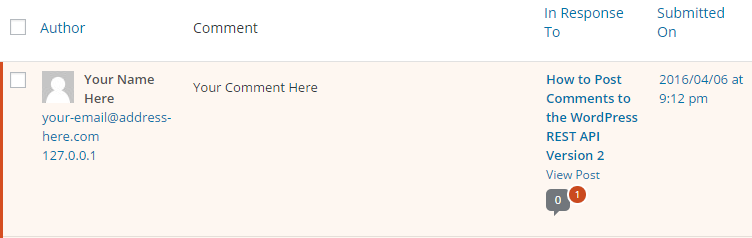
Then when you approve the comment you will see this displays correctly on your website as you would expect;

Have a go yourself. Customise the above URL with your own details and comments within the parameters and I’ll publish any successful comments. This handy URI Encoder / Decoder tool may come in useful when writing a comment or your name if it includes spaces or special characters, something I haven’t got around to migrating over to this site just yet.