by Michael Cropper | Jul 14, 2012 | Developer |
Often when working with large data sets in Excel you want to quickly identify a list of all duplicate pieces of content within a row or column. With a nice little formula and a bit of filtering this is quickly achievable. This is achieved with a simple =COUNTIF() formula as is shown below;
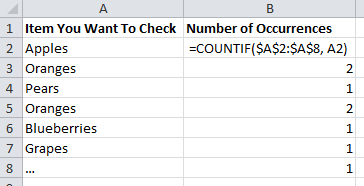
So what does all that mean? All the formula is saying is “Count the number of times the adjacent cell occurs in the whole range”. So in the example of cell B3, the formula is saying “Count the number of times the word ‘Orange’ appears within the range A2 to A8”.
Why are there dollar $ signs wrapped around the first part of the formula? This is simply telling Excel that this range is fixed. By default when you drag a formula down, all of the corresponding parts of the formula are also dragged down too, so if the dollar sign wasn’t included then then you drag down the list the results may be different as shown in another similar example below. As you can see, the results for what you would want to show the same answer are actually different – one cell says there are two occurrences of ‘Oranges’ while the other says that there is only one;
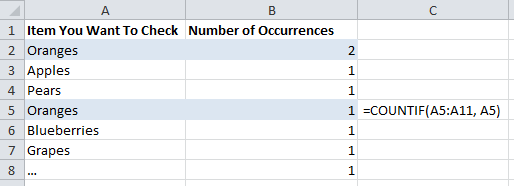
The next step that you have counted the number of occurrences of text in a range is to filter this data out by selecting the whole of Row 1 then clicking on Data > Filter as shown below;

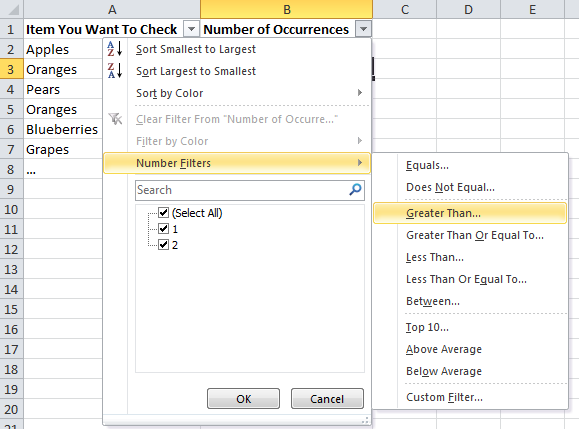
This will then allow you to filter by showing all rows that have a number greater than 1. If you click on the small drop down arrow, then onNumber Filters, then on Greater Than then you will be able to enter in data as shown below;
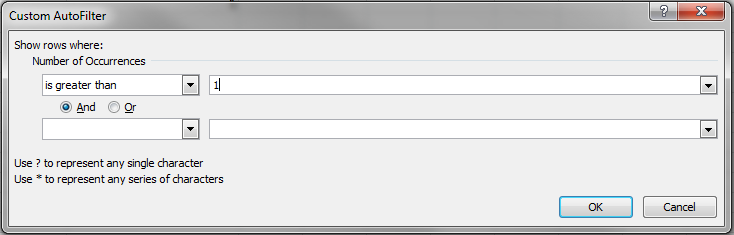
Once you click this you will be presented with an input box where you can type the number 1 into this box then press OK so that the applied filter will show just the data you require;
Now that this filter has been applied correctly you will see all the rows which have multiple occurrences within the whole column as shown below;
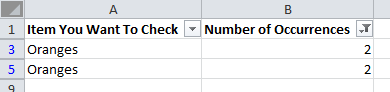
The next and final step is to simply copy and paste all of the filtered data from column A into a new tab on the spreadsheet. From there you can then select the whole of column A in the new tab and select Data > Remove Duplicates from the Excel menu as shown below;
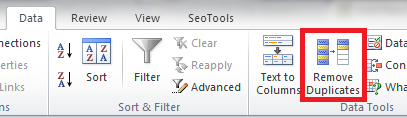
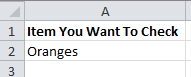
This will now leave you with a final list of unique items which occur multiple times in a range of data. Quite simple really and it can have many practical uses;
This type of work can be really useful when you need to find out what specific pages on a website have duplicate content on them or other similar tasks such as duplicate title tags or meta descriptions etc. There are endless ways that this can be used so this should provide as a starting point to guide you on some of the more useful Excel functions and opportunities.
by Michael Cropper | Jul 14, 2012 | Developer, SEO |
Whilst working in the SEO industry there are time when certain tools would make your life easier and you just can’t quite find a tool that does the job that you need. This is one occasion where I was looking for a simple sitemap generator and all of the tools that I could find were either limiting the number of URLs which could be contained to a really small number or didn’t allow me to tell the tool what the URLs actually were.

So that I why I built SimpleSitemapGenerator.org over a weekend. I’m sure there will be sitemap tools which can achieve a similar result out there that I simply have found but my patience was wearing thin searching 
Was it difficult? Not really. It was just working through some basic logic to build in exactly what I needed. Below explains how I built the tool.
What is it built with?
Simple Sitemap Generator is built on a Java platform running on an Apache Tomcat web server. Why? Because I know Java. The exact same task could be achieved using any programming language you choose if you require. My referred method of developing websites is using the Integrated Development Environment (IDE) called NetBeans.
Some hardcore programmers always prefer not to use these types of tools as they can get their self tied in knots sometimes which require a deeper understanding to untangle – so if you only use these tools you may find it difficult to figure out what is wrong. Personally, I prefer to make my life as simple as possible – why make things more difficult than they have to be to achieve the task in hand?

How does it work?
Quite simply really, the list of URLs are parsed using a Java program behind the scenes which separates all URLs by the new line character. The other items including the change frequency, last modified and the priority are also picked up from the main form then used in the program.
The program ultimately just runs through each of the URLs within the list (up to a maximum of 50,000 URLs due to this limitation within XML sitemaps) and wraps the correct tags around each item based on the latest XML sitemap specification.
Below is a simple diagram about how the program uses the data which has been entered on the form so you can see how the logic works in the program. I have excluded any of the Java code so it is a little easier to understand for the non-technical people.
(click on image for a larger view)
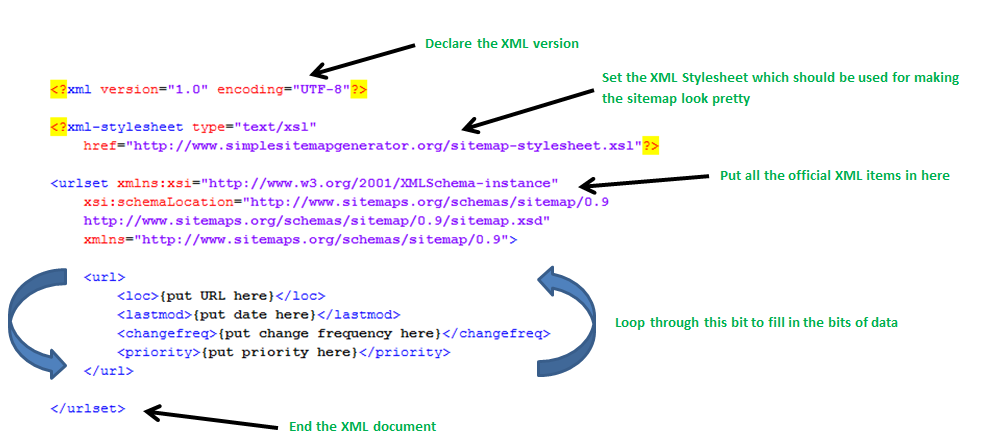
Then the sitemap is complete! So it is just about displaying that nicely to the user.
How did you design the logo?
I am not a big fan of designing anything and I am very poor at doing so. My preferred method of developing logos and nice graphics is using Microsoft Word combined with Paint.Net to achieve a few nicer effects if needed.
Why do I use these tools? Because using the more advanced tools are way beyond my skill set and I don’t have the time or desire to try and master these. The basics serve my purposes for the time being but not to say that I may not learn in the future – just not in the near future.
Why didn’t you build in a website scraper?
A lot of other sitemap generator tools have built in website scrapers and can identify all URLs on your website easily, although these are always limited by the number of URLs they can crawl. There are several reasons why I didn’t build in a web scraper to the tool;
The first reason being that by having a website that crawls the whole of a website leaves the tool open to abuse by people wanting to attack certain websites by making the tool send thousands of requests towards a certain website. This is more commonly known as a Denial of Service (DOS) attack. This amount of requests can bring websites to their knees or totally offline.
If I built in a scraper function into the tool then it would be very simple for someone to enter in “www.website.com” into the scraper tool and press ‘go’ and continue doing the same in endless tabs in their browser. The result from which would be thousands of requests going to www.website.com. There is always ways to get around this type of abuse but this requires more time to build into the tool.
The second reason why I didn’t build a web scraper into the tool is because there are already really good tools out there that can do this for you, namely Xenu Link Sleuth. Why re-invent the wheel?
I primarily built this tool for myself as I will find it useful as I work on a lot of different websites, so it makes my life simpler. I can quickly identify all URLs on a website using Xenu so I didn’t need to go re-designing this as I can simply use a combination of tools to achieve the task which works out quicker.
The third reason why I didn’t do this is because the actual server overheads to crawl an awful lot of URLs to scrape a website, then parse all of the information to use in the sitemap is an awful lot and since there will likely be very little income from the tool (advertising makes pennies!) then this would purely be a loss making exercise for me and that doesn’t sound like too much fun.
Why can’t you have different priorities for different URLs?
Because I didn’t build this in as (in my opinion – I’m sure there will be people with other opinions on this!) there is very little value in changing this from 0.1, 0.4, or 1.0. The aim of the tool is to quickly build an XML sitemap from a list of URLs so you can tell search engines about content they may not already be aware of. If you want to quickly tell them about content then why would you set a lower priority for content?
While it may be interesting to build into the tool a way to prioritise URLs based on their importance, there are no plans to do this in the near future. If you want to begin doing things like this then I suggest you build a custom XML sitemap generator which is more integrated into your content management system / database so that it can be continually upgraded.
How did you choose the font and colour scheme?
As you know already that I created the logo in Microsoft Word, well you may notice the font from another post I did a while ago about the 200 signals in Google ranking algorithm (and yes, that image was also created in Word). Why the font? Because I like it. Simple as that.
Why the colour scheme? For the same reason, I like that basic green colour in Word for colouring sections of text in (I usually use this for ticking off items on a to-do list or similar) so it seemed like a nice choice and I think it works quite well.
How about the main navigation colour scheme? Well I actually just pulled this whole navigation from another website I have developed as I wanted to quickly create a navigation menu and there was little value in creating one from scratch. So this was more of a quick and dirty approach which achieves the aim of being a navigation menu.
How did you get the XML sitemap to look pretty?
If you view the sitemap for the actual website, http://www.simplesitemapgenerator.org/sitemap.xml then you can see the sitemap is styled all nicely as is seen below;
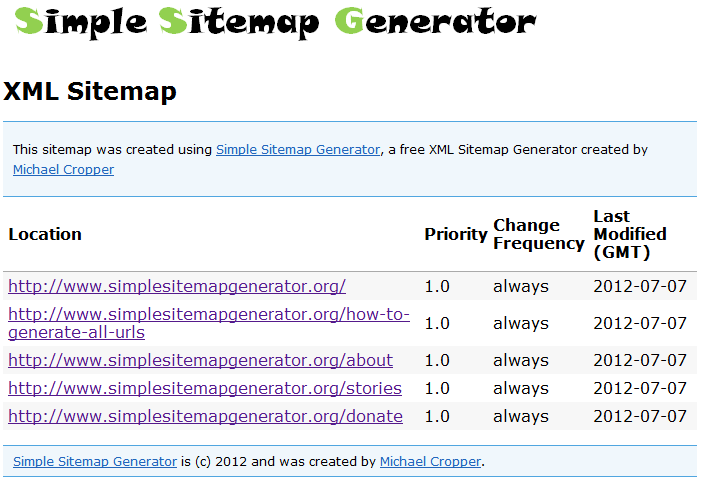
Isn’t an XML sitemap supposed to look like a normal XML document though? Well usually yes, but it is possible to style up XML sitemaps so they look nice. This is using an XML Stylesheet which is achieved by adding a line of code to the top of the XML Sitemap as follows;
<?xml-stylesheet type=”text/xsl” href=”http://www.simplesitemapgenerator.org/sitemap-stylesheet.xsl”?>
This line of code is pulling in the stylesheet information from a separate stylesheet file which is making the XML document look a little nicer. I will be doing another post about how to create these as they are reasonably straight forward to implement and can make your XML sitemap a little more user friendly and they also have other SEO benefits such as being able to easily ping all of the URLs to ensure they are working etc.
Summary
So there is a bit of information about how I builtSimpleSitemapGenerator.org in a weekend. Quite simple really, it was just about allowing basic data to be entered onto a form then parsing the results and outputting to a nice format which is in line with the latest XML sitemap specifications.
I always encourage people to give something a go and try and solve a solution to a problem yourself as it really isn’t that difficult. The added bonus that it is fun doing so too!
This tool has certainly made my life easier and will continue to do so. I hope it can be of some use to you as well. If you do find it useful then please share
by Michael Cropper | Jun 14, 2012 | Developer, SEO |
How to Count the Number of Occurrences of Text in a Cell
Quick reference tip;
=SUM(LEN(<range>)-LEN(SUBSTITUTE(<range>,”text”,””)))/LEN(“text”)+1
=SUM(LEN(B2)-LEN(SUBSTITUTE(B2,”|”,””)))/LEN(“|”)+1(example)
=SUM(LEN(B2)-LEN(SUBSTITUTE(B2,”separator”,””)))/LEN(“separator”)+1(example)
Read the full blog post about how to count the number of occurrences of text in a cell here about how to use this.
How to Count the Number of Occurrences of Text in a Column in Excel
Quick reference tip;
=COUNTIF(<range>, “text”)
=COUNTIF($A$2:$A$8, A2) (example)
=COUNTIF($A$2:$A$8, “Apples”) (example)
Read the full blog post about How to Count the Number of Occurrences of Text in a Column in Excel here about how to use this.
How to VLOOKUP Using Partial Matches in Excel
Quick reference tip;
=VLOOKUP(CONCATENATE(“*”, <lookup value>, “*”), <range>, 1, FALSE)
=VLOOKUP(CONCATENATE(“*”, A2, “*”), B2:B10, 1, FALSE)(example)
=VLOOKUP(CONCATENATE(“*”, “Jim”, “*”), B2:B10, 1, FALSE) (example)
Read the full blog post about How to VLOOKUP Using Partial Match for how to use this.
How To Get The Domain Name From a URL in Excel
Quick reference tip;
=MID({CELL OF FULL URL}, FIND(“//”, {CELL OF FULL URL})+2, FIND(“/”, {CELL OF FULL URL}, 10)-8)
=MID(A1, FIND(“//”, A1)+2, FIND(“/”, A1, 10)-8)
=MID(“http://www.michaelcropper.co.uk/2012/10/how-to-scrape-the-href-attribute-using-xpathonurl-seo-tools-1252.html“, FIND(“//”, “http://www.michaelcropper.co.uk/2012/10/how-to-scrape-the-href-attribute-using-xpathonurl-seo-tools-1252.html“)+2, FIND(“/”, “http://www.michaelcropper.co.uk/2012/10/how-to-scrape-the-href-attribute-using-xpathonurl-seo-tools-1252.html“, 10)-8)
Read the full blog post on How To Get The Domain Name From a URL in Excel for detailed information about how to use this formula.
by Michael Cropper | Jun 14, 2012 | Developer |
Often can be the case where interesting requests come in from people you are working with which there doesn’t appear to be a useful tool available for quickly gathering the information. This is an interesting required which has come in today about how to quickly identify all external links on a website.
This is actually quite a common issue since with various content management systems simply adding various content (and links) around hundreds/thousands of pages across a website, how do you easily find all of the external links correctly?
Fortunately, I have figured out a nice way using a bit of XPath, the SEO Tools plugin for Excel, and Xenu.
If you are looking for a quick answer then this is the XPath required to identify external links on a single web page;
//a[not(contains(@href, ‘www.michaelcropper.co.uk’))]/@href
So what does this actually mean?
- //a : Get me any links that …
- [not(contains( : … do not contain …
- @href : … a link which ….
- ‘www.michaelcropper.co.uk’))] : … contains this website address and …
- /@href : … get the HREF attribute for this link
Make sense? Good. Lets look at actually using this XPath in a useful way.
SEO Tools Plugin
Now the interesting thing is when using XPathOnURL with SEO Tools, this doesn’t actually bring back the HREF attribute, instead it pulls back the first URL on the page which may be good enough for this purpose. So the function would be as follows when the URL you want to test against is in cell A1;
=XPathOnUrl(A1, “//a[not(contains(@href, ‘www.michaelcropper.co.uk’))]/@href”)
In the example above I was testing on the URL http://www.michaelcropper.co.uk/2012/06/googles-business-plan-steal-content-and-screw-publishers-1081.html as that contains a link to an external website. So now we want to look at scaling this up for a bunch of URLs on a website.
Xenu
Now you know how to check if a specific URL contains an external link, then the next step would be to do this for all URLs on the site you want to check.
Simply get Xenu installed and run the program on any website which you can then export all website URLs into an Excel file.
Now you will have a huge list of all URLs on a website, where you can then run the same XPathOnURL function on to identify all pages on a website which contain at least one external link.
Summary
This is likely only one solution to a problem and doesn’t actually allow you to create a definitive list of every single external link on every page of the website, but it does tell you which pages on a website contain an external link to another website.
Simple, but effective.
by Michael Cropper | Jun 14, 2012 | Developer |
With various SEO tasks it is often the case where you need to count the number of occurrences of text in a cell. Unfortunately there isn’t a nice and simply formula to do this, but there is a work around.
Take the example if you download all of the duplicate title tags from a website from Google Webmaster Tools. The way that Google presents this data is in a two column format as seen below;

As you can see in the image above, this isn’t that useful in itself as often the pages with duplicate title tags can be the same page simply with parameters appended. These pages can often be listed a number of times if it is something like a session ID as the parameter which Google has managed to identify. What would be nice is if Google actually listed a number next to the list which is downloaded telling you how many pages the title tag is duplicate over as this would be a nice starting point to prioritise fixing all of those issues – unfortunately they don’t.
Instead you have to use a bit of Excel Magic to calculate this information. Fortunately within the downloaded spreadsheet, the URLs listed in column B are separated by the pipe symbol ‘|’ which can be used as part of the formula below;
=SUM(LEN(<range>)-LEN(SUBSTITUTE(<range>,”text”,””)))/LEN(“text”)+1
So what does this mean? Well if we put this formula into cell C2 following on from the original example above, then this is what it would mean….
=SUM(LEN(B2)-LEN(SUBSTITUTE(B2,”|”,””)))/LEN(“|”)+1
What the formula is doing is counting the number of occurrences of the pipe symbol ‘|’ then adding 1 to that number. Why adding 1? Because if two URLs in (this example) are listed in cell B2, then there will only be 1 pipe symbol and we want to know how many URLs the title tag is duplicated over.
Below is the final example of how this looks when implementing this solution;

Now that you have the formula for doing this work, you can easily apply this same logic to any similar tasks where you need to count the number of occurrences of text contained within a cell in Excel.