by Michael Cropper | Jun 7, 2014 | Developer, Technical |
Within our daily work we use Excel an awful lot, so naturally we like to use Excel to its full potential using lots of exciting formulas. One of the major challenges within Excel is trying to use a VLOOKUP function within a VLOOKUP function. In summary, this isn’t possible. The reason this isn’t possible is due to the way the VLOOKUP function works. Let’s remind ourselves what the VLOOKUP function actually does;
=VLOOKUP(lookup_value,table_array,col_index_num,range_lookup)
What this means in basic terms is “find me a specific cell within a table of data where a certain criteria is met”. This is such a powerful function that can be used to speed up work in so many different ways. But we aren’t going to look at why this is so great here, we are going to look at the main limitation and most importantly how to get around this with more clever magical Excel formulas.
Solutions
The solution to this is quite a complex one and one that involves many different Excel formulas including;
- =ROW()
- =INDEX()
- =SUMPRODUCT()
- =MAX()
- =ADDRESS()
- =SUBSTITUTE()
- =MATCH()
- =CONCATENATE()
Throughout this blog post we’ll look at what each of these mean and how they can all be used in conjunction to perform a function what is essentially equivalent to a VLOOKUP within a VLOOKUP.
The Data
Before we jump into how to solve the problem of performing a VLOOKUP within a VLOOKUP, here is the data that we will be working with. Let’s assume that we have a large list of products which are associated with multiple different categories as can be seen below;
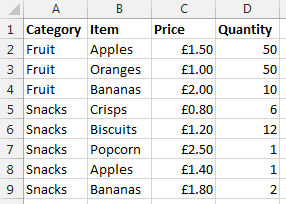
Data Sheet – Prices
You may be wondering why apples and bananas are classed as snacks in the data. Don’t worry about that. Just go with it. There are many different situations whereby you may be presented with this type of data so this is purely to illustrate the example in a simple way.
Now let’s say that you want to visualise this information a little easier. The above table of only 8 entries is reasonably straight forward. Although one example we’ve been recently working with had over 35,000 rows of data which was a little more challenging to view in this format and we wanted a simpler way of looking at this information within Excel. So let’s say we want to look at the data in the following way;
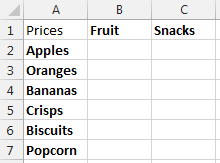
Data Sheet – Summary Prices
This is the data that we will be working with so you can clearly see how this technique can be implemented. To keep things easier to understand, these two pieces of data are kept on two separate sheets within the Excel worksheet.
Quick Answer
Looking for the quick answer to this complex formula? Then here is the answer;
=IFERROR(VLOOKUP($A2, INDIRECT(CONCATENATE(“‘Prices’!”, SUBSTITUTE(ADDRESS(MATCH(B$1, Prices!$A$1:$A$100, 0), 1), “A”, “B”), “:”, SUBSTITUTE(ADDRESS(ROW(INDEX(Prices!$A$2:$A$100,SUMPRODUCT(MAX((Prices!$A$2:$A$100=B$1)*ROW(Prices!$A$2:$A$100))-1))), 1), “A”, “D”))), 2, FALSE), 0)
You may be a little confused with the above, so this post will explain exactly what each part of this means and why it is contained within the rather large and complex formula above. Most importantly, you will be able to understand how to perform the equivalent of a VLOOKUP inside a VLOOKUP.
Steps
The individual steps within the above formula can be broken down into much smaller and easier to understand steps as can be seen below;
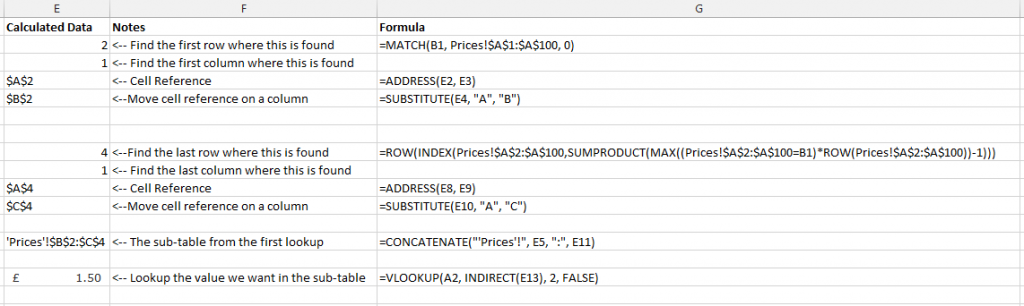
Steps for how to perform a VLOOKUP inside a VLOOKUP
Below we will talk through each of the above steps so you can understand why it is important.
Find the Sub-Table
Firstly if you are wanting to perform a VLOOKUP within a VLOOKUP then you need to find where the sub-table starts and ends. While you could manually enter this in for very small data sets, this is simply not practical for large data sets.
To perform this action we need to define search for the first and last occurrence of when ‘something’ is found. A note on this point, you will need to ensure that your lookup data, in this case the ‘Prices’ sheet, is ordered by the column you are looking up, in this case the ‘Category’ column. Since if this isn’t the case, then data will be included within this sub-table which shouldn’t be.
To do this, we need to find both the first occurrence and the last occurrence. What we are looking to achieve is identify the sub-table for ‘Fruit’ which can be seen below;
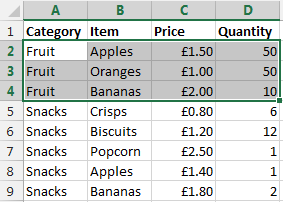
The sub-table we are looking for
Once this has been identified, then we can use the standard =VLOOKUP() function on this sub-table to find the data we would like.
Find the First Occurrence
There are a few different formulas included to find the first occurrence of data within a column which are outlined below.
=MATCH()
To find the first occurrence of ‘something’ within a range of data then we use the =MATCH() function. To remind ourselves of what the MATCH() function is, here is the official description from Microsoft;
The MATCH function searches for a specified item in a range of cells, and then returns the relative position of that item in the range. For example, if the range A1:A3 contains the values 5, 25, and 38, then the formula
=MATCH(25,A1:A3,0)
returns the number 2, because 25 is the second item in the range.
Use MATCH instead of one of the LOOKUP functions when you need the position of an item in a range instead of the item itself. For example, you might use the MATCH function to provide a value for the row_num argument of the INDEX function.
MATCH(lookup_value, lookup_array, [match_type])
Source
Looking back at our example, this translates into the formula;
=MATCH(B1, Prices!$A$1:$A$100, 0)
What this means is;
- Find the contents of B1, which is ‘Fruit’ in our example
- Within the range of data Prices!$A$1:$A$100
- And make sure it matches exactly (0)
This has now found the first occurrence of this information within the column of data. Now we need to translate this into something that a VLOOKUP formula can use.
=ADDRESS()
The next bit we need to look at is turning the row & column numbers into an ‘Address’ which Excel can understand. To do this we simple create the formula;
=ADDRESS(E2, E3)
The =ADDRESS() function takes a Row Number and a Column Number and turns that into an Address. In this case, the row number is generated from the previous function, =MATCH() and the value of E3 in the example above is 1. We use 1 because for this we are only interested in starting on the first column of data. Once we know we are starting here we can always move the cells along accordingly.
In our example, this address at this point in the large formula is set to $A$2.
=SUBSTITUTE()
Now we know we have created an Address in the previous step which was within column 1, this is also the same as column A. This makes life easy for us as we know where this is. The next step is to nudge the sub-table over so the =VLOOKUP() function can easily lookup the data in the later step.
To do this, we simply nudge the starting Address over to the right by one column using the following formula;
=SUBSTITUTE(E4, “A”, “B”)
Where E4 is the cell which contains the Address from the previous step.
The cell that has been identified as part of this step is the first occurrence as can be seen below;
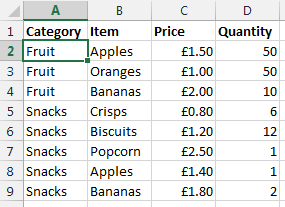
Find the first occurrence of data within the column
Now we want to nudge this over using the above function which will mean this item is now set to $B$2 which is the starting point of our sub-table.
Ok, so we now have the starting point for the sub-table for the VLOOKUP to use. We now need to calculate the end point so the sub-table can be used within the VLOOKUP.
Find the Last Occurrence
Finding the first occurrence of data in column is a lot easier than finding the last occurrence as you can see from the formula below that we need to do this;
=ROW(INDEX(Prices!$A$2:$A$100,SUMPRODUCT(MAX((Prices!$A$2:$A$100=B1)*ROW(Prices!$A$2:$A$100))-1)))
The key functions we need here are;
- =ROW() – Which takes a reference and calculates which row number this is on
- =INDEX() – Which returns a value or the reference to a value from within a table or range.
- =SUMPRODUCT() – This is used to tell Excel the calculations are an array and not an actual number
- =MAX() – This is used to find the largest row number in the array where the lookup value occurs
- =ROW() – This, as before, is pulling out the Row Number from the data retrieved
Unlike previously, it is not simple to break this out into sub-sections to explain the different points as the formulas don’t work when breaking them our separately due to the way the =SUMPRODUCT() function works. As such, I’ll talk through what each of the different parts of the formula mean and what they do.
=SUMPRODUCT(MAX((Prices!$A$2:$A$100=B1)*ROW(Prices!$A$2:$A$100))-1)
This formula is identifying the last occurrence of the data that is in cell B1 within the range of data $A$2:$A$100, which in our example is ‘Fruit’. We then wrap this in the =INDEX() function to get the cell reference then wrapping this in the =ROW() function which will identify the row number where this data is found;
=ROW(INDEX(Prices!$A$2:$A$100, SUMPRODUCT(MAX((Prices!$A$2:$A$100=B1)*ROW(Prices!$A$2:$A$100))-1)))
You may have spotted the -1 in the formula above. This is to ensure that the data is pulling back the correct row number. If this isn’t there, then you will notice that the data that is pulled back is a row below where you would expect.
To get a good understanding of the above part of the formula, then I’d recommend reading the fantastic guide over at Excel User.
What we have achieved using the above combination of formulas can be seen below as the last occurrence of data in the column;
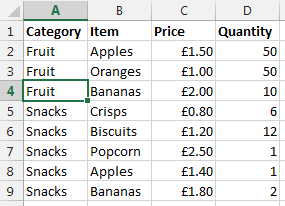
Find the last occurrence of data in the column
Once we have this data we then wrap this in an =ADDRESS() function then a =SUBSTITUTE() formula which first turns the result into an Address that Excel can understand, opposed to standard text, then moves the data over several columns from column A to column D. This is needed, since we will be creating a sub-table that includes several columns. In this case, 3 columns which are column B, C and D. If you are working with data with more columns, then you will need to replace the D with a higher column.
SUBSTITUTE(ADDRESS(ROW(INDEX(Prices!$A$2:$A$100,SUMPRODUCT(MAX((Prices!$A$2:$A$100=B$1)*ROW(Prices!$A$2:$A$100))-1))), 1), “A”, “D”)))
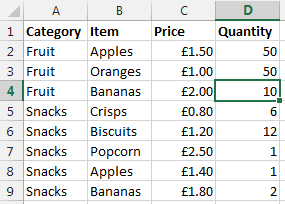
Move the column to the end so we can create a sub-table that contains all the required data
So now the end of the sub-table is set to $D$4 which means that we have a starting point and an end point for our sub-table which can be used in the =VLOOKUP() function as outlined below.
Lookup Data in the Sub-Table
Now we have the sub-table defined using all of the above formulas, we can use the standard =VLOOKUP() function once we have joined all of the above data together.
Create the lookup table
Now we have all of the above points, we need to create the lookup data using the standard =CONCATENATE() formula as can be seen below;
=CONCATENATE(“‘Prices’!”, E5, “:”, E11)
The data within E5 is the starting point of the sub-table, and the data within E11 is the end point within the sub-table. In our example, this gives us the answer of ‘Prices’!$B$2:$D$4.
Lookup data
Now we have the sub-table to lookup the data we want, we can simple use the standard =VLOOKUP() function to find the data that we require as follows;
=VLOOKUP(A2, INDIRECT(E13), 2, FALSE)
We wrap the concatenate function within the =INDIRECT() function so that the data is treated as a reference, opposed to text. The data within E13 is the result of all of the work previously in this post, I’ve just left this in here to make this easier to read and understand. For the full formula, this would be replaced with the individual parts. Now the data that is brought back is exactly what we want.
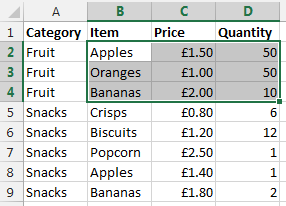
Sub-table of data based on initial criteria
What this final =VLOOKUP() function is doing is saying “find the value in A2 within the sub-table we have identified, then bring back the second column of data. So in our example, the long formula in column B1 is bringing back the data £1.50 as can be seen below;
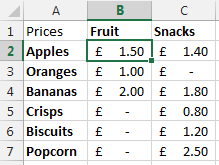
Result of a VLOOKUP inside a VLOOKUP
Summary
So there you have it, how to perform the equivalent of a VLOOKUP within a VLOOKUP using a few different formulas within Excel. You may be a little scared of such a huge formula at first, but you will see that when you do need to use this, I would always recommend breaking this out into the different parts before trying to create one monolithic formula as you will be able to put this together much easier.
Also, in the formula below, you will notice that it is all wrapped in an =IFERROR() function which simply sets the data to 0 if nothing can be found. You can set this to whatever you like, I just chose 0 since this was about prices.
=IFERROR(VLOOKUP($A2, INDIRECT(CONCATENATE(“‘Prices’!”, SUBSTITUTE(ADDRESS(MATCH(B$1, Prices!$A$1:$A$100, 0), 1), “A”, “B”), “:”, SUBSTITUTE(ADDRESS(ROW(INDEX(Prices!$A$2:$A$100,SUMPRODUCT(MAX((Prices!$A$2:$A$100=B$1)*ROW(Prices!$A$2:$A$100))-1))), 1), “A”, “D”))), 2, FALSE), 0)
=IFERROR(VLOOKUP({Main-Lookup-Value}, INDIRECT(CONCATENATE(“‘{Sheet}‘!”, SUBSTITUTE(ADDRESS(MATCH({Sub-Table-Lookup-Value-First-Occurrence}, {Sheet}!{Sub-Table-Lookup-Range}, 0), 1), “A”, “B”), “:”, SUBSTITUTE(ADDRESS(ROW(INDEX({Sheet}!{Sub-Table-Lookup-Range},SUMPRODUCT(MAX(({Sheet}!{Sub-Table-Lookup-Range}={Sub-Table-Lookup-Value-Last-Occurrence})*ROW({Sheet}!{Sub-Table-Lookup-Range}))-1))), 1), “A”, “{Column-Letter-For-End-Of-Table}“))), 2, FALSE), 0)
Simple really!
Ok, so this isn’t for the faint hearted. But for those advanced Excel users around I’m sure you will have come across times when you really needed to perform a VLOOKUP inside a VLOOKUP and found that after a long time researching how to do this online that it isn’t a simple task. So hopefully you can see the clear steps included above and this will help in the future. The beauty of the above formula is that you can now drag this into new rows and new columns without having to update anything, all thanks to the $ signs throughout the formula.
by Michael Cropper | Jun 3, 2014 | SEO |
Ok, we’ve all been there, jumped on social media channels for 5 minutes then looked at the clock and wondered where the last hour went. What we’re going to talk about in this blog post is about the importance of UTM tracking parameters and how they can be used to accurately track social media activities.

What are UTM Tracking Parameters?
Unless you are quite a savvy digital marketer you may not have come across UTM tracking parameters previously, so before we look at how they link in with social media we will run through a short history and technical lesson. UTM stands for Urchin Tracking Monitor. Urchin was the predecessor to what is now known as Google Analytics which we all know and love.
One of the core pieces of technology underlying both Urchin, and now Google Analytics, is the ability to clearly track information about where a website visitor came from when they landed on your website. This core functionality was extended to allow business, brands and marketing managers to customise this information as they please. What all of this means is that UTM tracking parameters allow traffic to your website to be tracked accurately.
The UTM tracking parameters are the additional bits of information that you may have seen in website addresses as can be seen in the example below;
www.contradodigital.com?utm_source=www.bbc.co.uk&utm_medium=referral&utm_campaign=cool-tech-review
What you will see in the website address above is three additional pieces of information, the UTM tracking parameters;
- utm_source: i.e. where did this user come from
- utm_medium: i.e. what type of traffic is this – direct, referral, social, organic or paid
- utm_campaign: i.e. was this from a specific marketing campaign that you ran
In addition to the required parameters above, you can also further customise the information by adding additional information such as;
- utm_term: i.e. if this was from a paid advertising campaign where you bid on specific keywords, such as with Google AdWords
- utm_content: i.e. if you wanted to test different Ad Variations for your paid advertising campaigns, you can track this back with this parameter
Ok, so you may be wondering what this has to do with social media. Before we go onto that, just a bit more important technical background information that you need to understand before we look at how this links in with social.
How referral traffic is tracked within Google Analytics
By default, Google Analytics handles all of the magical UTM tracking parameters in the background (and much more) automatically if a URL doesn’t have anything specified. For example, if a user visits www.contradodigital.com without any UTM tracking parameters in the URL, then Google will see what information they have available about where this person came from and use this to feed into the correct buckets of information within Google Analytics automatically.
For example, if a user came from organic search, then Google knows this and that is why you see website traffic classed as ‘Organic’ and from ‘Google’ within Google Analytics. Likewise, if a user clicks on a link on an external website and lands on your website, then this would be classed as referral traffic within Google Analytics.
The reason why Google Analytics is able to understand this is due to the way web browsers work. When you browse the internet, web browsers pass basic information between websites such as the domain name where you came from.
For example, you can see a page we shared on our Twitter account recently;
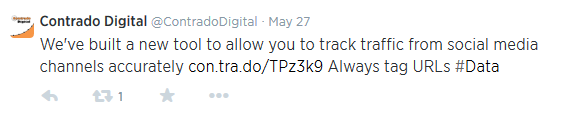
Webpage we shared on our Twitter account
The shortened website address con.tra.do/TPz3K9 is actually the following website address https://www.contradodigital.com/resources/social-media-tracking-tool/?utm_source=Twitter&utm_medium=Social&utm_campaign=Our-Social-Updates and as you will notice, this has included the UTM tracking parameters in the URL.
This isn’t what I want to talk about here though. Hidden away in the browser when a user actually clicks on this link is additional information within the HTTP Header which contains information for the website where the user is going to, i.e. in this example our website. Below is a screenshot of the HTTP Header information when a user clicks on the link;
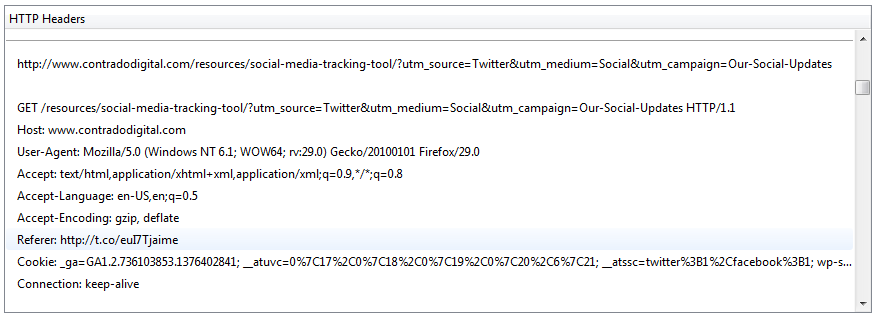
HTTP Header Referer Information Example
What you will notice in the highlighted line is the Referer information. Yes, you will notice that is actually spelt incorrectly and there is a rather interesting story behind this if you are interested and wondering why this is still widely used.
The referrer information is telling the website that you are landing on the full website address where the user came from. So in this case, this is http://t.co/euI7Tjaime which is the automatically shortened URL that Twitter now uses.
What this means is that within your Google Analytics account, if you didn’t use UTM tracking parameters, then the traffic would be listed as from t.co, opposed to twitter.com. This is due to the automatic shortened URL that Twitter uses.
You may be wondering why this is a problem. Traffic from twitter is coming from t.co, which we know to be Twitter. So why is this a problem for us? Well, glad you asked.
Optional Referrer Information
The reason why this is a problem is that the referrer header information is optional, meaning that it may not always be present depending on where and what ‘thing’ the user came from. This generally isn’t too much of a problem for modern browsers as they do support this by default. The problem lies with the range of technologies people are using to access information on the internet.
For example, 80% of Twitter users in the UK access the service from a mobile phone. This is huge. A large of these people will be using native mobile applications on their devices, opposed to visiting the www.twitter.com website to use the service.
What this means is that the referrer header information often isn’t passed along when a user clicks on a link. So when a user is flicking through their Twitter feed over coffee in the morning and they see a link to some amazing content you have on your website, then this traffic will be potentially be classed as direct traffic within Google Analytics. Wait. What? This isn’t right. This is the key point to take away from the blog post.
Direct traffic within Google Analytics isn’t people who typed in www.your-website.com into their browser. No. Direct traffic is actually Google’s way of saying ‘we have no idea where this traffic came from’.
This may be difficult to grasp just reading through this quite technical blog post, so let’s illustrate this for clarify. We have been focusing on Twitter throughout this blog post, although this isn’t just Twitter where this problem lies. This is a large scale tracking problem that can only be solved with using correct UTM tracking parameters on your URLs.
Missing Referrer Information
To illustrate the point above, I picked up my phone (Samsung Galaxy S4), opened the Facebook application that I have installed and navigated to the Contrado Digital Facebook page as can be seen below;

Contrado Digital Facebook page as viewed from a native mobile application on phone
I then clicked on the ‘Visit Website’ link. Now imagine this was a normal status update that you shared a link to your website, this is the same thing. Then I headed over to Google Analytics to view the Real Time Analytics report which shows who is on the website right now, and most importantly where they came from;
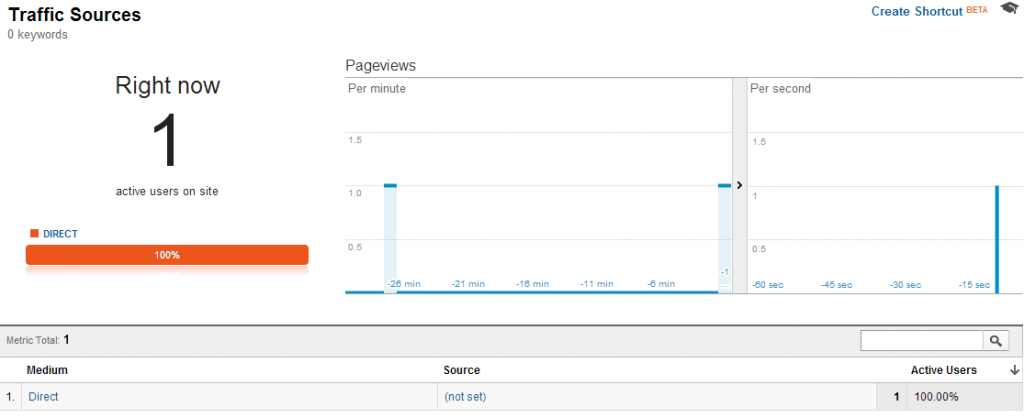
Google Analytics Real Time traffic report no referral data from Facebook native mobile application
What you will notice here is that the medium is set to ‘Direct’ and the source is ‘(not set)’. This isn’t good. This should be set to ‘Social’ and ‘Facebook’ respectively. What this means is that you will be receiving traffic from your social media channels, although you won’t know that it is from your social media channels if you don’t tag your URLs up with UTM tracking parameters correctly.
If you are spending a reasonable amount of time implementing your social media strategy, then you want to know that it is delivering results. I repeated the same process, although on our Twitter account and this traffic is actually coming through correctly from the mobile application that I am using as can be seen below;
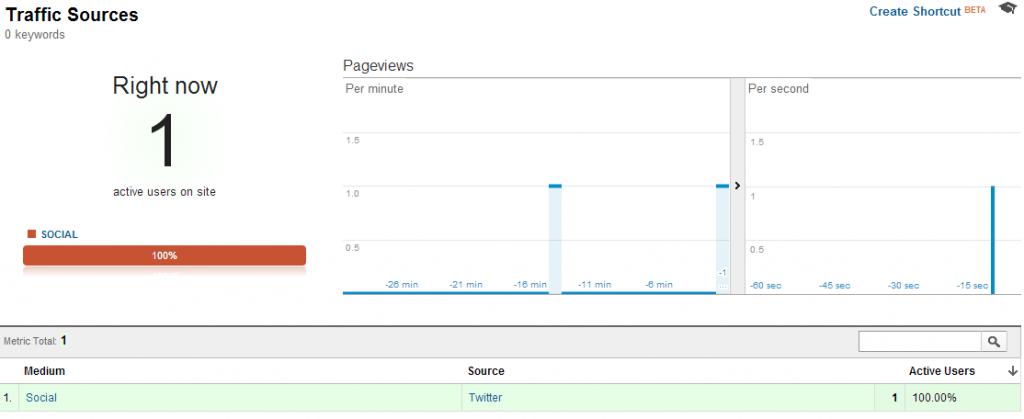
Google Analytics Real Time traffic report shows referral data from Twitter native mobile application
What this does highlight is the inherent discrepancy between different native mobile applications and that some will and some won’t pass on the referrer header information for the website to pick up on. If I was to repeat this experiment using a different mobile application that was pulling in Tweets or social media updates, then the response will likely be different again. Likewise, if I was to repeat the experiment on an Apple iPhone then again the results would likely differ.
The Solution
What you will hopefully have picked up on throughout this blog post is that unless you are using UTM tracking parameters on all URLs that you share on social media channels then you will not be getting a full picture about how your social media marketing efforts are performing.
Thankfully, you’ll be glad to know that there is a simple and effective solution. That is to use our Social Media Tracking Tool which will automatically add on the relevant UTM tracking parameters for the main social media channels you will be using.
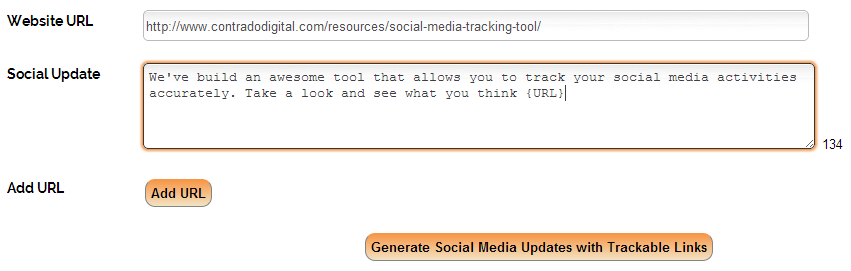
Social Media Tracking Tool
What this means is that when you share correctly tagged up URLs on your social media channels, you will be able to see within Google Analytics exactly where the user has come from. I.e. Twitter, Facebook, Google+, LinkedIn or Pinterest. No longer will you have to guess where traffic is coming from. Tag your URLs and track the data accurately.
While UTM tracking parameters are very simple in their nature, the underlying technology behind them can get quite technical. If you have any questions or comments on the above then leave a comment below.
Have fun tracking all of your social media updates accurately from now on!
by Michael Cropper | Jun 3, 2014 | Social Media, Tracking |
Ok, we’ve all been there, jumped on social media channels for 5 minutes then looked at the clock and wondered where the last hour went. What we’re going to talk about in this blog post is about the importance of UTM tracking parameters and how they can be used to accurately track social media activities.
What are UTM Tracking Parameters?
Unless you are quite a savvy digital marketer you may not have come across UTM tracking parameters previously, so before we look at how they link in with social media we will run through a short history and technical lesson. UTM stands for Urchin Tracking Monitor. Urchin was the predecessor to what is now known as Google Analytics which we all know and love.
One of the core pieces of technology underlying both Urchin, and now Google Analytics, is the ability to clearly track information about where a website visitor came from when they landed on your website. This core functionality was extended to allow business, brands and marketing managers to customise this information as they please. What all of this means is that UTM tracking parameters allow traffic to your website to be tracked accurately.
The UTM tracking parameters are the additional bits of information that you may have seen in website addresses as can be seen in the example below;
www.contradodigital.com?utm_source=www.bbc.co.uk&utm_medium=referral&utm_campaign=cool-tech-review
What you will see in the website address above is three additional pieces of information, the UTM tracking parameters;
- utm_source: i.e. where did this user come from
- utm_medium: i.e. what type of traffic is this – direct, referral, social, organic or paid
- utm_campaign: i.e. was this from a specific marketing campaign that you ran
In addition to the required parameters above, you can also further customise the information by adding additional information such as;
- utm_term: i.e. if this was from a paid advertising campaign where you bid on specific keywords, such as with Google AdWords
- utm_content: i.e. if you wanted to test different Ad Variations for your paid advertising campaigns, you can track this back with this parameter
Ok, so you may be wondering what this has to do with social media. Before we go onto that, just a bit more important technical background information that you need to understand before we look at how this links in with social.
How referral traffic is tracked within Google Analytics
By default, Google Analytics handles all of the magical UTM tracking parameters in the background (and much more) automatically if a URL doesn’t have anything specified. For example, if a user visits www.contradodigital.com without any UTM tracking parameters in the URL, then Google will see what information they have available about where this person came from and use this to feed into the correct buckets of information within Google Analytics automatically.
For example, if a user came from organic search, then Google knows this and that is why you see website traffic classed as ‘Organic’ and from ‘Google’ within Google Analytics. Likewise, if a user clicks on a link on an external website and lands on your website, then this would be classed as referral traffic within Google Analytics.
The reason why Google Analytics is able to understand this is due to the way web browsers work. When you browse the internet, web browsers pass basic information between websites such as the domain name where you came from.
For example, you can see a page we shared on our Twitter account recently;
Webpage we shared on our Twitter account
The shortened website address con.tra.do/TPz3K9 is actually the following website address https://www.contradodigital.com/resources/social-media-tracking-tool/?utm_source=Twitter&utm_medium=Social&utm_campaign=Our-Social-Updates and as you will notice, this has included the UTM tracking parameters in the URL.
This isn’t what I want to talk about here though. Hidden away in the browser when a user actually clicks on this link is additional information within the HTTP Header which contains information for the website where the user is going to, i.e. in this example our website. Below is a screenshot of the HTTP Header information when a user clicks on the link;
HTTP Header Referer Information Example
What you will notice in the highlighted line is the Referer information. Yes, you will notice that is actually spelt incorrectly and there is a rather interesting story behind this if you are interested and wondering why this is still widely used.
The referrer information is telling the website that you are landing on the full website address where the user came from. So in this case, this is http://t.co/euI7Tjaime which is the automatically shortened URL that Twitter now uses.
What this means is that within your Google Analytics account, if you didn’t use UTM tracking parameters, then the traffic would be listed as from t.co, opposed to twitter.com. This is due to the automatic shortened URL that Twitter uses.
You may be wondering why this is a problem. Traffic from twitter is coming from t.co, which we know to be Twitter. So why is this a problem for us? Well, glad you asked.
Optional Referrer Information
The reason why this is a problem is that the referrer header information is optional, meaning that it may not always be present depending on where and what ‘thing’ the user came from. This generally isn’t too much of a problem for modern browsers as they do support this by default. The problem lies with the range of technologies people are using to access information on the internet.
For example, 80% of Twitter users in the UK access the service from a mobile phone. This is huge. A large of these people will be using native mobile applications on their devices, opposed to visiting the www.twitter.com website to use the service.
What this means is that the referrer header information often isn’t passed along when a user clicks on a link. So when a user is flicking through their Twitter feed over coffee in the morning and they see a link to some amazing content you have on your website, then this traffic will be potentially be classed as direct traffic within Google Analytics. Wait. What? This isn’t right. This is the key point to take away from the blog post.
Direct traffic within Google Analytics isn’t people who typed in www.your-website.com into their browser. No. Direct traffic is actually Google’s way of saying ‘we have no idea where this traffic came from’.
This may be difficult to grasp just reading through this quite technical blog post, so let’s illustrate this for clarify. We have been focusing on Twitter throughout this blog post, although this isn’t just Twitter where this problem lies. This is a large scale tracking problem that can only be solved with using correct UTM tracking parameters on your URLs.
Missing Referrer Information
To illustrate the point above, I picked up my phone (Samsung Galaxy S4), opened the Facebook application that I have installed and navigated to the Contrado Digital Facebook page as can be seen below;
Contrado Digital Facebook page as viewed from a native mobile application on phone
I then clicked on the ‘Visit Website’ link. Now imagine this was a normal status update that you shared a link to your website, this is the same thing. Then I headed over to Google Analytics to view the Real Time Analytics report which shows who is on the website right now, and most importantly where they came from;
Google Analytics Real Time traffic report no referral data from Facebook native mobile application
What you will notice here is that the medium is set to ‘Direct’ and the source is ‘(not set)’. This isn’t good. This should be set to ‘Social’ and ‘Facebook’ respectively. What this means is that you will be receiving traffic from your social media channels, although you won’t know that it is from your social media channels if you don’t tag your URLs up with UTM tracking parameters correctly.
If you are spending a reasonable amount of time implementing your social media strategy, then you want to know that it is delivering results. I repeated the same process, although on our Twitter account and this traffic is actually coming through correctly from the mobile application that I am using as can be seen below;
Google Analytics Real Time traffic report shows referral data from Twitter native mobile application
What this does highlight is the inherent discrepancy between different native mobile applications and that some will and some won’t pass on the referrer header information for the website to pick up on. If I was to repeat this experiment using a different mobile application that was pulling in Tweets or social media updates, then the response will likely be different again. Likewise, if I was to repeat the experiment on an Apple iPhone then again the results would likely differ.
The Solution
What you will hopefully have picked up on throughout this blog post is that unless you are using UTM tracking parameters on all URLs that you share on social media channels then you will not be getting a full picture about how your social media marketing efforts are performing.
Thankfully, you’ll be glad to know that there is a simple and effective solution. That is to use our Social Media Tracking Tool which will automatically add on the relevant UTM tracking parameters for the main social media channels you will be using.
Social Media Tracking Tool
What this means is that when you share correctly tagged up URLs on your social media channels, you will be able to see within Google Analytics exactly where the user has come from. I.e. Twitter, Facebook, Google+, LinkedIn or Pinterest. No longer will you have to guess where traffic is coming from. Tag your URLs and track the data accurately.
While UTM tracking parameters are very simple in their nature, the underlying technology behind them can get quite technical. If you have any questions or comments on the above then leave a comment below.
Have fun tracking all of your social media updates accurately from now on!
by Michael Cropper | May 25, 2014 | SEO |
Social media is an extremely powerful medium that allows you to connect with your audience even easier than ever. While this is true, most businesses are still unsure about how to use social media effectively and how to track social media activities. It is easy to spend a lot of time on social media without knowing what your business is getting back from the time invested.
Here we will talk you through a few tools that we use, and one that we have built, which are all designed to help you manage your social media work effectively. No longer will you have to use guess work to measure performance, instead you can use these selection of tools to track all social media activities effectively.
Ok, so you’ve just created some awesome content on your website or blog and now you want to share this with the world on your various social media channels. Firstly, it is important to tag all of your links up that you are sharing so that you can easily see how many people have clicked on these links from the various social media channels.
Social Media Tracking Tool
To tag up your URLs that you are sharing you can use the Google URL Builder if you have custom and individual requirements, or alternatively you can use our new Social Media Tracking Tool. This tool is designed to speed up the process for updating social media channels and tracking the number of clicks received from the different channels.
By default, links that aren’t tagged will not be tracked accurately within your web analytics tool such as Google Analytics. The reason behind this is due to the ‘referrer’ information not always being passed from the source through to your website when a user clicks on the link from various sources including native applications, i.e. a Twitter App on your followers’ smartphones. When this happens, it will appear that traffic to your website from social media channels is ‘Direct’ traffic, which isn’t the case.
Our new tool will tag all of your links up automatically, saving you time manually updating each link with the correct campaign tracking tags. Have a go and see how easy the tool is to use.
Bit.ly

Another tool that you will find useful for tracking your social media activities is Bit.ly which is an additional link tracking tool that sits between users clicking on a link that you have shared on social media and when they arrive on your website. This is a great tool to use as this means you can track the number of clicks the links you are sharing on social media, regardless if these links are to your website or another website. Below shows the daily clicks for our social media activities over the last month;
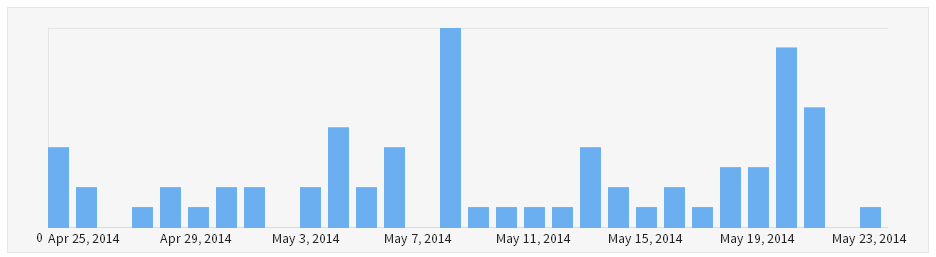
As can be seen above, this is great data to understand what your fans and followers are most interested in reading about. Knowing this information will allow you to tailor your social media updates to content that is most interesting for your audience.
Buffer

Now you have your list of links that you want to share on social media, you can easily schedule these updates to save you having to spend all day on social media. Simply schedule posts to be sent out automatically throughout the week and save yourself hours of time, allowing you to continue running your businesses.
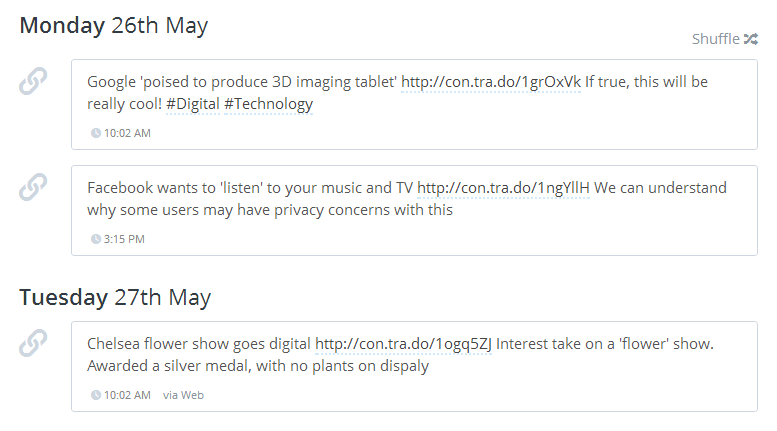
As you can see above, here are a few of the scheduled posts we have. With this tool you can easily set custom schedules for each of the social media accounts that you connect to Buffer. The simplicity of this tool is brilliant and really does all you to save an enormous amount of time managing your social media activities.
HootSuite

Now you have all of your content scheduled to your social media channels, you need an easy way of managing engagement from your fans and followers. While you can simply hand out your login details to several members of staff to manage social media for you, this will inevitably lead to challenges. For example if a member of staff leaves your business, you will have to change the passwords. In addition, you may have an external party like ourselves managing your social media channels and you would prefer we didn’t have your passwords.
Tools such as HootSuite get around these issues by being able to manage social media channels without logging in/out of each social media account through the day. This really helps to reduce the management time along with increase the response time when responding to fans and followers on social media.
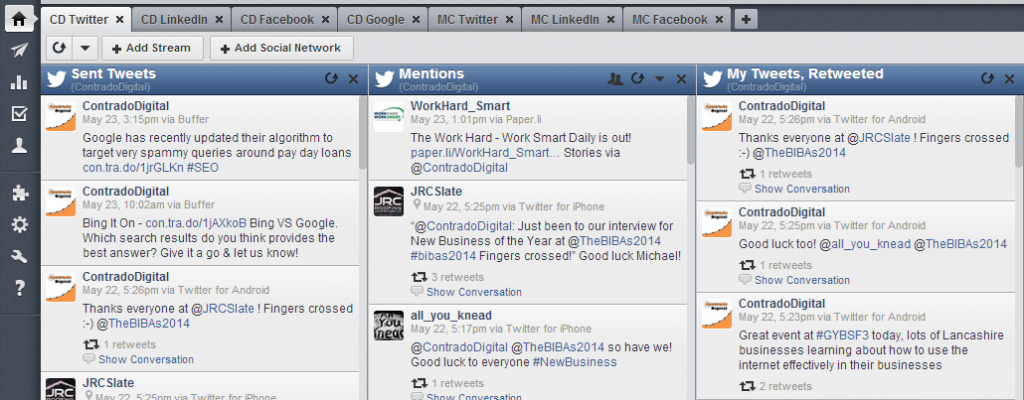
As you may already know, we are an official HootSuite Solutions Partner so we are confident in the tool and its abilities. Being able to manage multiple social media channels from a single dashboard is ideal and there is also the flexibility to allow members of staff to do this from their own HootSuite account too. Meaning that you can easily manage a team of people working on the social media activities. Below shows you how simple the tool is to use;
Google Analytics
Now you have all of your social media activities working well, tracking is the essential part of this. Tracking is available within all of the tools mentioned above so it is always recommended to monitor each of the individual tools. Social media can be a great way to drive additional traffic to your website and as mentioned earlier, our new Social Media Tracking Tool allows you to easily track this data within tools such as Google Analytics.
Below shows a graph from our Google Analytics account for the traffic our website has received over the past few months as a direct result of talking about our blog posts we have promoted;

This traffic is broken down in Google Analytics based on the way that you tagged your campaigns. Thankfully with our new Social Media Tracking Tool, you don’t have to worry about this as the tool will automatically tag all of your campaigns quickly and easily for you.
Once you start to use this approach with your social media activities you will be able to quickly see which channels are driving the most traffic to your website. Most importantly, this traffic data will now be accurate since if campaign tracking tags aren’t used, then this is likely to be under-reporting on the results the social media activities are generating.
Summary
Overall, social media management doesn’t have to be an extremely time consuming task. Instead, using the right tools for the job can save a huge amount of time and allow you to focus on other areas within your business. To summarise the tools and steps below;
1) Social Media Tracking Tool: Use to automatically tag all your links up correctly when posting updates to your various social media channels
2) Bit.ly: Use to see how many people are clicking on the links you are sharing, whether these links are to your website or to an external website
3) Buffer: Use to easily schedule social media updates throughout the week without having to continually post throughout the day
4) HootSuite: User to easily manage engagement from your fans and followers by joining the conversation when the time is right
5) Google Analytics: Use to accurately track which social media platforms are driving the most traffic to your website. Ensure campaign tracking tags have been set up using our Social Media Tracking Tool so you aren’t under-reporting on results achieved
Hopefully this has given you a good selection of tools and explained clearly how these various tools can be used to manage your social media activities effectively. Save yourself a huge amount of time using the above tools.
These tools are our preference when managing social media channels, if you have any other tools that you like to use, then leave a comment, we’d love to hear from you.
by Michael Cropper | May 25, 2014 | Data and Analytics, Social Media |
Social media is an extremely powerful medium that allows you to connect with your audience even easier than ever. While this is true, most businesses are still unsure about how to use social media effectively and how to track social media activities. It is easy to spend a lot of time on social media without knowing what your business is getting back from the time invested.
Here we will talk you through a few tools that we use, and one that we have built, which are all designed to help you manage your social media work effectively. No longer will you have to use guess work to measure performance, instead you can use these selection of tools to track all social media activities effectively.
Ok, so you’ve just created some awesome content on your website or blog and now you want to share this with the world on your various social media channels. Firstly, it is important to tag all of your links up that you are sharing so that you can easily see how many people have clicked on these links from the various social media channels.
Social Media Tracking Tool
To tag up your URLs that you are sharing you can use the Google URL Builder if you have custom and individual requirements, or alternatively you can use our new Social Media Tracking Tool. This tool is designed to speed up the process for updating social media channels and tracking the number of clicks received from the different channels.
By default, links that aren’t tagged will not be tracked accurately within your web analytics tool such as Google Analytics. The reason behind this is due to the ‘referrer’ information not always being passed from the source through to your website when a user clicks on the link from various sources including native applications, i.e. a Twitter App on your followers’ smartphones. When this happens, it will appear that traffic to your website from social media channels is ‘Direct’ traffic, which isn’t the case.
Our new tool will tag all of your links up automatically, saving you time manually updating each link with the correct campaign tracking tags. Have a go and see how easy the tool is to use.
Bit.ly
Another tool that you will find useful for tracking your social media activities is Bit.ly which is an additional link tracking tool that sits between users clicking on a link that you have shared on social media and when they arrive on your website. This is a great tool to use as this means you can track the number of clicks the links you are sharing on social media, regardless if these links are to your website or another website. Below shows the daily clicks for our social media activities over the last month;
As can be seen above, this is great data to understand what your fans and followers are most interested in reading about. Knowing this information will allow you to tailor your social media updates to content that is most interesting for your audience.
Buffer
Now you have your list of links that you want to share on social media, you can easily schedule these updates to save you having to spend all day on social media. Simply schedule posts to be sent out automatically throughout the week and save yourself hours of time, allowing you to continue running your businesses.
As you can see above, here are a few of the scheduled posts we have. With this tool you can easily set custom schedules for each of the social media accounts that you connect to Buffer. The simplicity of this tool is brilliant and really does all you to save an enormous amount of time managing your social media activities.
HootSuite
Now you have all of your content scheduled to your social media channels, you need an easy way of managing engagement from your fans and followers. While you can simply hand out your login details to several members of staff to manage social media for you, this will inevitably lead to challenges. For example if a member of staff leaves your business, you will have to change the passwords. In addition, you may have an external party like ourselves managing your social media channels and you would prefer we didn’t have your passwords.
Tools such as HootSuite get around these issues by being able to manage social media channels without logging in/out of each social media account through the day. This really helps to reduce the management time along with increase the response time when responding to fans and followers on social media.
As you may already know, we are an official HootSuite Solutions Partner so we are confident in the tool and its abilities. Being able to manage multiple social media channels from a single dashboard is ideal and there is also the flexibility to allow members of staff to do this from their own HootSuite account too. Meaning that you can easily manage a team of people working on the social media activities. Below shows you how simple the tool is to use;
Google Analytics
Now you have all of your social media activities working well, tracking is the essential part of this. Tracking is available within all of the tools mentioned above so it is always recommended to monitor each of the individual tools. Social media can be a great way to drive additional traffic to your website and as mentioned earlier, our new Social Media Tracking Tool allows you to easily track this data within tools such as Google Analytics.
Below shows a graph from our Google Analytics account for the traffic our website has received over the past few months as a direct result of talking about our blog posts we have promoted;
This traffic is broken down in Google Analytics based on the way that you tagged your campaigns. Thankfully with our new Social Media Tracking Tool, you don’t have to worry about this as the tool will automatically tag all of your campaigns quickly and easily for you.
Once you start to use this approach with your social media activities you will be able to quickly see which channels are driving the most traffic to your website. Most importantly, this traffic data will now be accurate since if campaign tracking tags aren’t used, then this is likely to be under-reporting on the results the social media activities are generating.
Summary
Overall, social media management doesn’t have to be an extremely time consuming task. Instead, using the right tools for the job can save a huge amount of time and allow you to focus on other areas within your business. To summarise the tools and steps below;
1) Social Media Tracking Tool: Use to automatically tag all your links up correctly when posting updates to your various social media channels
2) Bit.ly: Use to see how many people are clicking on the links you are sharing, whether these links are to your website or to an external website
3) Buffer: Use to easily schedule social media updates throughout the week without having to continually post throughout the day
4) HootSuite: User to easily manage engagement from your fans and followers by joining the conversation when the time is right
5) Google Analytics: Use to accurately track which social media platforms are driving the most traffic to your website. Ensure campaign tracking tags have been set up using our Social Media Tracking Tool so you aren’t under-reporting on results achieved
Hopefully this has given you a good selection of tools and explained clearly how these various tools can be used to manage your social media activities effectively. Save yourself a huge amount of time using the above tools.
These tools are our preference when managing social media channels, if you have any other tools that you like to use, then leave a comment, we’d love to hear from you.