by Michael Cropper | Apr 26, 2021 | Client Friendly, Developer |
This is quite a common requirement as you start to scale and/or change your infrastructure – how to check the available disk space on a virtual machine using Linux and/or an AWS EC2 instance. It’s one of these things that you would think in this day and age is easy to view, yet on the vast majority of systems this metric seems awkward to get your hands on with a simple click. You want something as simple as how you can see on Micro$oft Windows the percentage% of disk space you have used and what you have got left. This is all a really basic requirement that you’d think would be simple to get your hands on this information on Linux and AWS EC2, but hey, Linux is Linux and AWS EC2 is AWS EC2…..
So, let’s get into the detail.
Thankfully this is actually a really easy piece of information to get your hands onto. For the quick answer, just run the following command when you’ve SSH’d into your Linux instance;
df -hT
What you will find when you run the above command on Linux to view the available hard disk space and current usage is something along the lines of the below image;
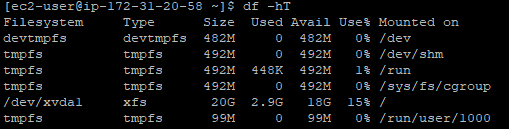
What you can see here is that the disk is currently only being used at 15% capacity. Awesome. You’ve got space to play with.
To help your understanding with some of the cryptic Linux commands;
- df = Disk Free command
- -h = Human Readable, print sizes in human readable format (e.g., 1k, 234M, 2G)
- -T = Print Type, print file system type
There are many other handy commands to the Disk Free utility on Linux, but for the purpose of this blog post these are the main ones you need to be concerned with. Ultimately you can keep track of the disk usage on your Linux machines so you know when it’s time to upgrade your hard disk to increase capacity.
Hopefully it’s obvious why you should care about this stuff… if your hard disk is full on your web server, then this can result in catastrophic results where your ecommerce customers can’t even place orders on your website, or where your B2B customers can’t even complete the contact form on your website. These are just some of the surface level issues that can come up. In essence, when your disk gets full – you’re screwed. It causes an unbelievable amount of problems under the hood that take a significant amount of time to resolve. Don’t underestimate keeping track of this core metric.
by Michael Cropper | Apr 1, 2021 | Client Friendly, Developer |
This is one of those things you come across once every year or two and you can never remember exactly how to do it. The issue is when your Java WAR File that is compiled and packaged during your build process keeps growing in size over time as you are adding extra features and functionality to your Java web application. It’s a good problem to come across as it means that you are building things your customers love. We’ll not go into the discussion of large applications VS micro services, we’ll leave that for another blog post at some point.
We’re looking at Apache Tomcat 7 here since this is the default out of the box version of Tomcat that comes packaged with Amazon Linux 2 which many people will be using. We’re going to assume that you’ve got that all set up the way you need it, so again, we’ll not be covering that off today.
The issue you’ve likely faced when you have come to upload your WAR file is that it simply doesn’t upload and you may have noticed that uploading your WAR file gets to a certain percentage complete then just seems to stop uploading. Thankfully this is quite an easy fix to do, once you know what you’re looking for and how to find the file you need to edit.
By default on Amazon Linux 2, Apache Tomcat 7 creates a shared location where the configuration files for the Tomcat Manager live, this is within;
/usr/share/tomcat/webapps/manager/
So all you need to go and do is edit the web.xml file in the following location by running the command;
sudo nano /usr/share/tomcat/webapps/manager/WEB-INF/web.xml
And you’ll see a section of code in there that allows you to change the MaxFileSize configuration settings. If you’re more familiar with PHP, this is similar to the upload_max_filesize and post_max_size PHP directives in your php.ini configuration file.
    <multipart-config>
        <!-- 50MB max -->
        <!--<max-file-size>52428800</max-file-size>-->
        <!--<max-request-size>52428800</max-request-size>-->
        <!-- 100MB max -->
        <max-file-size>104857600</max-file-size>
        <max-request-size>104857600</max-request-size>
        <file-size-threshold>0</file-size-threshold>
    </multipart-config>
Simply change those details to whatever file size you need. The default for Apache Tomcat is a 50MB file size. So just configure that to whatever you need. As touched upon earlier, always consider when you’re doing this is you need to start thinking about breaking up the application into smaller components that work together in a micro services approach. But this comes with more challenges that you need to be considering at that point too.
Once you’ve got this configured, simply restart Apache Tomcat 7 and you’re good to go.
sudo service tomcat restart
You should now be able to upload your larger WAR file via the Tomcat Manager interface.
by Michael Cropper | Mar 18, 2021 | Client Friendly, IT, Networking |
Ok, so you’ve got yourself a nice new Ubiquiti UniFi AP-AC-Lite Wireless Access Point to modernise your network – Awesome. If you are still in the research stage, then take a look through a recent blog post about Unboxing and Testing the Ubiquiti UniFi Access Point AP-AC-Lite so at least you can see what you get in the box and some of the awesome reporting statistics that you can see once you have the device up and running. We’re not going to be covering the topics that are covered in that blog post, we’re going to assume you’ve got it out of the box and have plugged it in then we can look at how to actually get it set up on your network – since plugging the device in itself isn’t enough with UniFi equipment.
First Plugin of UniFi AP-AC-Lite Wireless Access Point
Ok, so now you’ve plugged your device into your network, it’s time to bring the device onto your network. What I mean by that is that just because you’ve plugged the device in, unlike many other IT network hardware equipment where you plug it in and it’s automatically available for use without configuration (albeit, without configuration certain manufacturers and devices would cease to work anyhow…), with the UniFi equipment you need to officially welcome it onto your network as a trusted device. This process is called the Adoption process.
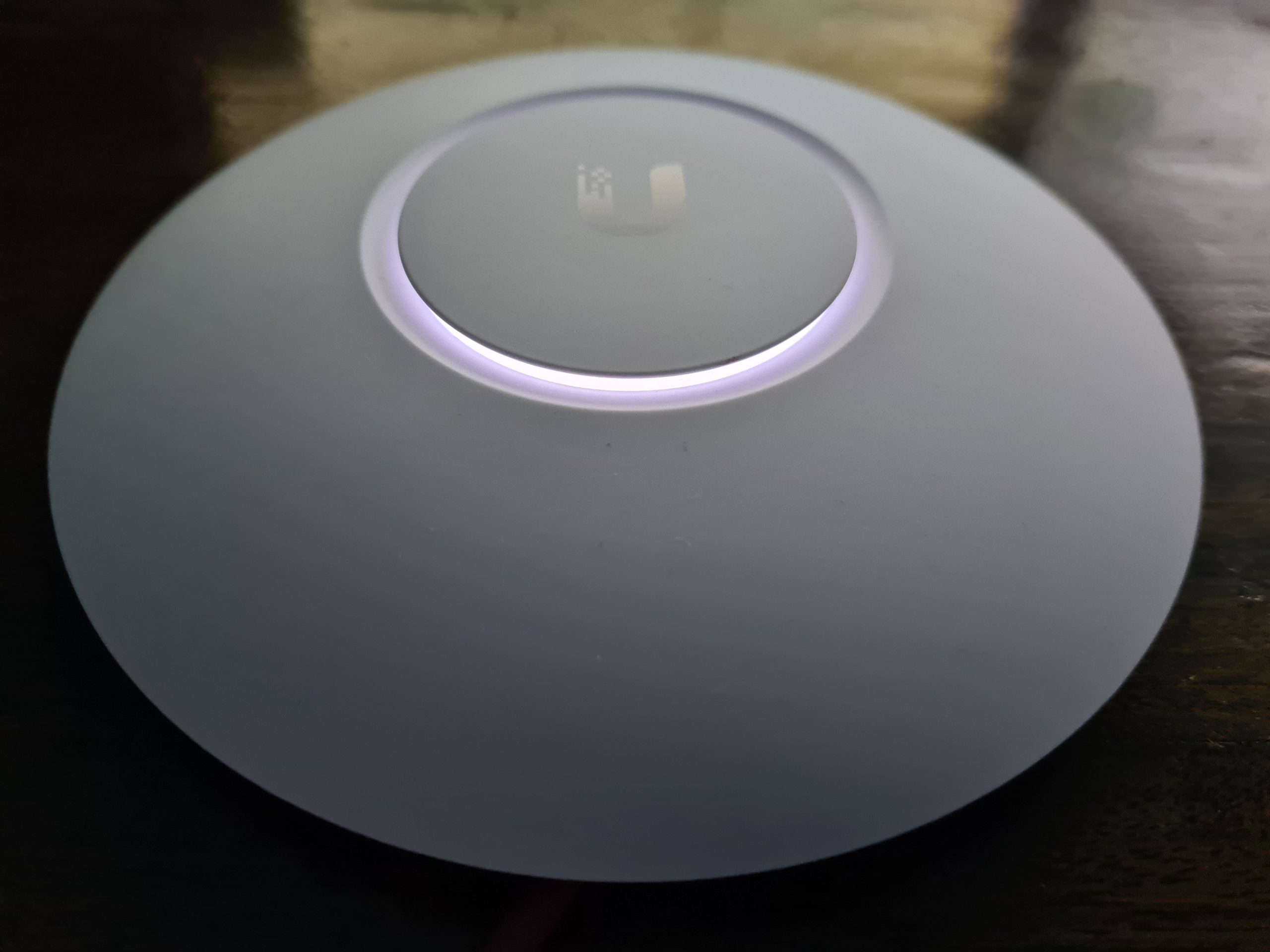
Once you’ve got the device plugged in, you’ll notice that the physical device has a solid white light on, then turns to a flashing white light for a minute or so, then turns back to a solid white light. What this means is that your device is not yet adopted by your network.
And here’s what that looks like in your UniFi Controller Software. If you aren’t sure what that is, we’ve done a few other blog posts that cover this off in a bit more detail including How to Setup a Ubiquiti UniFi Managed Switch On Your Network so take a read over that if you haven’t yet got your UniFi Controller Software set up and running.
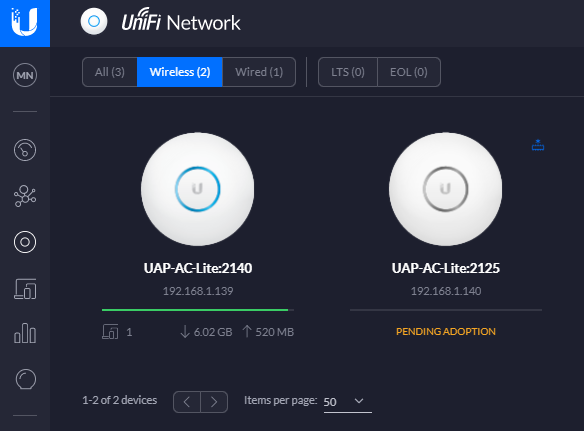
In the above image you can see there are two wireless access points on the network, one that has already been adopted and one that is yet to be adopted so you can see the difference for how the devices display.
Adopt the UniFi AP-AC-Lite Wireless Access Point Device
To welcome your new device onto your network officially simply click onto the device that is pending adoption which will open a pop out window as can be seen below;
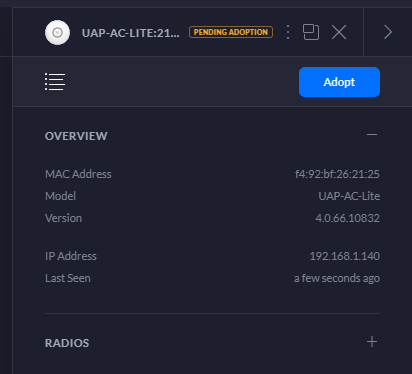
Simply click on the Adopt button to get started. Once you’ve done this, you’ll notice the status of the device turn to a blue light and within the UniFi Controller Software the device will switch to Pending Adoption, then Provisioning. Once it’s done you’ll notice the device is ready to go;
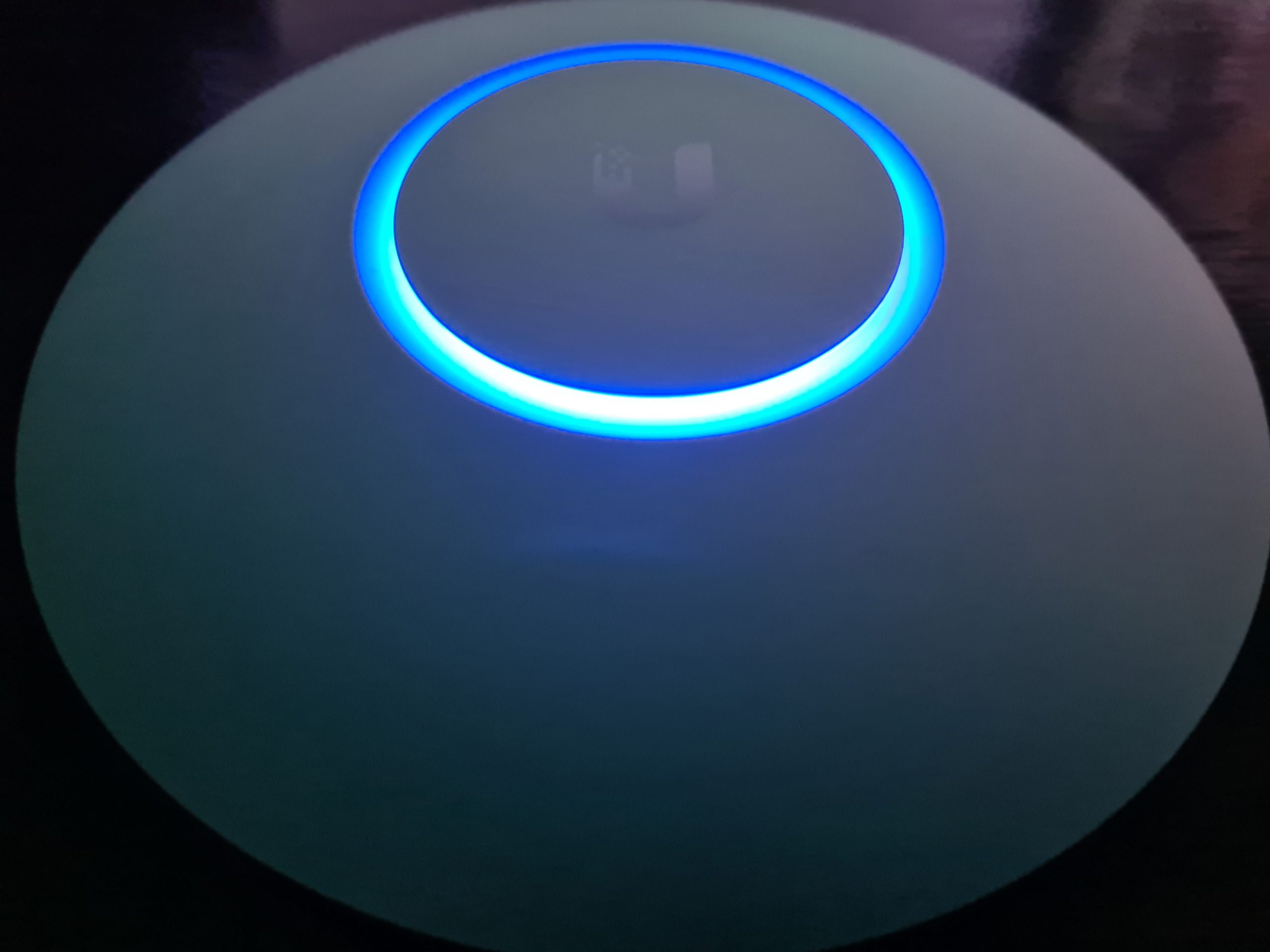
Then you’ll notice that your device is ready to go within the UniFi Controller Software too. The device doesn’t have a green light beneath it as there are no connected wireless clients connected to the device yet.
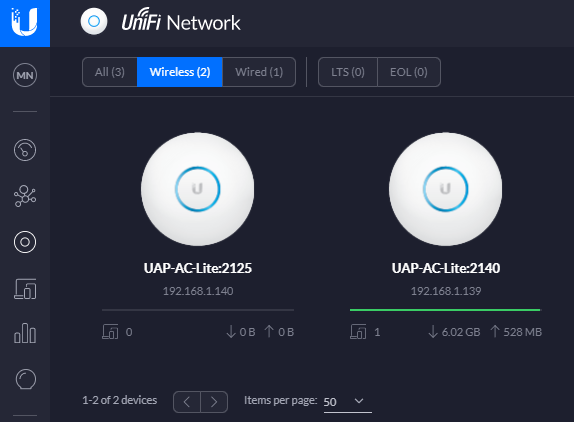
One point to note is that if you’ve just received your UniFi Wireless Access Point, then it’s highly likely that there are some updates waiting for you to install on the firmware itself. You’ll notice a little icon in the top right of the device in the above image (not shown, as all devices are up to date) so just click on that and get your devices up to date. There is always going to be the natural lag between when the firmware was originally installed at the manufacturing plant to when it arrives on your doorstep. So thankfully with smart software technology and smart devices you can easily bring your devices up to date with ease. Traditional legacy network hardware often isn’t as smart with this, although many do try to have some form of notification that there are firmware updates ready for installation, once you can find the hidden notification in the system.
Configure a Wireless Network
Now that you’ve got your devices connected, you need to create yourself a wireless network. Out of the box you don’t get a wireless networks configured, you need to configure this yourself. This mainly consists of two parts;
- Creating an SSID, aka. a Service Set IDentifier, or more commonly known as the broadcast name of your wireless network like what you see when you try to connect to local wireless networks, it’s the name that identifies itself
- Giving your wireless network a password so that your users can connect securely
To do this, simply navigate to your Settings page (bottom left of the UniFi Controller Softwre, the Cog icon). And you’ll be able to create a wireless network within there. For simplicity in this blog post we’re going to just look at a LAN, so no VLANs and complex Profiles etc. Just so you can get up and running quickly. Top tip – Switch to the Classic Settings user interface as at the time of writing, this still supports more features and functionality. You’re probably fine with basic networks using the more modern interface, but you’ll soon find that basic networking infrastructure settings are invisible in the modern interface at the moment, they will be coming in due course though.
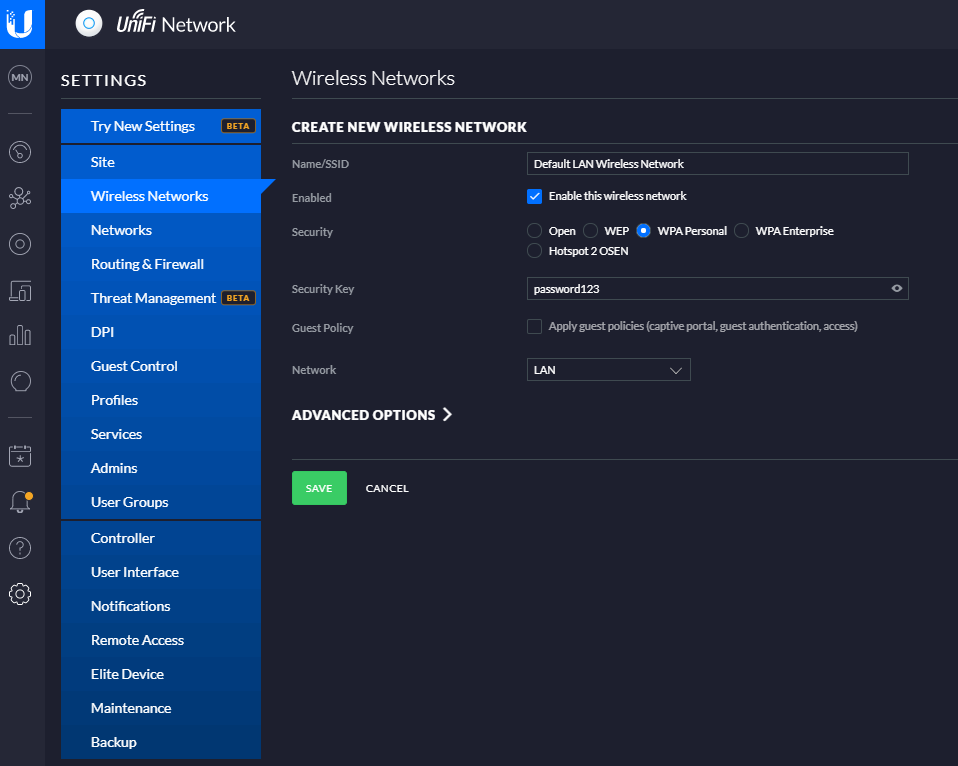
And before anyone points out the obvious…. Yes, give your wireless network (SSID) a decent name and don’t choose ‘password123’ as the security key. Also you probably don’t want to select the option to be an Open network from a Security perspective. This is rarely a good idea, and even when you’re using secure VLANs, you should really consider this from a business perspective before providing open, free and inconspicuous WiFi connectivity as there are legal considerations you need to make. But anyhow that’s for another conversation at another time, so for now, that’s how you set up a basic wireless network for your UniFi AP-AC-Lite Wireless Access Point device (and any other similar models…). Once you’re done with this, you’ll then be able to connect to your wireless network from any devices within range. Simple.
Summary
Awesome, you’re good to go! We’re going to keep this blog post simple and not cover anything related to VLANs or managed switches and unmanaged switches. We’ve covered some of these topics before and we’ll be covering some of the other topics in the near future. For now, you’re all set up with your Ubiquiti UniFi AP-AC-Lite Wireless Access Point so you’re good to start using it.
Hopefully this blog post has been useful to get you up and running with a very basic network configuration using the Ubiquiti UniFi AP-AC-Lite Wireless Access Point on your network. There are many different models from the UniFi range that this same logic applies to for your UniFi Wireless Access Point devices, so this isn’t really specific to this model.
by Michael Cropper | Mar 16, 2021 | Client Friendly, IT, Networking |
I wanted to do a quick unboxing blog post on the Ubiquiti UniFi Access Point, AP-AC-Lite, so that you know what you’re getting when you make the purchase. This will be a fairly quick blog post.
UniFi Access Point AP-AC-Lite Unboxing
First of all, one thing that really stands out with the quality of the box, how well packaged the device is inside the box and just the general feel of all the hardware your are touching, it just feels good quality. You know what I mean by this if you’ve handled a lot of different computer and network hardware, you can really tell how well something is made just by having a good touch and feel of it.
The UniFi AP-AC-Lite model from UniFi is their basic entry level access point which is designed for smaller number of clients accessing the access point. The reality is that there is no hard and fast rule for how many clients any access point can handle, you have to use your judgement on this based on the information you have at hand. And even then, you’ll probably get it wrong at times even with lots of experience – and that’s just the reality of working with IT hardware, sometimes you need to adjust depending on the reality of your use case in the real world.
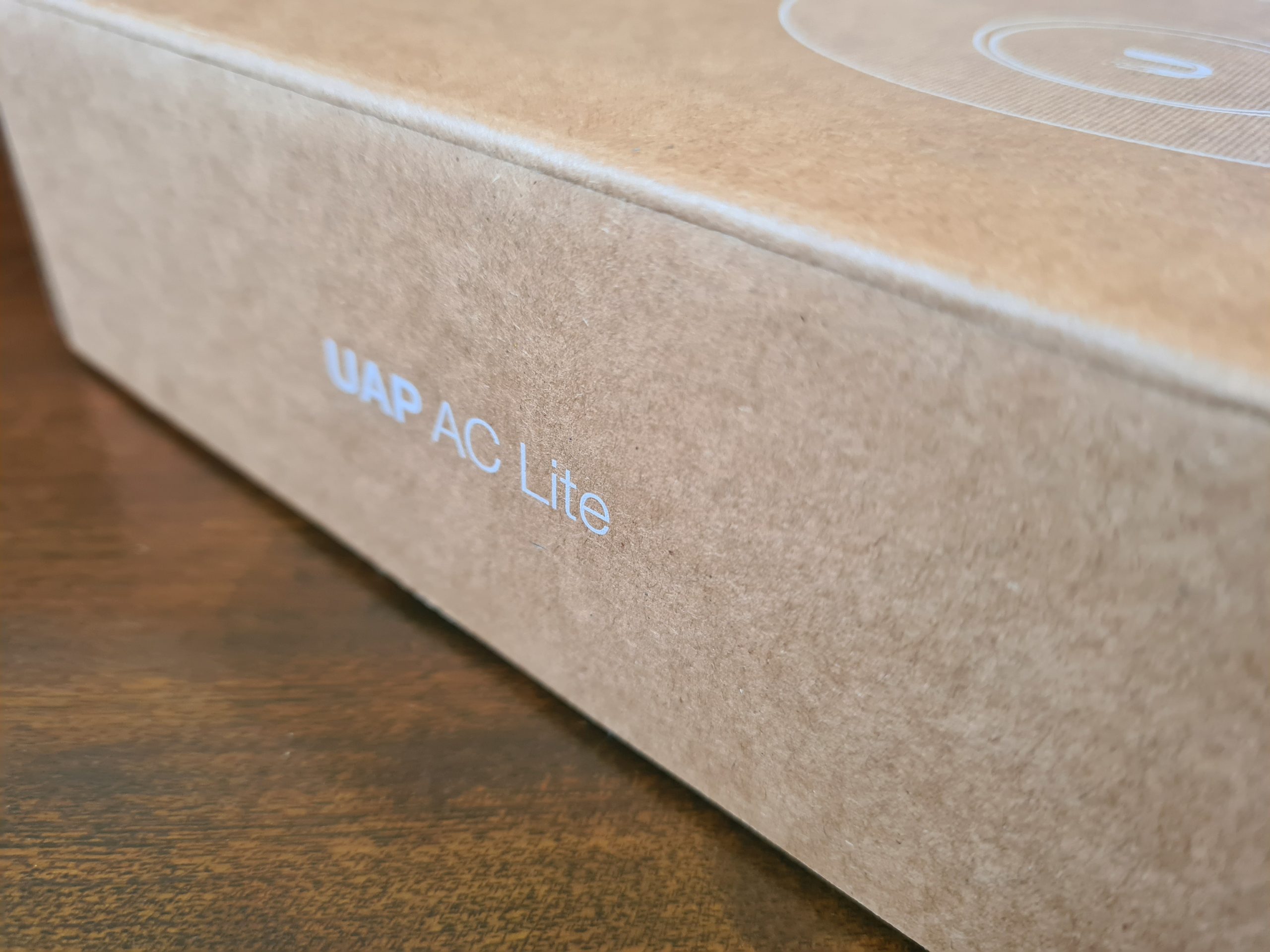
The Box
One thing that is very noticeable when you get the UniFi Access Point AP-AC-Lite is that the box just feels nice. It feels extremely good quality from both the weight and the texture. It’s clear that they have thought a lot about these products right from the outset – even before opening the box.
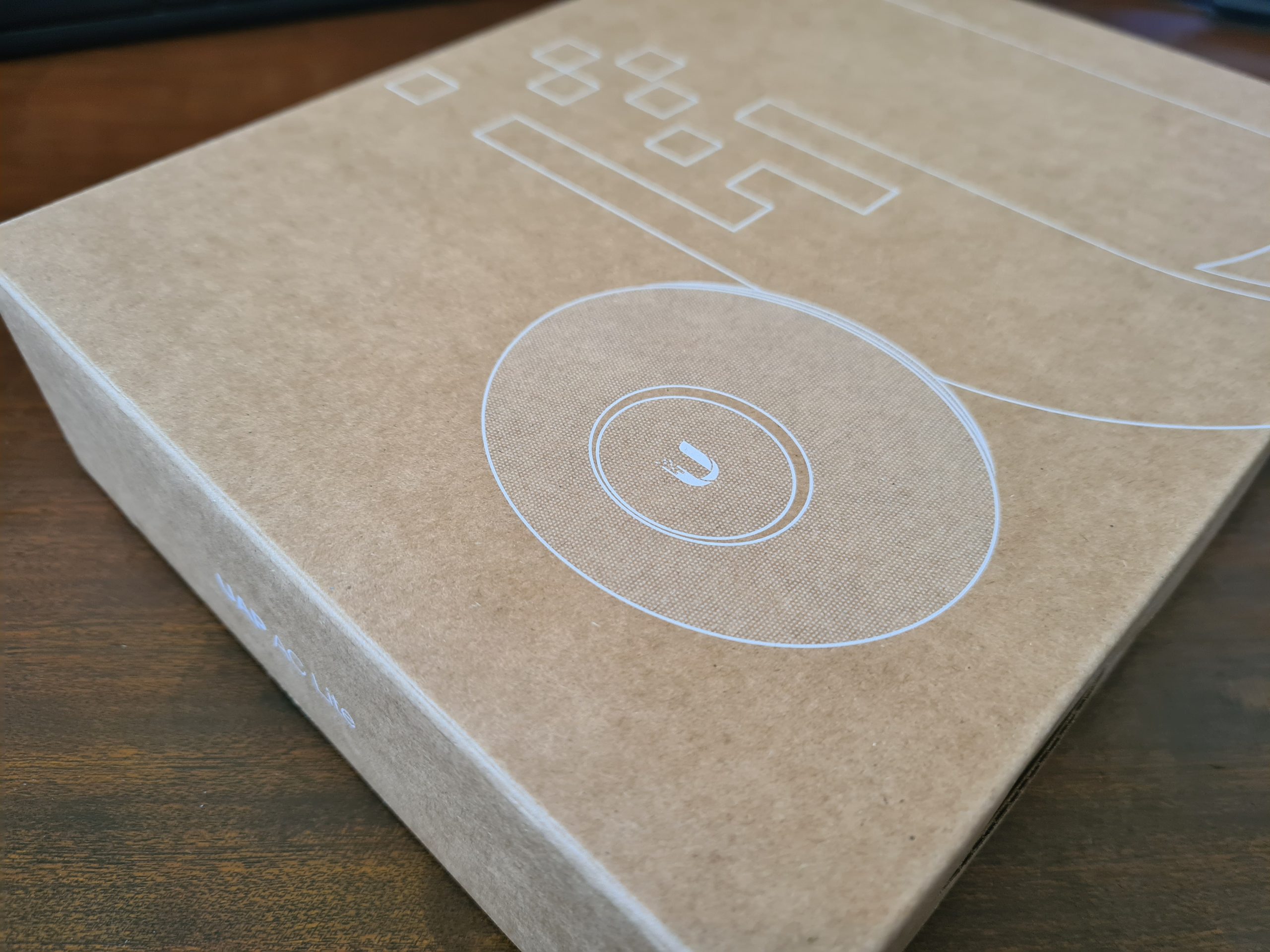
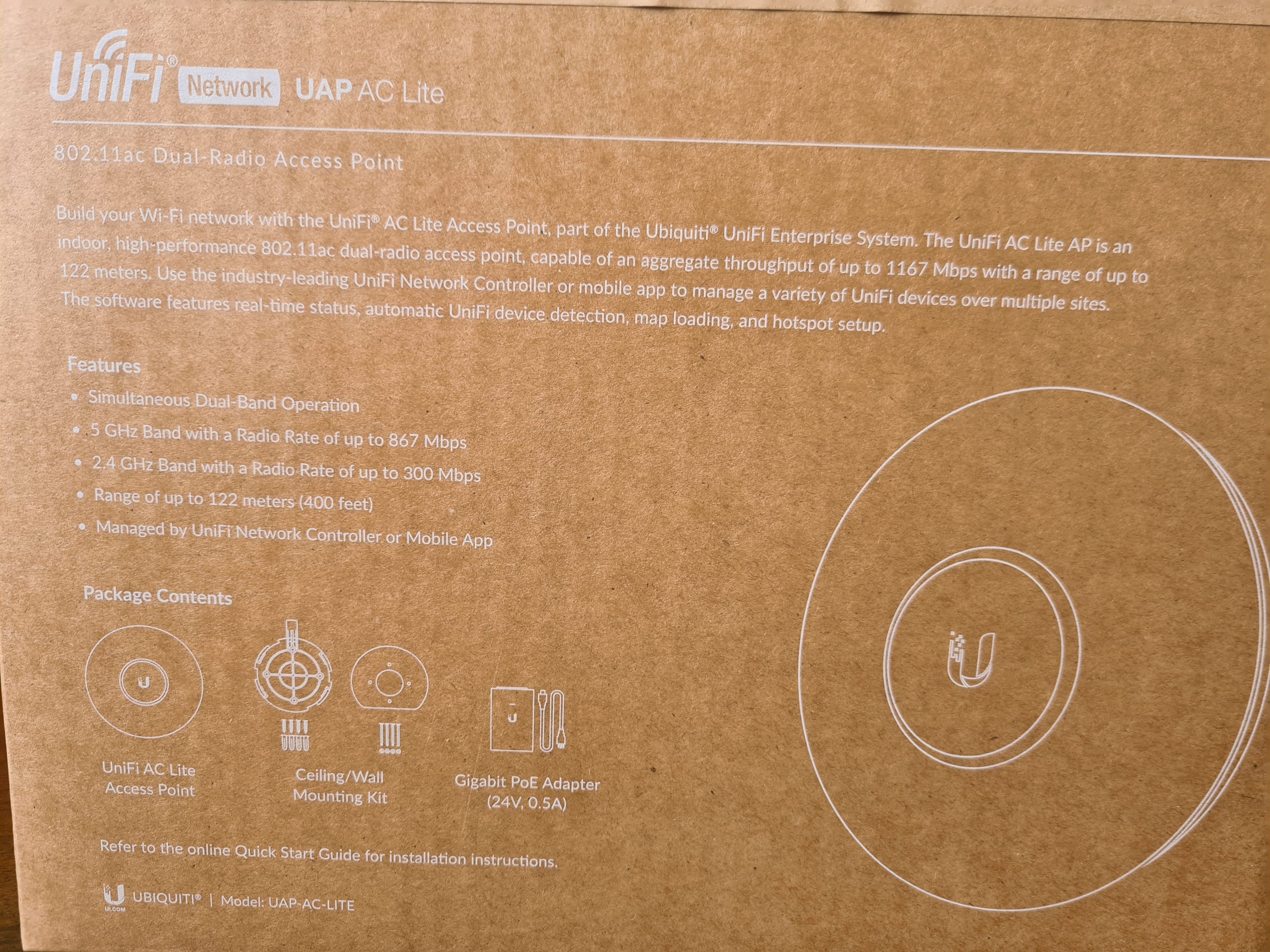
What you’ll notice in the image below is some of the core components that are waiting for you inside the box itself. You’ll find the UniFi UAP AC Life device itself along with a ceiling/wall mounting kit (including screws) plus a very handy Gigabit Power over Ethernet (PoE) adapter which can come in very useful if you haven’t got PoE capable switches (or capacity!) for where you are planning on connecting your UniFi access point to. Quite handy to know is that this UAP AC Lite device is capable of reaching a range of up to 122 meters, aka. 400ft. For larger distances, the Ubiquiti UniFi range of hardware has better devices capable of broadcasting over longer ranges. Always be sure to know as much as you can about the variety of UniFi hardware available prior to making a purchase. Speak to your knowledgeable expert on the topic.
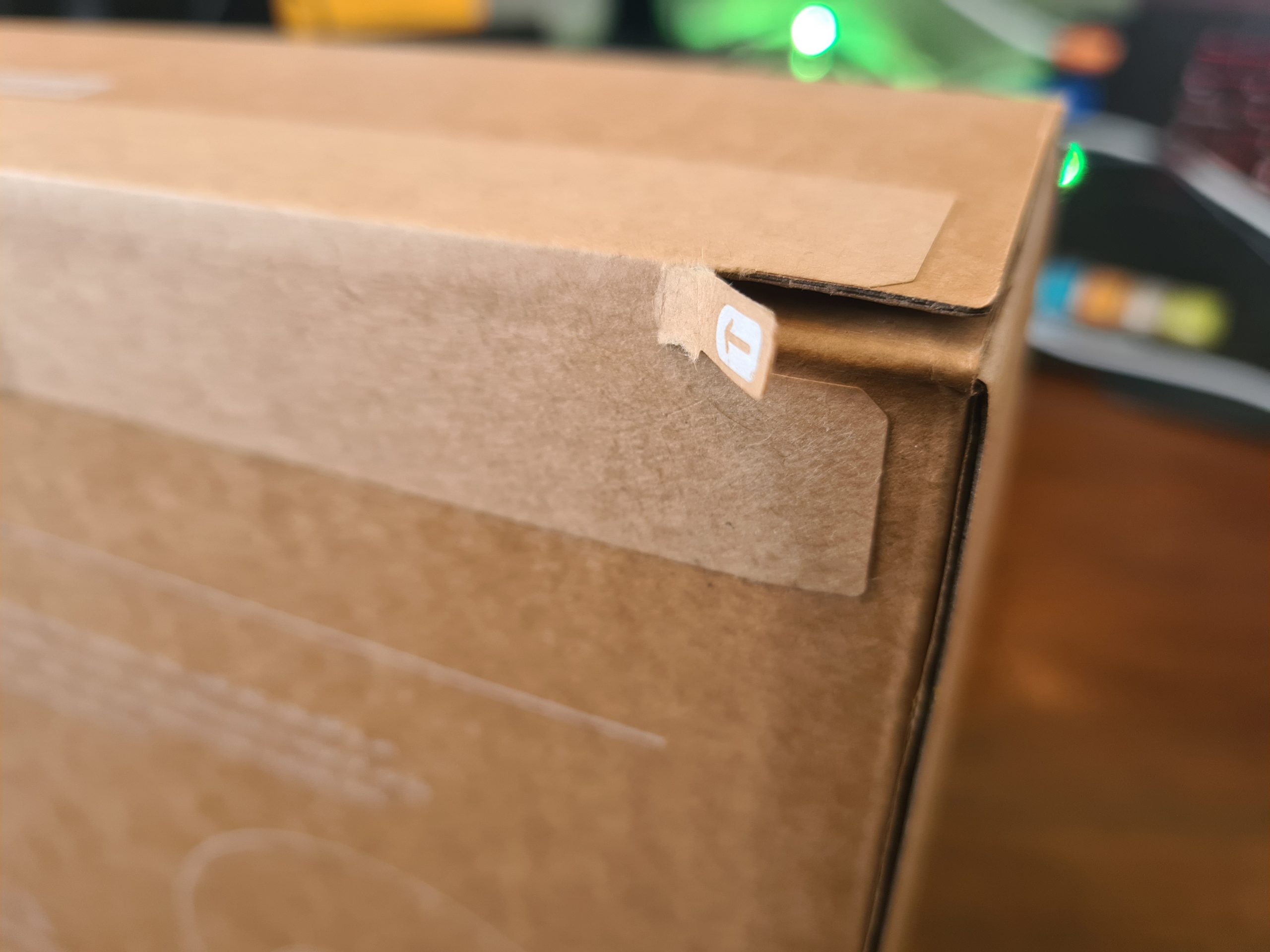
What is a nice little touch on how the UniFi AP-AC-Lite device is boxed up is the Amazon/USA style rip-to-open outer packaging. It is a nice feel that you are opening a product that is being delivered. This being said, it’s a huge hope that what is being delivered is suitable for your specific needs. Once opened, the returns policy is going to be very dependent on the local distributor from whom you purchased the device from. Most IT hardware suppliers are happy for you to return hardware as long as it is in a re-saleable condition, and unfortunately this is the only one slight drawback we have about this packaging, that is isn’t re-saleable due to the outer packaging design. But hey, the UniFi AP-AC-Lite Wireless Access Point works so well, that it’s unlikely that you’ll be returning this anyhow.
Inside the Box for the UniFi AP-AC-Lite Device
Ok, so here’s what we’re presented with once we’ve unpackaged the UniFi AP-AC-Lite wireless access point device. Just to re-iterate, the packaging between the boxed version above and the unboxed version below is extremely well packaged. Super compact and extremely well packaged to manage the terrains of product transit through the worst of delivery companies.
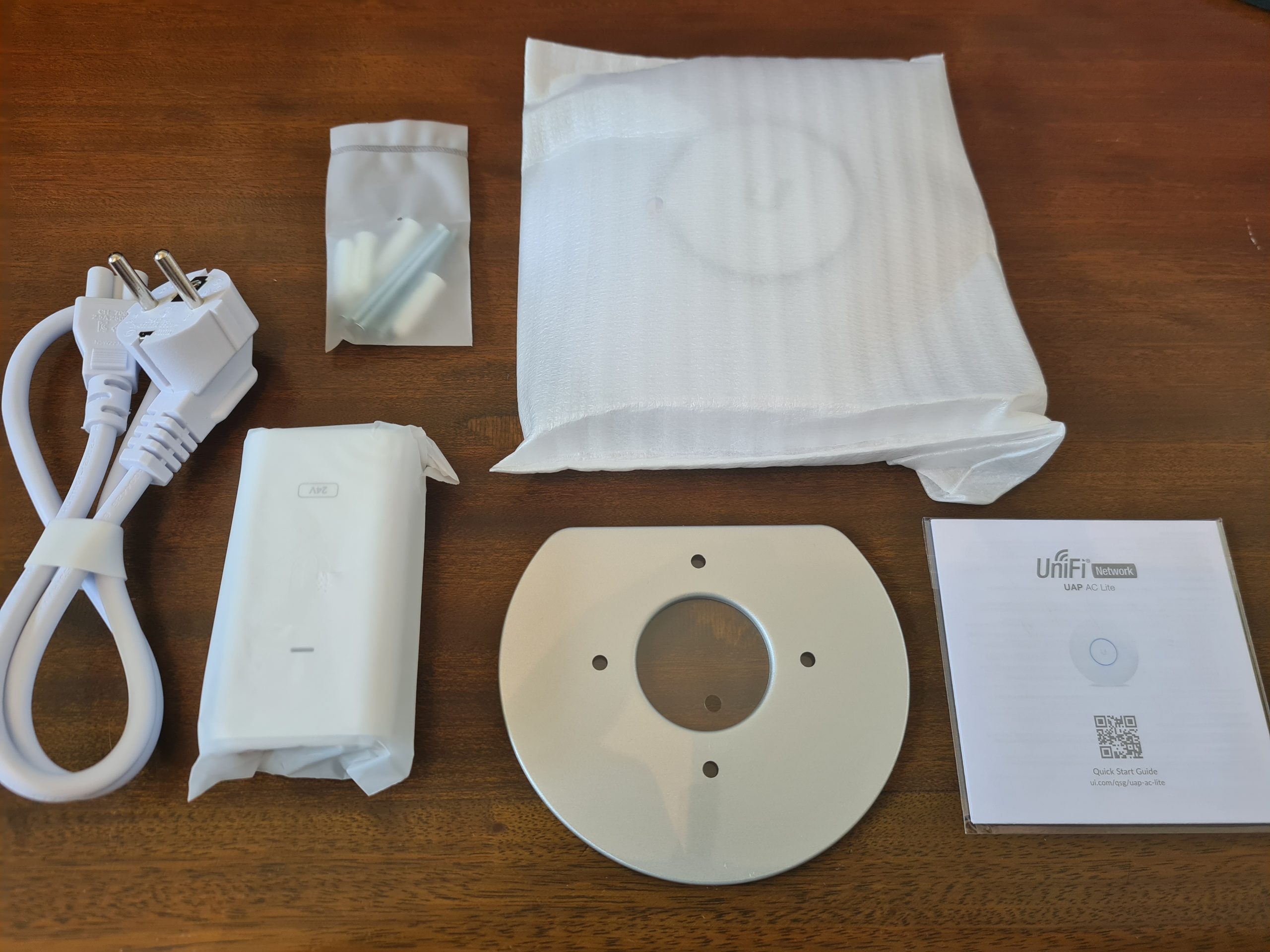
What you’ll notice above is that we’ve got several core items within the product box;
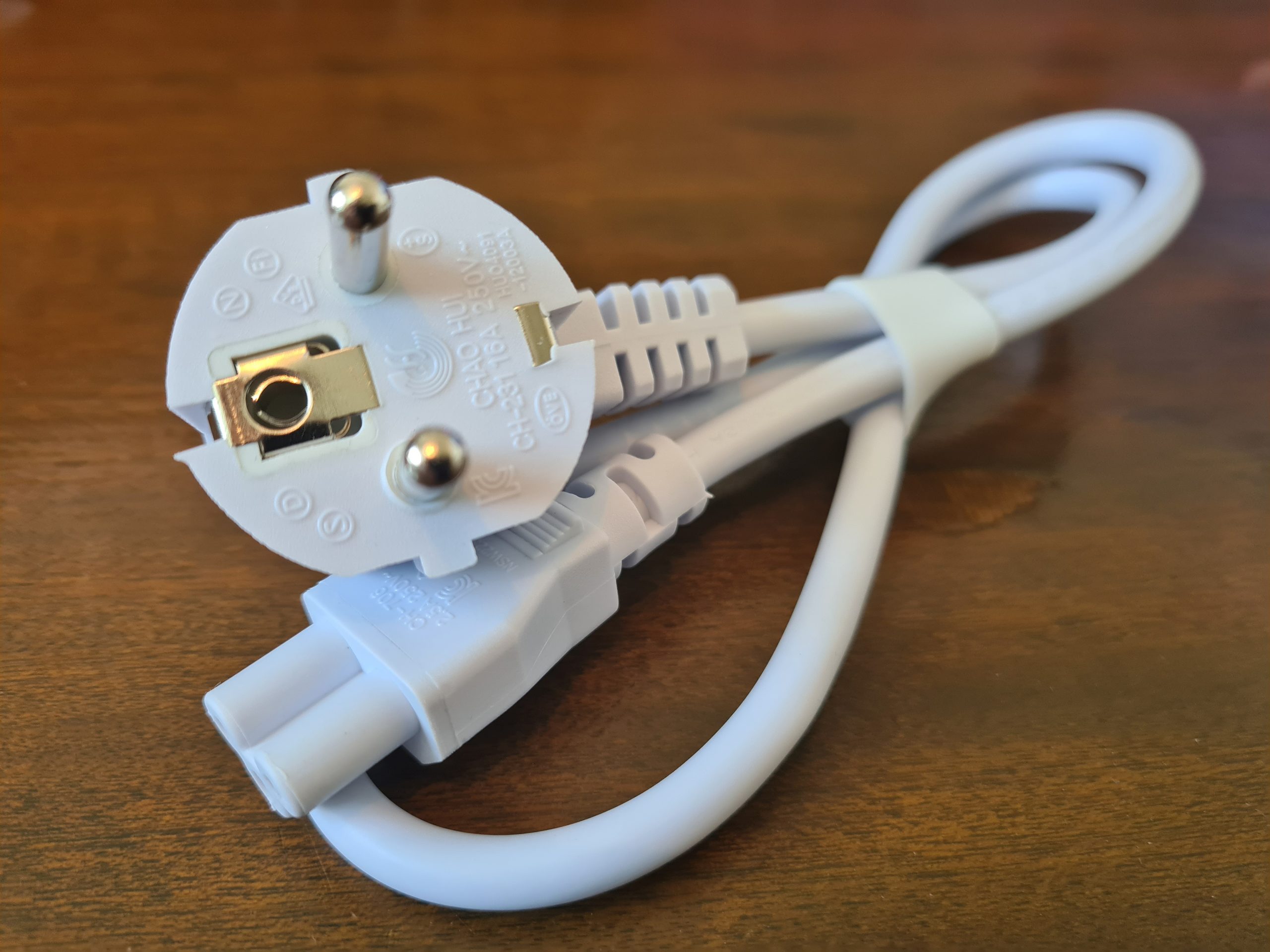
- USA Plug Adapter – Great if you’re USA based, but not so great if you’re UK Based. Thankfully our supplier for IT hardware equipment clearly has an arrangement in place with UniFi to supply a UK Based Plug for the device. Same UniFi branding / look / feel. Not sure if this is standard, but it’s just something to keep in mind when purchasing this IT hardware and equipment.
- UniFi Power over Ethernet (PoE) Device – This is the device that the above power adapter plugs into. This is potentially a device that you need. And this is because it depends if your managed switch supports PoE technology. Some devices support this heavily, others partially, and others simply don’t support PoE at all – hence why this device is often required in your setup. Personally I think that UniFi could significantly reduce the cost of their product by not shipping this device to their customers. A basic How-To guide for pre-purchase activities to enable customers to understand what they need to purchase under what circumstances would significantly help with this. I’d estimate that this would easily save £15 – £25 off the product cost if they were to implement a more structured purchasing process. Buy hey, I’ll leave that with them, if they want to reach our to me to discuss this business operational improvement then they are more than willing to do so.
- UniFi AP-AC-Lite Device itself – Kind of self-explanatory
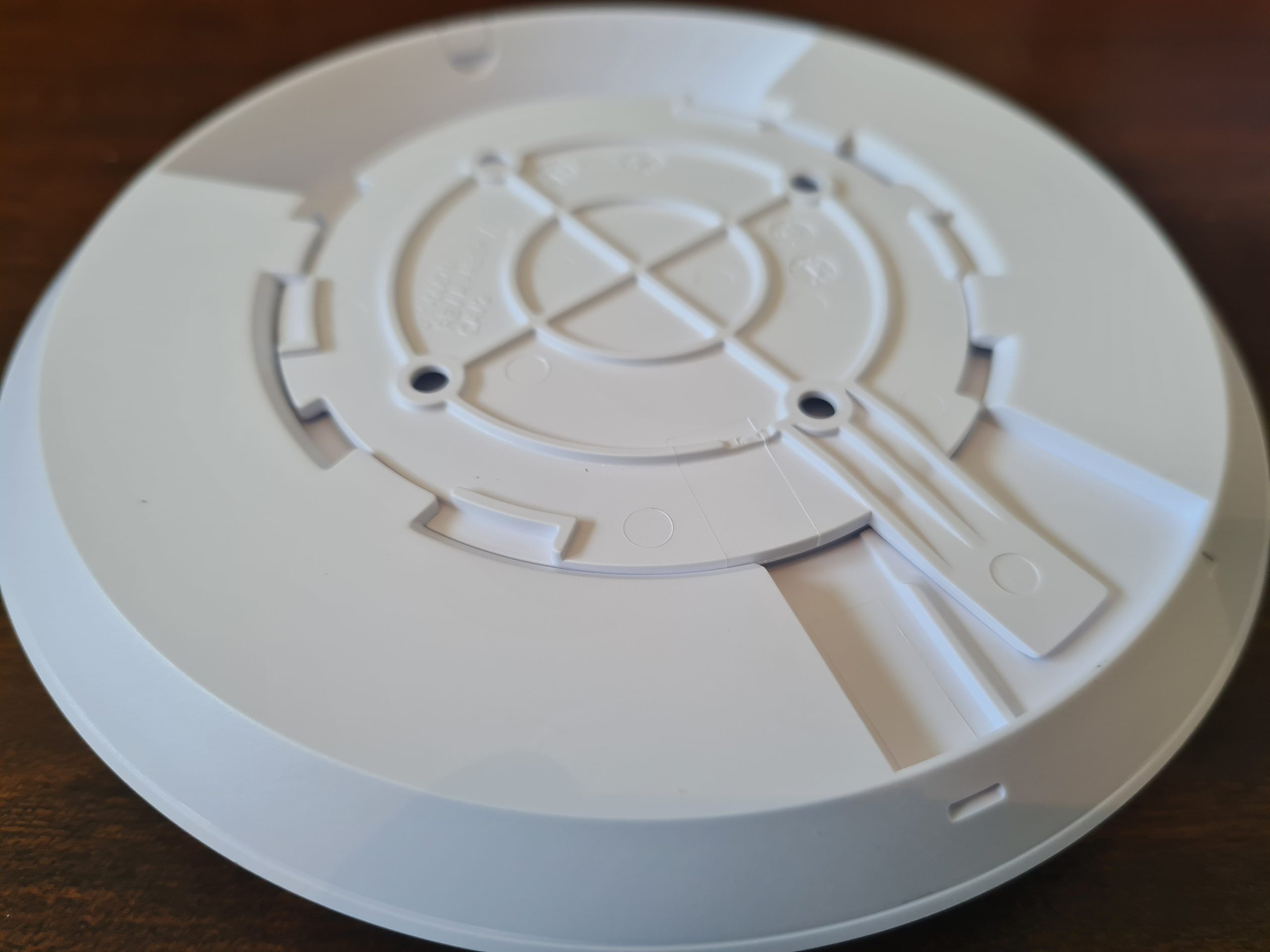
- Mounting Point – This is actually quite a nice device that let’s you easily secure your device to the wall or ceiling. As you’ll see later there is a handy detachable panel beneath the UniFi AP-AC-Lite access point that allows you easily connect this panel to the panel that attaches to the wall.
- Screws and Wall/Ceiling Plugs – Very handy so that you don’t have to source the specific sizes/lengths/width of screws and wall plugs to get the device attached to the location that you are looking to get this attached to. The reality is that these default screws are only a best guess, so it’s highly likely that you will need to source the specific screws and plugs that are relevant to where you are attaching the device to. But it’s a nice touch from Ubiquiti for common use cases.
Hardware Specifics
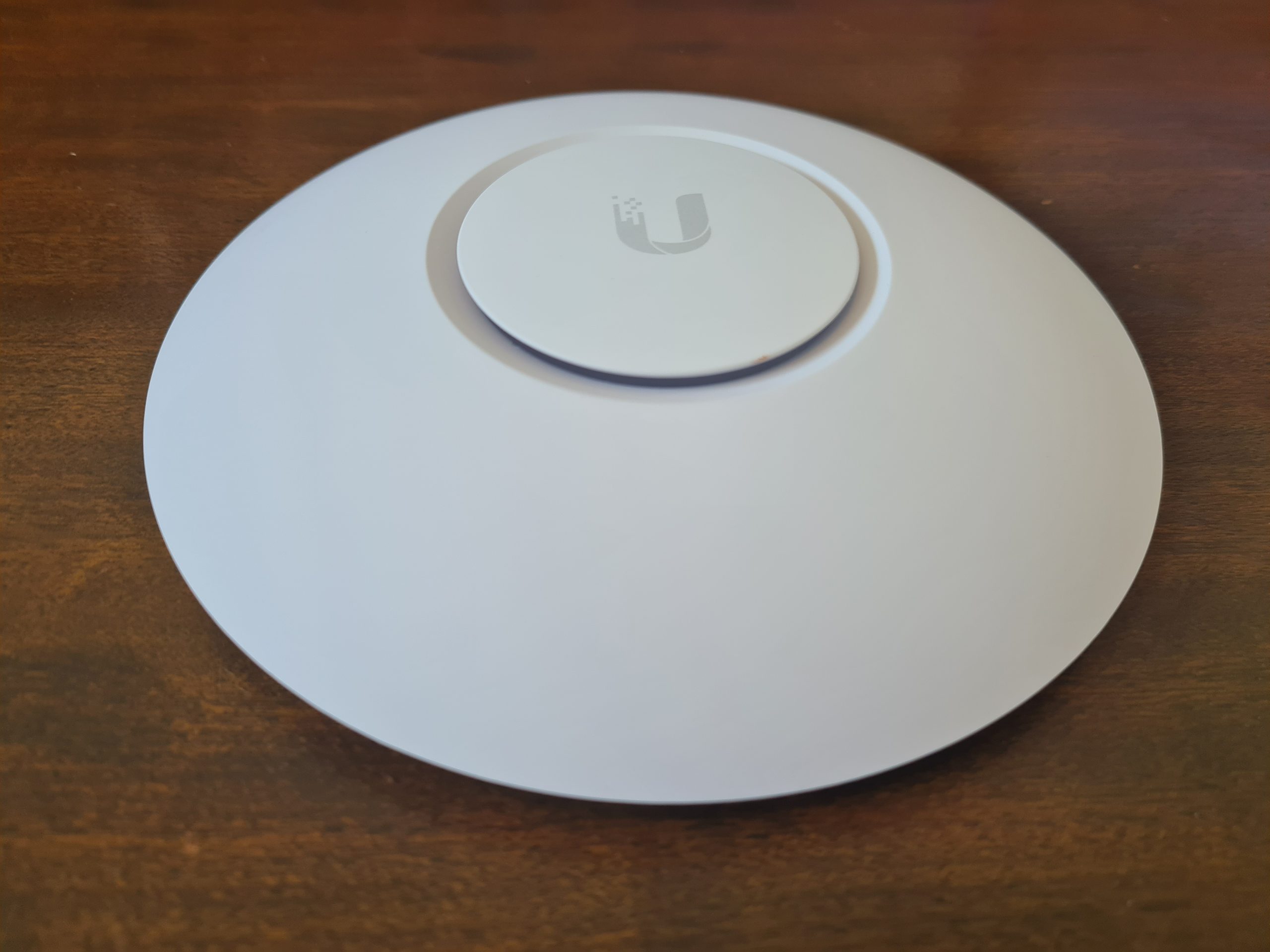
The Ubiquiti UniFi AP-AC-Lite Device;
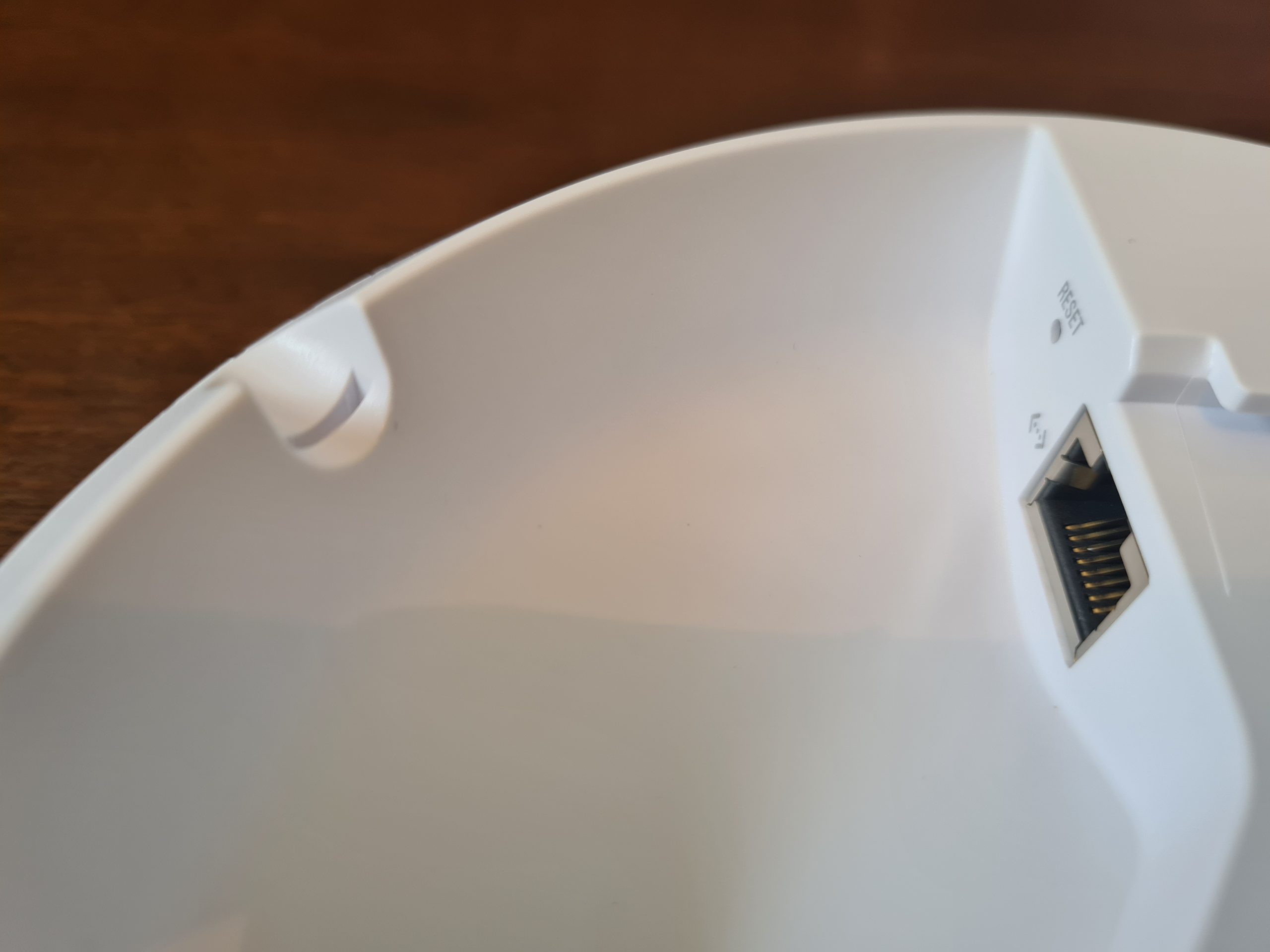
The device only has a single port and that is the RJ-45 port that allows you to connect the device to your network. And this is important as we briefly touched on earlier. This very much depends on if your network, or more importantly your managed switch, can support Power over Ethernet PoE technology or not. Depending on your answer to this question to yourself, you should be able to assess how this device is plugged into your network.
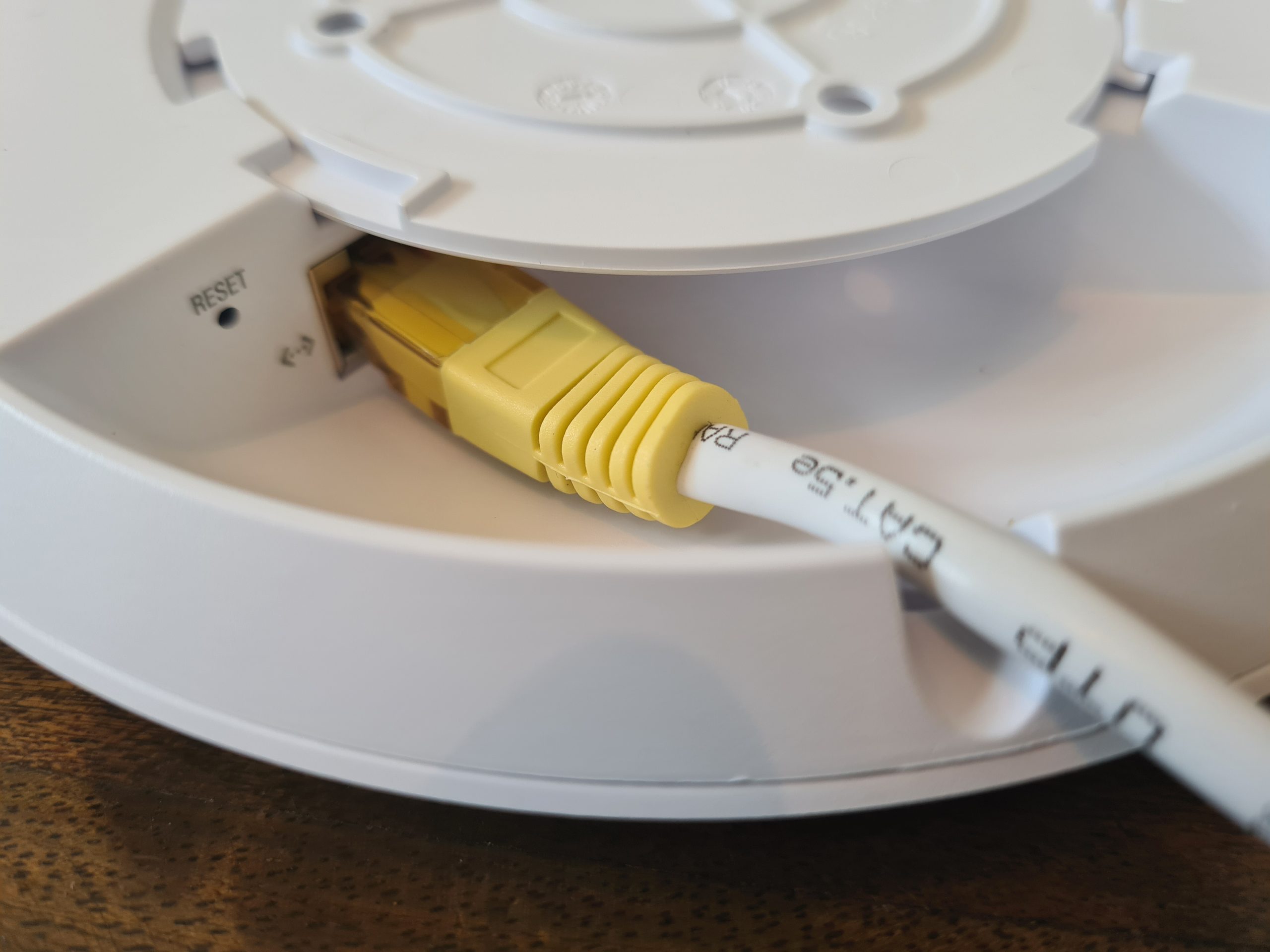
One handy feature is the small notch in the edge of the device that allows the ethernet cable to fit in the notch so the device can lay flat against your wall or ceiling.
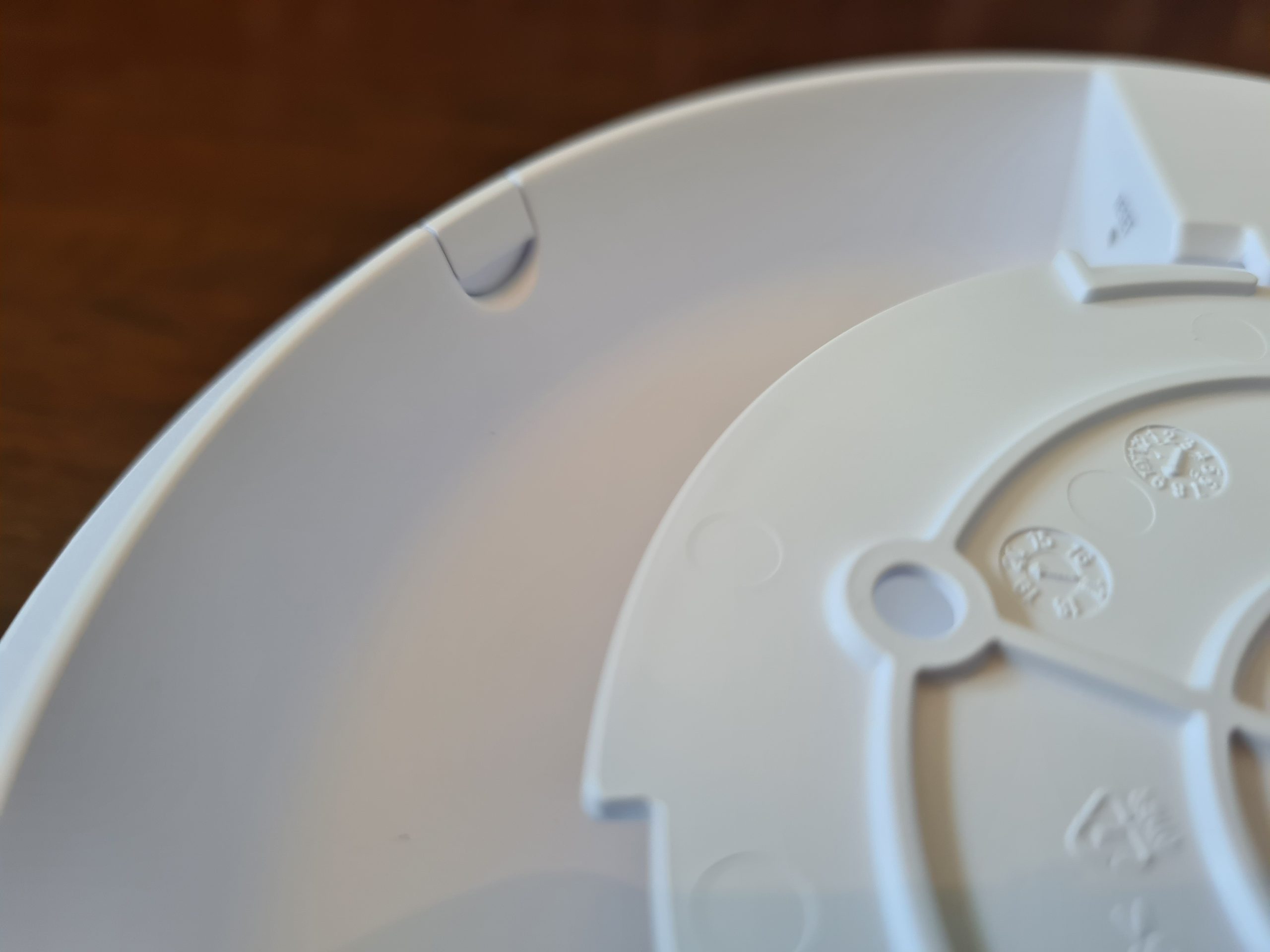
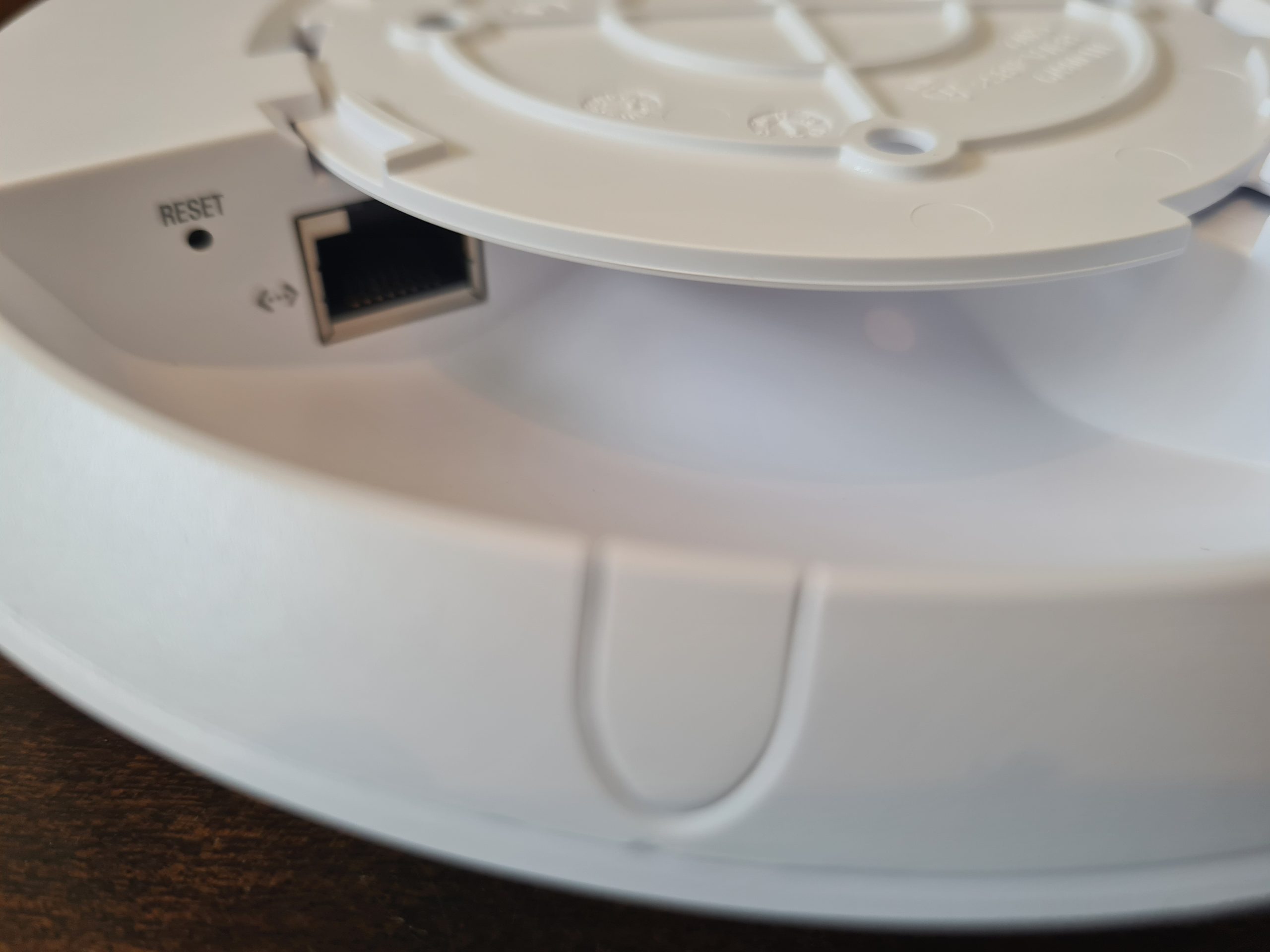
One item to note around how the inner disk connects to the main device is that once it is in place, it’s very tight to remove. When you are removing this when it isn’t wall mounted, this isn’t really an issue as you can easily get a small screwdriver or knife to unclip it. But you’ll notice that once this is connected to the wall or ceiling, you’ve only got a really tiny gap to get something in that is about 2mm tall, 5mm wide, and about 1cm deep – so you’ll probably need something like a paperclip to unhinge this once it’s connected to the wall.
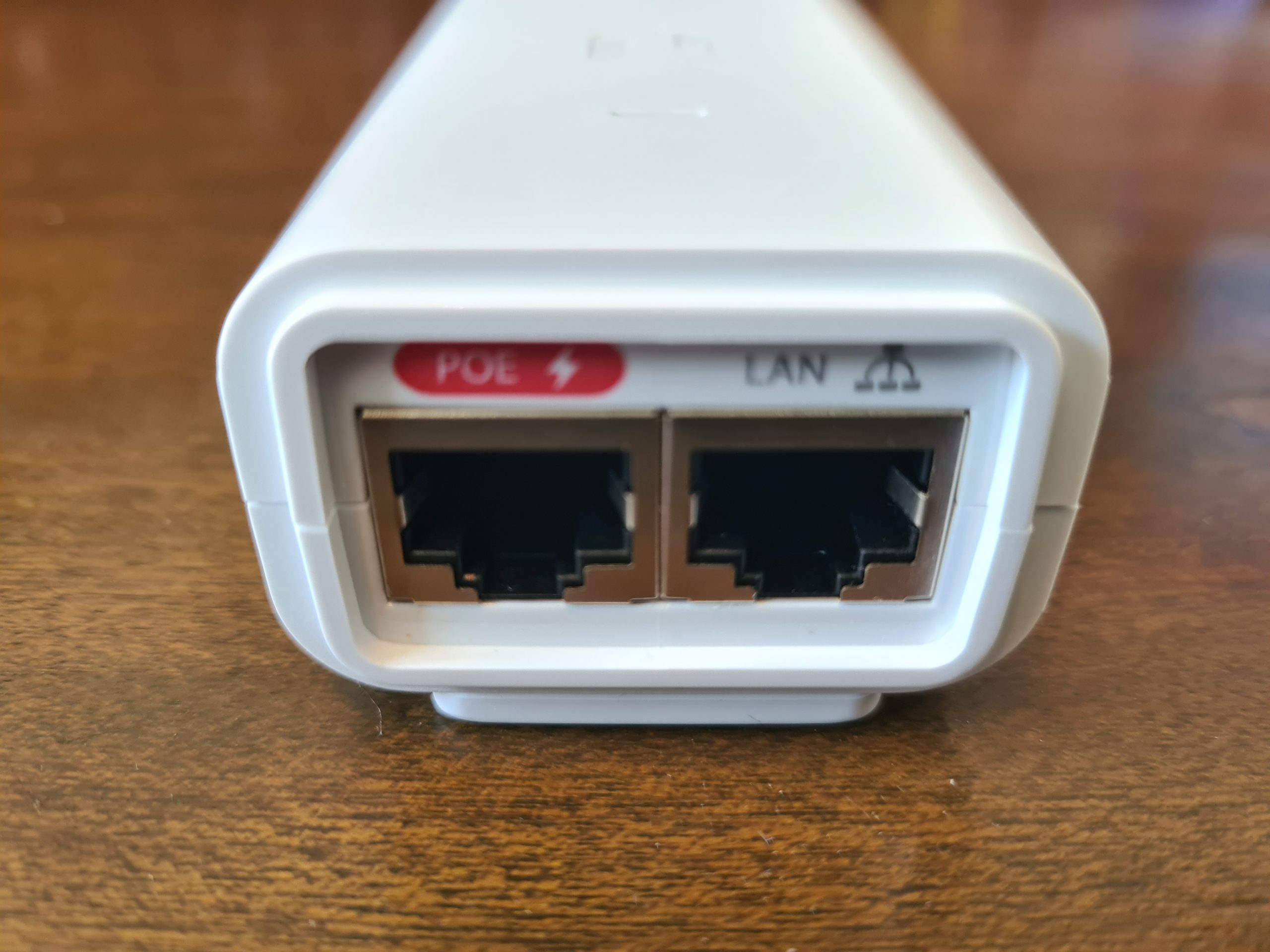
Below you’ll see the Power over Ethernet (PoE) device.
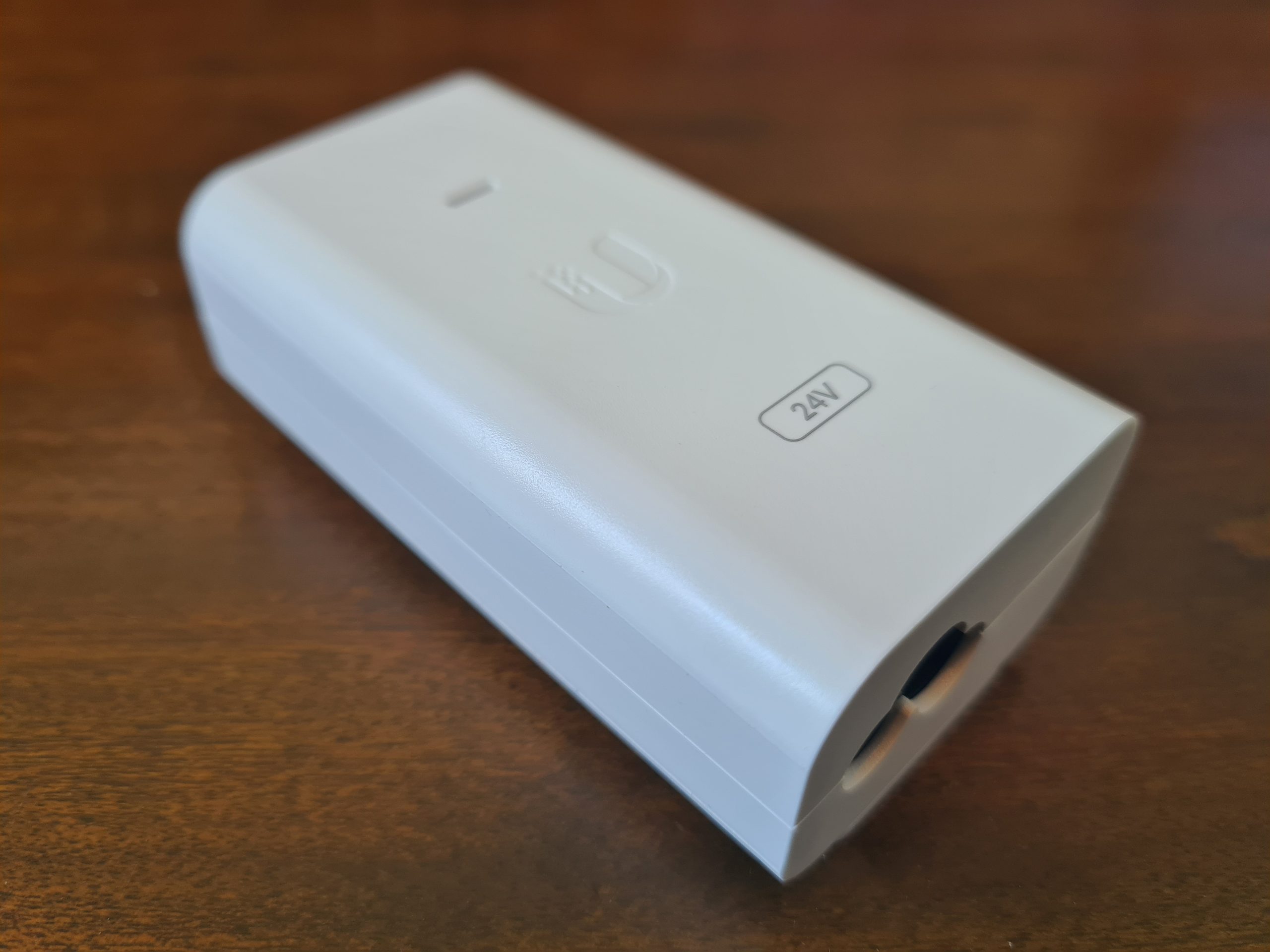
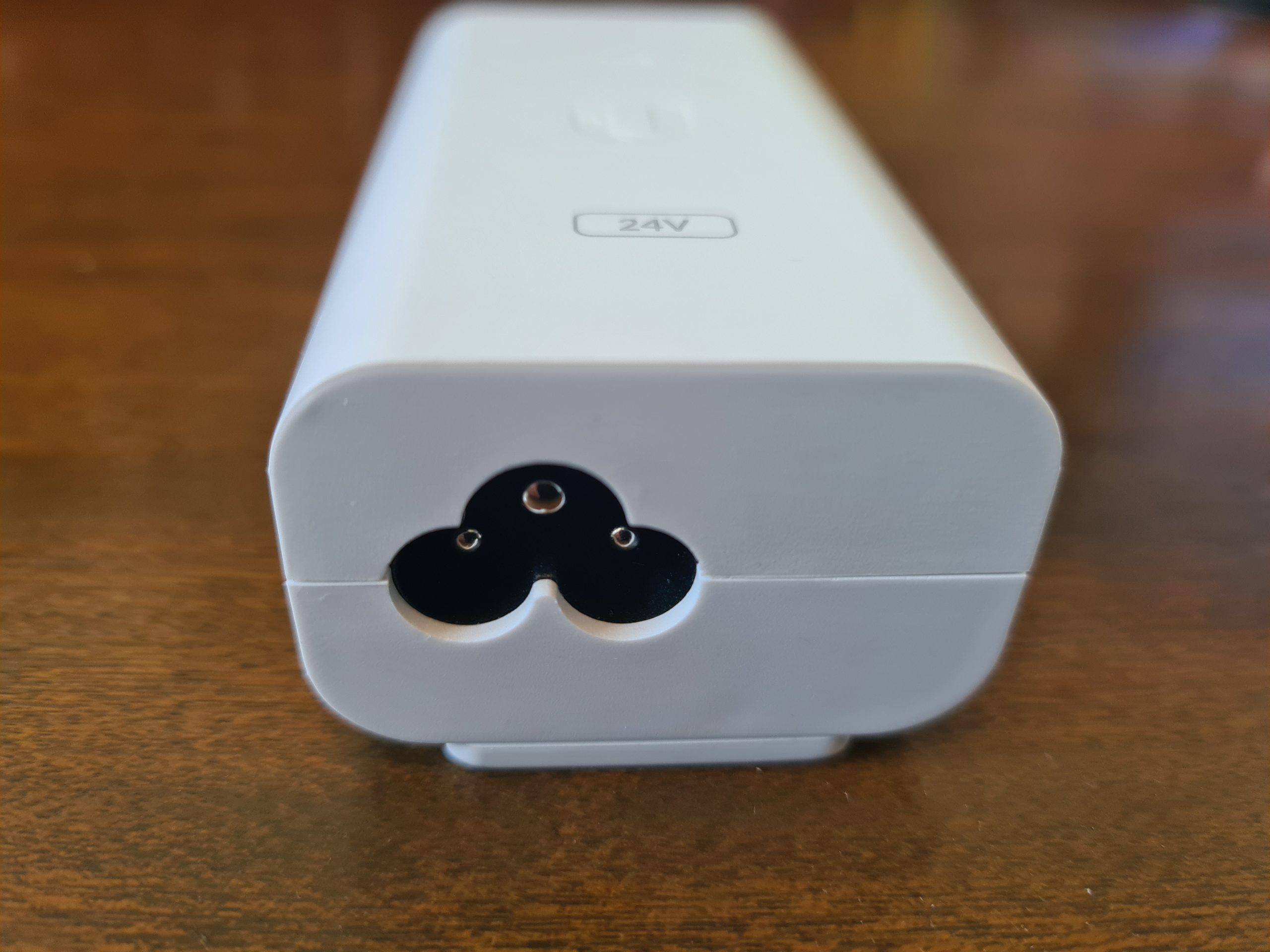
For connecting your PoE device to your UniFi AP-AC-Lite wireless access point, you’ll need to make sure you plug the ethernet cable into the PoE port on the left as that one contains power. The LAN port is where you plug in your ethernet cable that connects to your switch or router or firewall. If you have a managed switch with PoE ports, then you don’t even need to use this device unless you’re running our of power availability. But it’s nice that they have this as an option straight out of the box for you.
Another USA power lead going onto eBay…. 🙂
Ok, so that’s all the contents of the box for your new UniFi AP-AC-Lite wireless access point.
Statistics and Data from UniFi AP-AC-Lite Wireless Access Point via UniFi Controller
For completeness, let’s look at some of the handy bits of data that you can see within your UniFi Controller software against your wireless access point once you’ve got it plugged in and configured.
WiFi Traffic Distribution Statistics

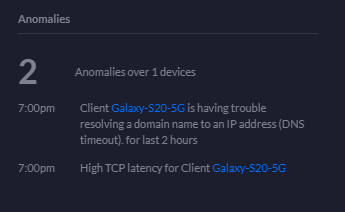
Anomalies Statistics
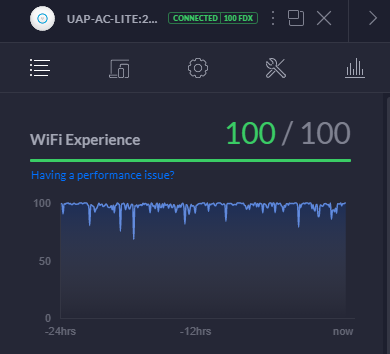
WiFi Experience Statistics
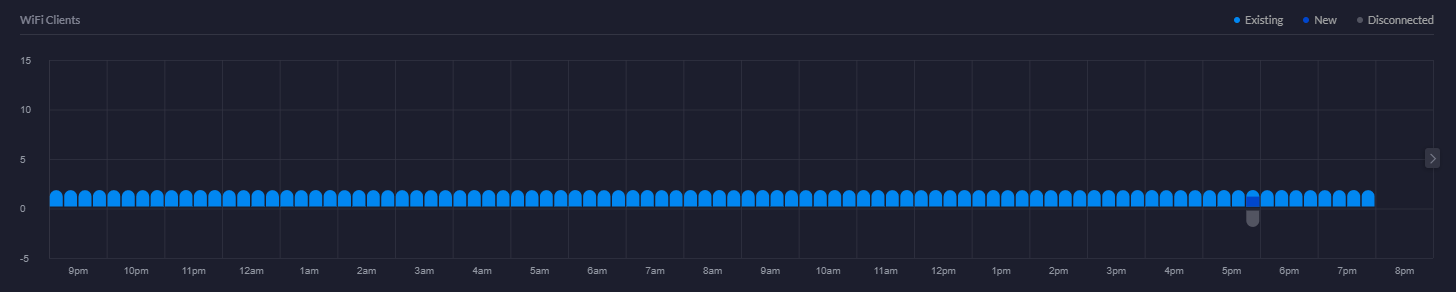
WiFi Clients Chart
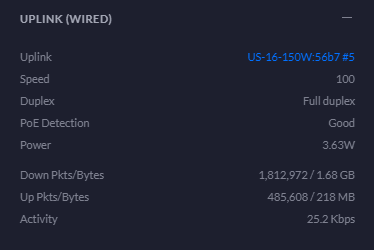
Uplink Statistics
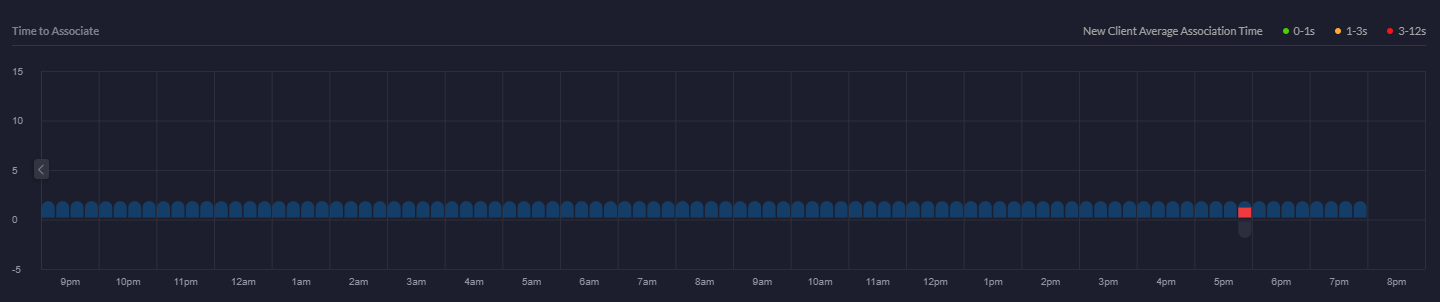
Time to Associate Graph
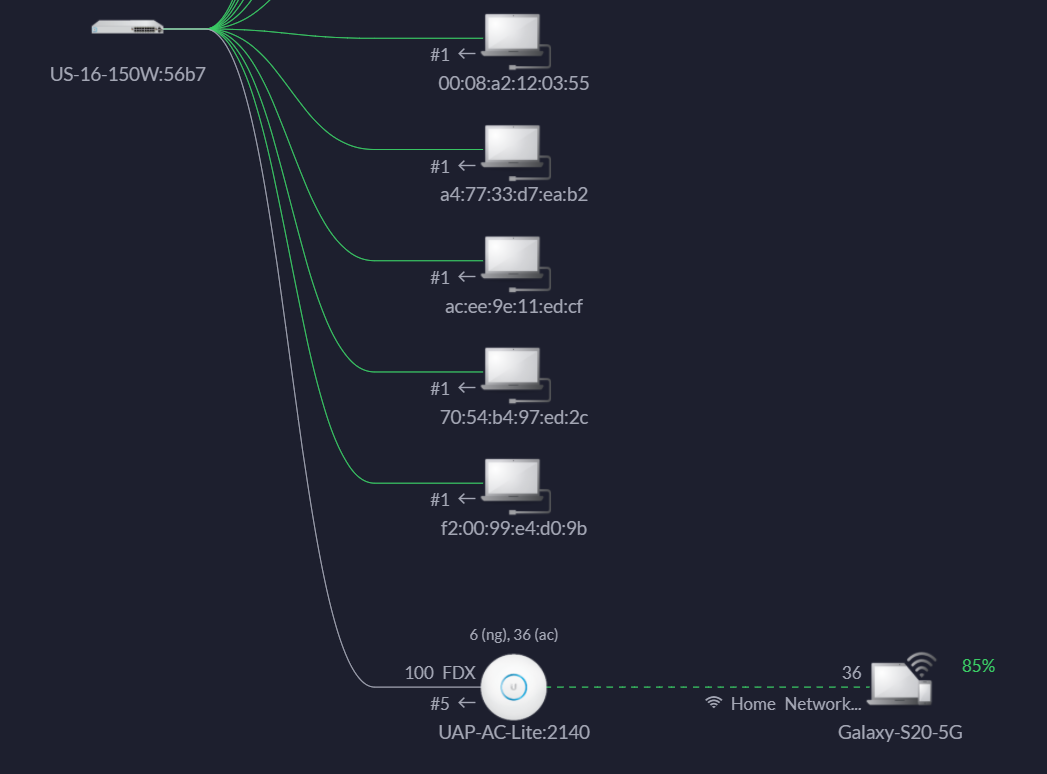
Showing Devices Connected to wireless access point
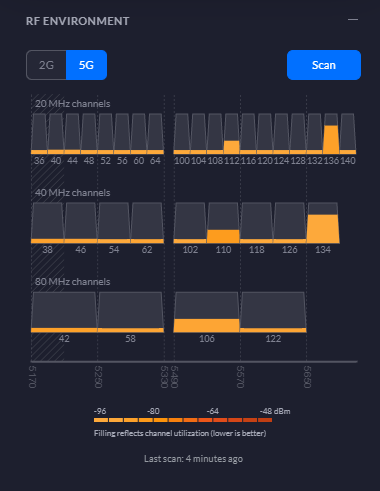
RF Environment 5G Statistics
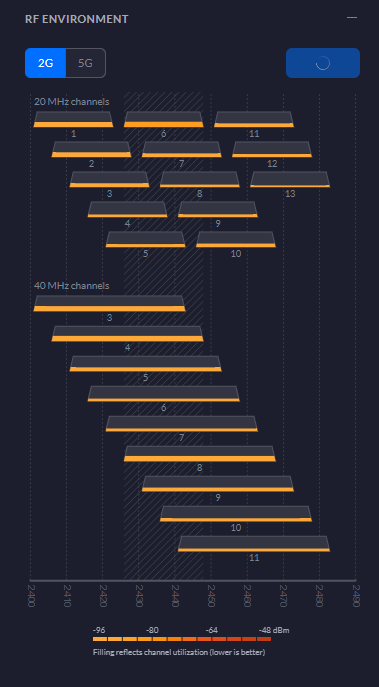
RF Environment 2G Statistics
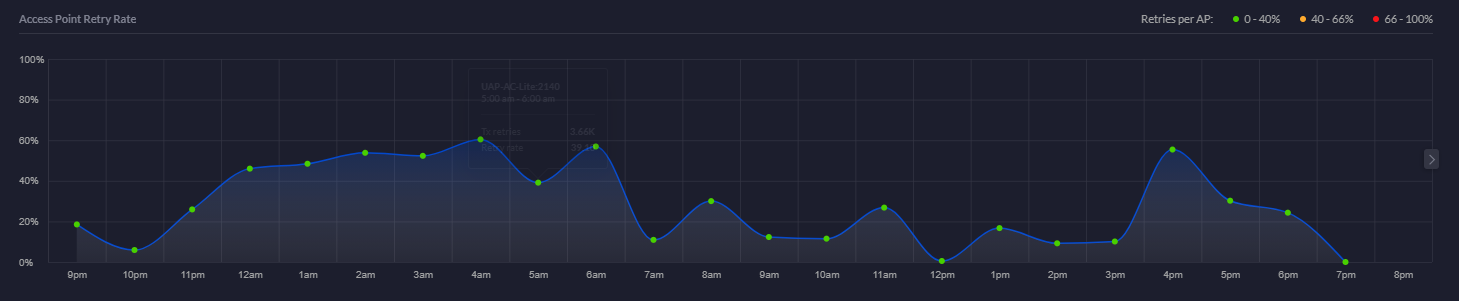
Access Point Retry Rate Chart
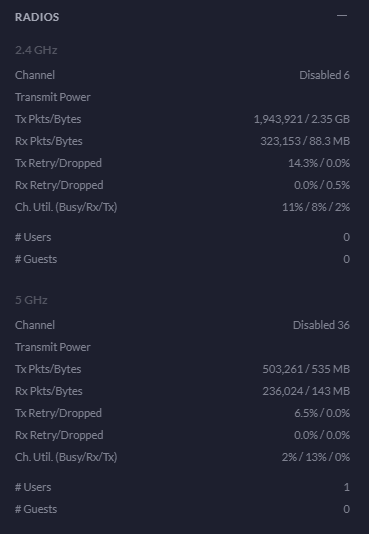
Radios Statistics
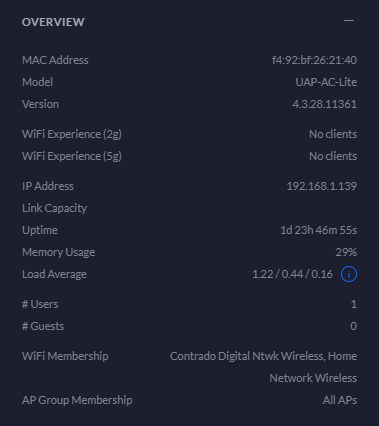
Overview Statistics
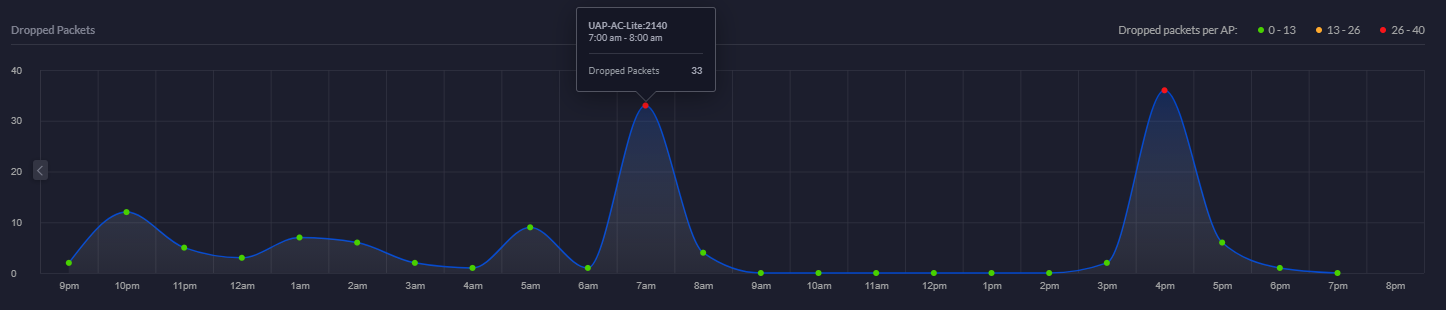
Dropped Packets Chart
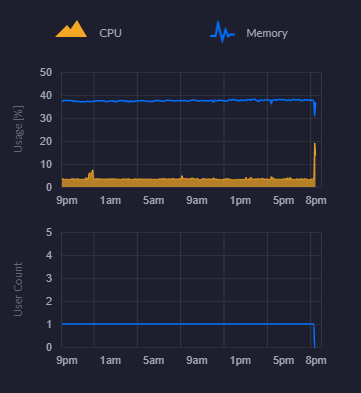
CPU and Memory Usage Chart
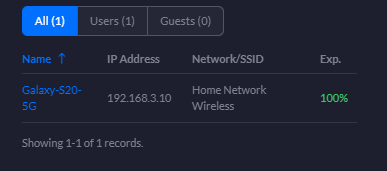
Connected Clients Statistics
Channel Utilisation Statistics
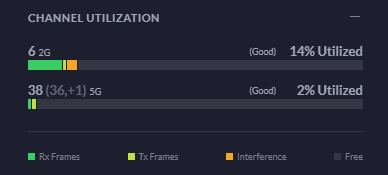
This is a really handy piece of information from a planning perspective. You can easily use this information to plan your capacity based on real world usage. As you start to reach the higher limits of the hardware, it’s time to start planning an upgrade to hardware that is better suited to larger numbers of users. For context, the chart below is with a single mobile device connected.
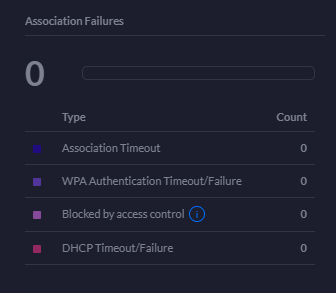
Association Failures Statistics
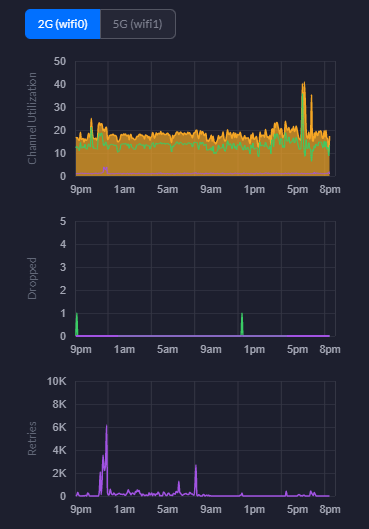
2G WiFi Charts – Channel Utilisation, Dropped Packets, Retries
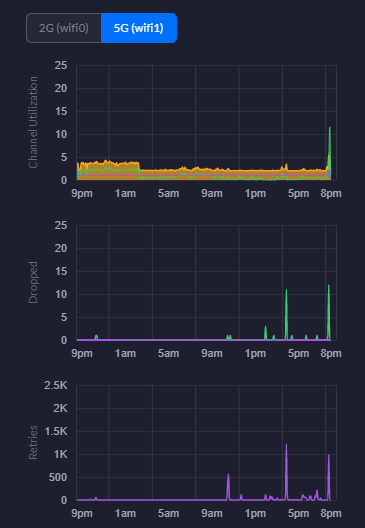
5G WiFi Charts – Channel Utilisation, Dropped Packets, Retries
Hopefully that gives you a good idea about what’s in the box and what’s out of the box once you’ve got everything set up and configured within your network.
by Michael Cropper | Mar 12, 2021 | Client Friendly, IT, Networking |
In this blog post we’re going to look at how to setup a UniFi managed switch on your network. For simplicity and to help people get started we’re going to assume that this is the first managed switch you are looking to add into your network. We’re also going to assume you’ve got commercial grade modem and router hardware, none of the consumer grade stuff that just doesn’t really work for these types of commercial type setups.
Basic Network Architecture for a UniFi Managed Switch
Ok so let’s assume you’re new to all this networking malarkey, we’re going to take you through how to setup a Ubiquiti UniFi managed switch so you can adopt this on your network. For the purpose of this blog post we’re going to use a very basic base level architecture;
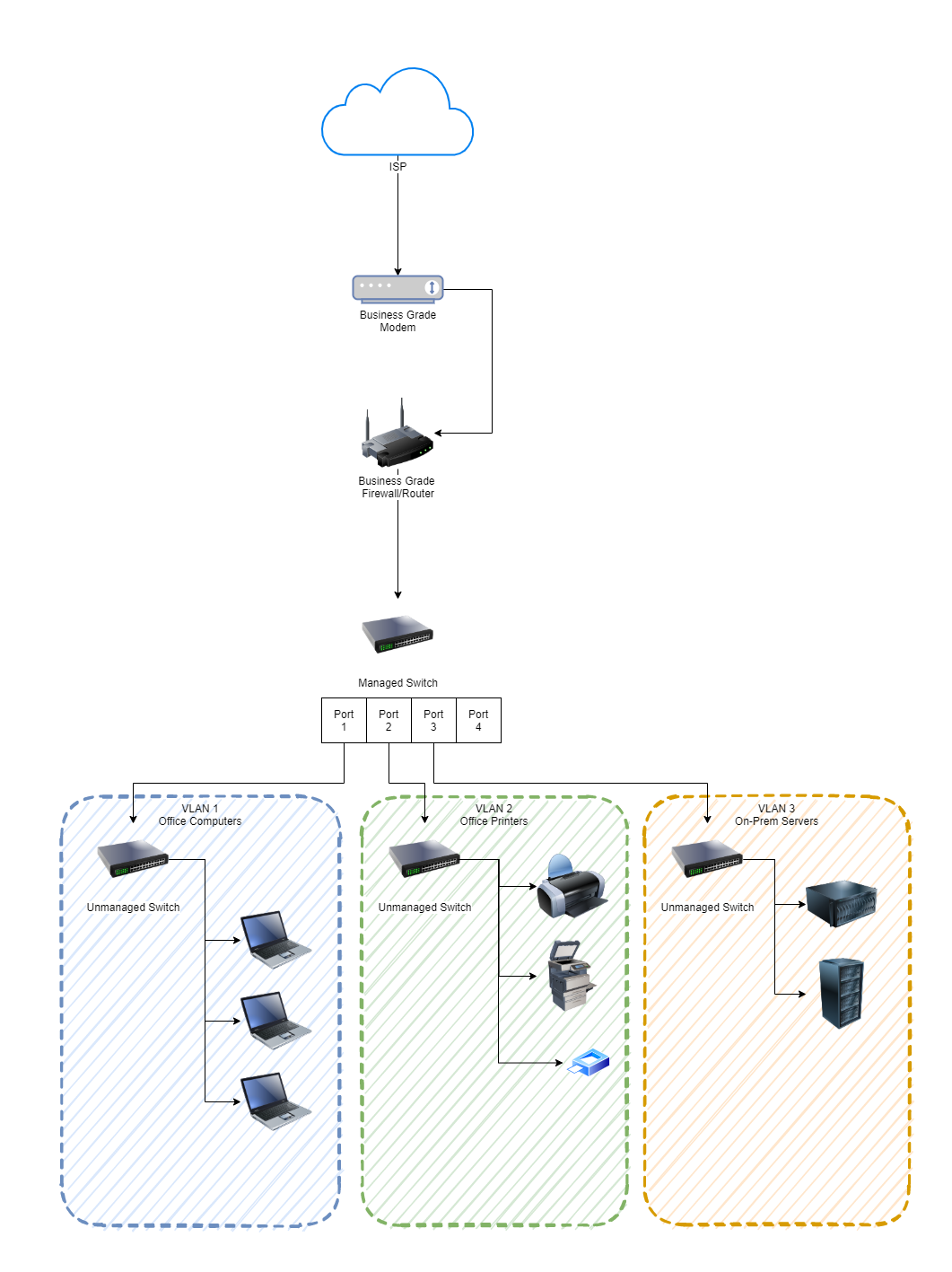
As you can see in the image above, the managed switch is bang in the centre. This is the Ubiquiti UniFi managed switch. Before we jump into how to get this set up and plugged into your network, if you aren’t sure about the differences, then we’ve done a blog post so you can easily understand What is the Difference Between a Managed Switch VS an Unmanaged Switch, have a read over that if you need a refresher.
Physical Ubiquiti UniFi Managed Switch Hardware
What we are working with here is basically this device;
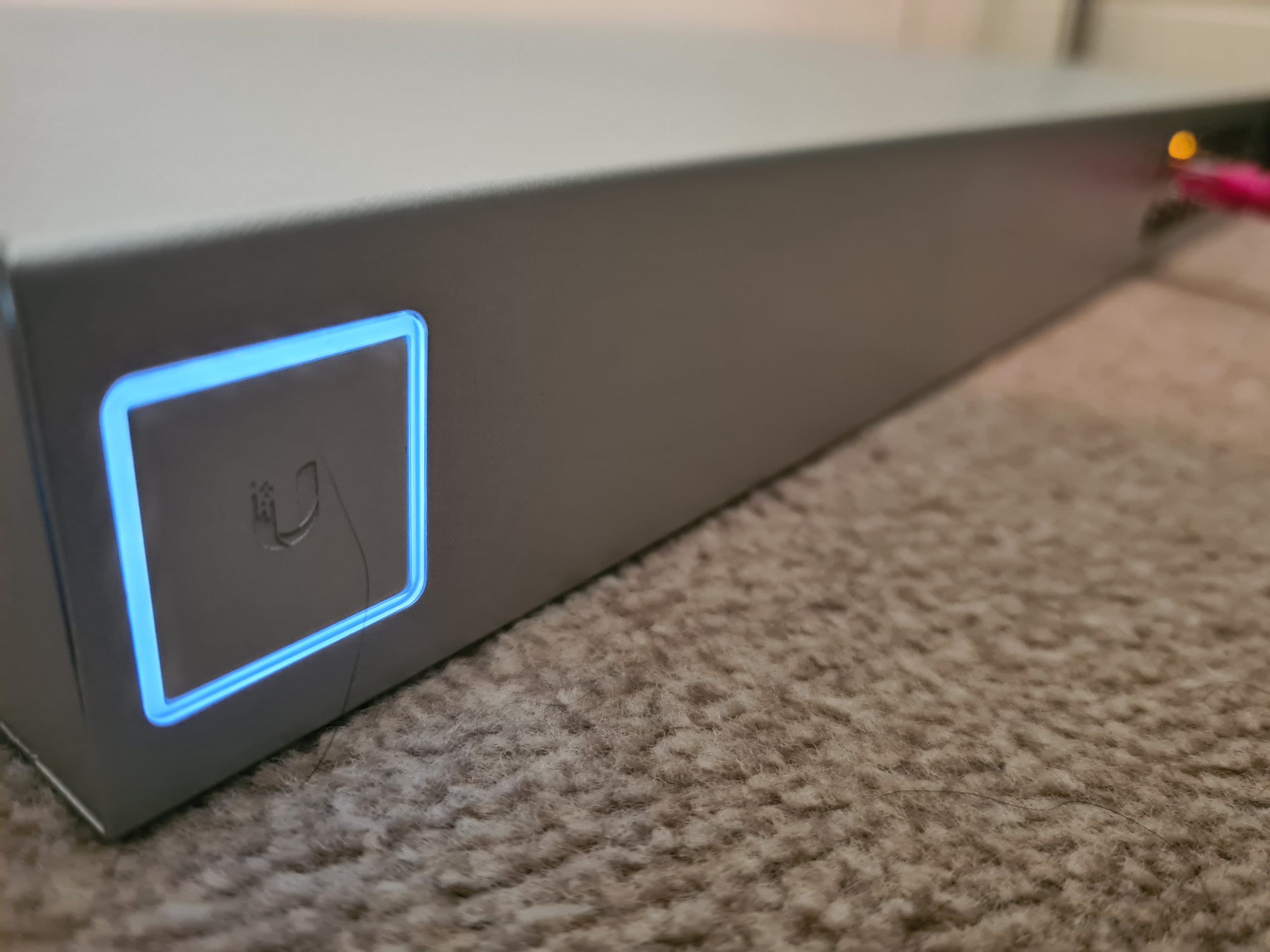
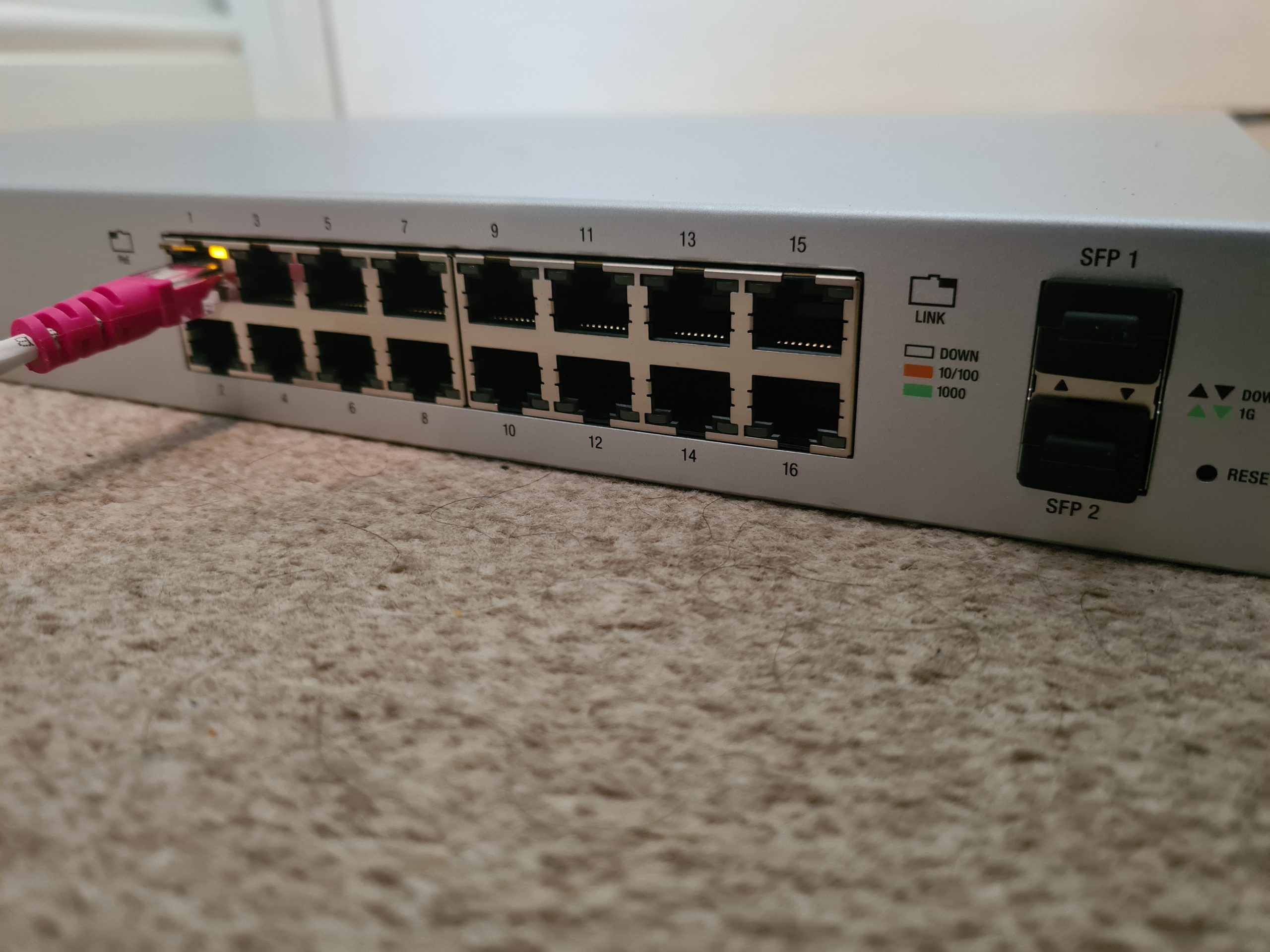
First of all, to get started simply plug the managed switch into your network. We’re assuming here that you’re currently working with a flat network so everything can see everything. You’re going to need to make sure you’re plugging the managed switch into the correct part of your network if you’re already got other managed switches and VLANs set up all over the place. But we’ll skip over that added complexity for the purpose of simplicity in this blog post.
Check UniFi Managed Switch is Showing in Firewall/Router
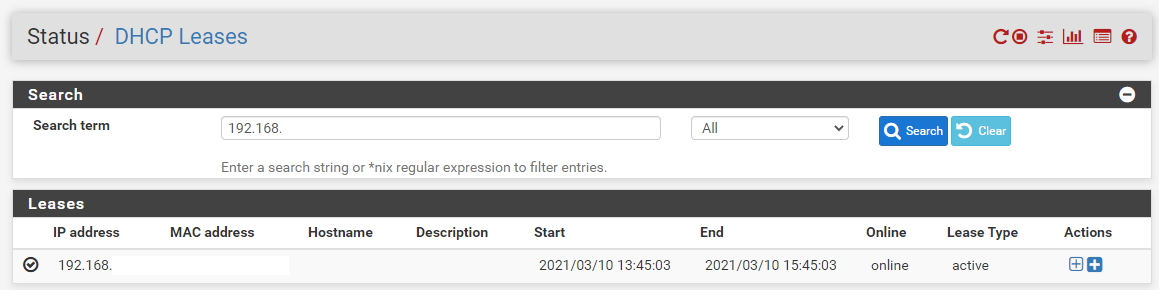
Ok, so now you’re plugged in, you need to head over to your Firewall/Router Admin screen and view the devices on the network. This is usually under a DHCP Leases type page within the admin interface. If you aren’t sure how to access your Firewall/Router admin interface, it’s highly likely to be either 192.168.0.1 or 192.168.1.1 which are fairly standard across a range of firewalls and routers. Simply type that into your web browser and you should be presented with a login screen. If you haven’t accessed this before (highly unlikely if you’re reading this blog post…. But for the purpose of completeness…) then just Google what the default username and password is for your specific device.
Once you’ve found the IP address of the device you’ve just added, excellent. You now know that the device is on the network;
Understanding the UniFi Controller Architecture
Now what is interesting with Ubiquiti UniFi managed switches is that if you type the IP address of your managed switch into the web browser, nothing happens. Nothing loads. And this is because the Ubiquiti UniFi hardware works differently than the vast majority of other networking hardware in the sense that we configure everything via an external piece of software called the Ubiquiti UniFi Controller. This is a piece of software that lives on a separate device such as your laptop or desktop computer. Here’s what this looks like to visualise how all this interacts;
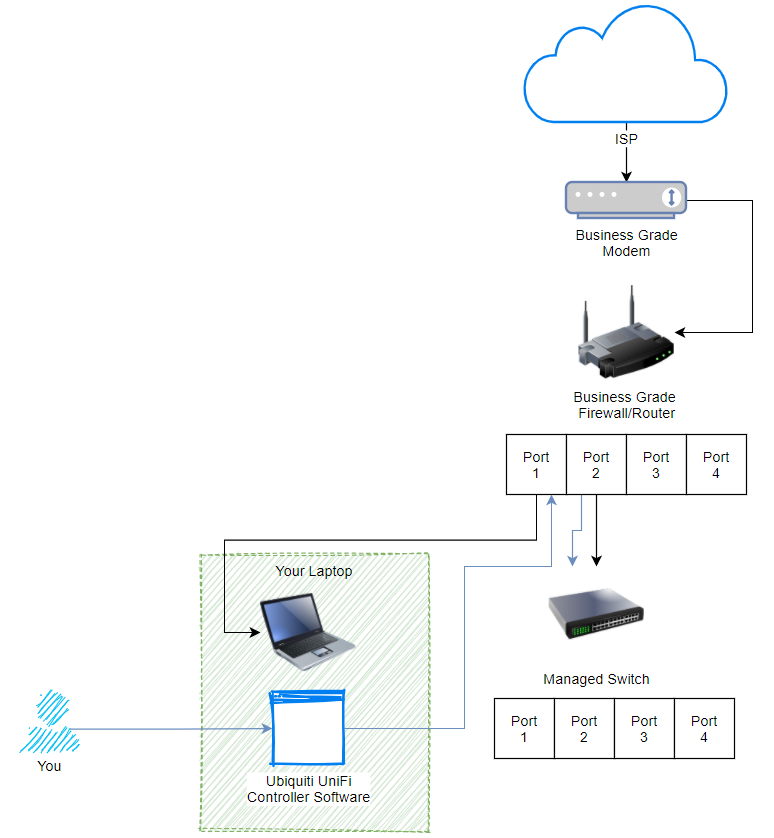
What we are looking at here, the black lines shows how everything is plugged in. The blue lines show how the process works for managing your UniFi managed switch. Pretty cool really, and this architecture of how all this works is one of the reasons that UniFi is completely blowing things away in the market with how there are designing and managing their networking hardware to make your life as easy as possible. Whether you are a small office/home office user or working up towards medium and large sized businesses. The Ubiquiti kit really is amazing.
Install and Open UniFi Controller Software
Ok, so once you’ve downloaded the Ubiquiti UniFi Controller Software and installed it on your computer. Simply run the software (Windows Start Menu > Ubiquiti UniFi > UniFi);
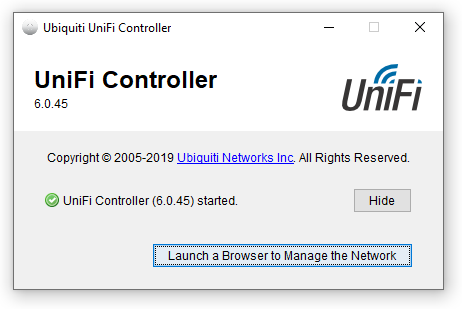
Click the button to launch the site in the browser. If this is the first time you’re doing this, you’re going to need to go through the registration process. The browser will open the URL, https://localhost:8443/manage/account/login. You will get a certificate error but just ignore that if you are on a secure network, which it is highly likely that you will be if you are doing this type of work.
Once the web browser opens you will be presented with a login screen;
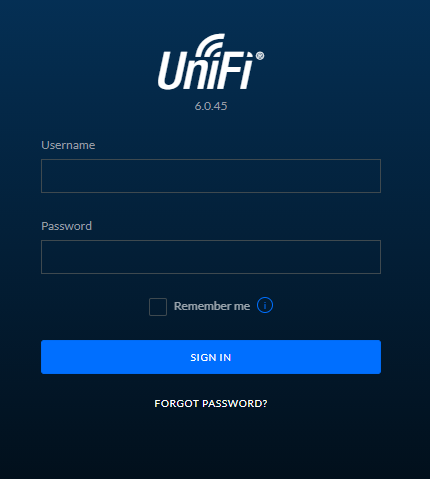
You’ll notice there isn’t a registration button here. If you don’t already have an account then you’ll need to create a Ubiquiti UniFi account here, https://account.ui.com/register. Once you’ve created your account, you will then be able to login to your device. For the purpose of simplicity in this blog post, we are going to assume that you are not using a UniFi Cloud Key. First of all, the UniFi Cloud Keys are an awesome piece of tech that allows you to easily manage your network completely remotely. This comes in extremely handy for IT managed service providers like ourselves who manage the network infrastructure on behalf of clients. We’ll cover that off in a different topic though at a later date.
View Current UniFi Network
Once you’re logged in you will land on the dashboard;
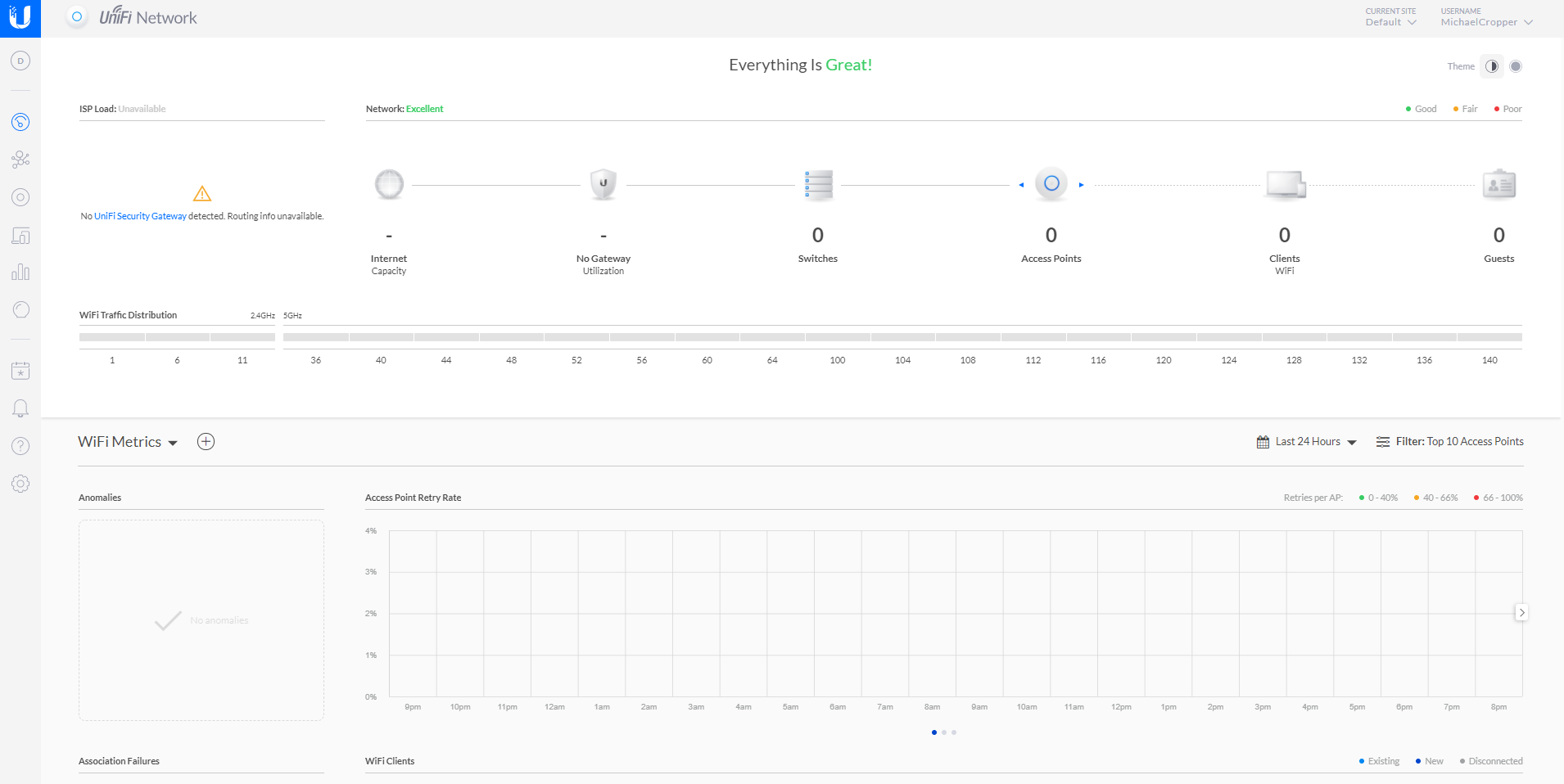
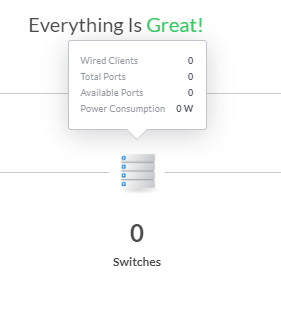
You’ll notice in the picture above that there is nothing there, you have no UniFi devices on your network. Sounds odd at first since you have your UniFi managed switch plugged in, but there is a reason why it is not showing up in your network yet and we’ll look at that now.
Adopt UniFi Managed Switch to Your Network
Firstly, you know you’ve just plugged in a UniFi managed switch into you network, so let’s click on the Switches icon;
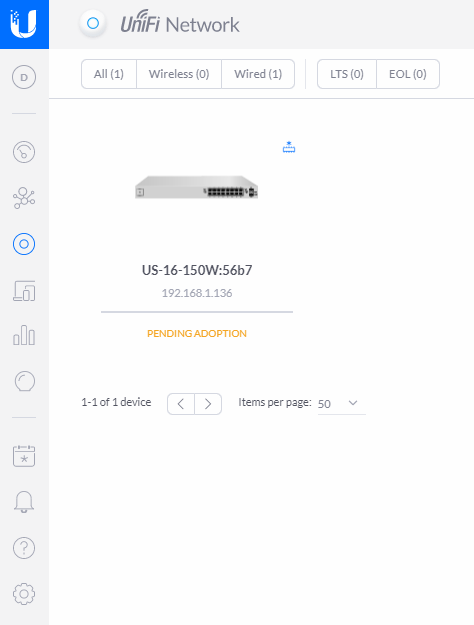
What you’ll notice when you click into that page is that the UniFi managed switch is now showing, but it is showing at the Pending Adoption stage;
Device Adoption is simply the process of connecting a UniFi device to your UniFi Controller Software so that you can manage it accordingly. You can read more about that here if you are interested. Just before we jump into adopting the device. A couple of nice little features within the UniFi dashboard are worth pointing out. Firstly, the Events button in the left navigation, the one that looks like a calendar icon with an * in the middle. Here you can see the exact date and time you plugged the UniFi managed switch into your network;
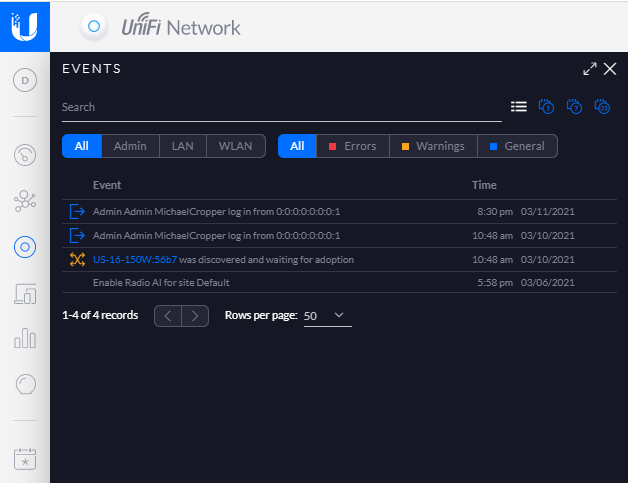
The fact that the software has automatically detected this and logged this event is pretty awesome, particularly for both auditing and debugging purposes. The one of the core benefits of the UniFi Controller Software is to ensure you can’t just go plugging hardware into your network and having that hardware automatically work. The UniFi platform can help to protect you from that attack vector.
So back to the previous image. Click on the managed switch that is pending adoption. You’ll notice a pop out appear;
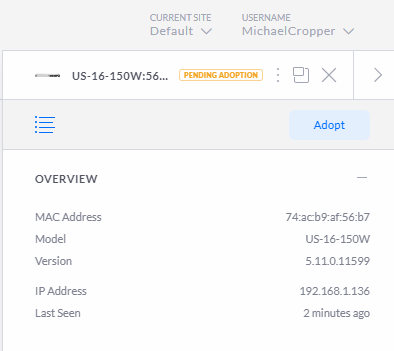
Then you will see that the managed switch moves through to the Adopting stage, this means that the managed switch is being adopted by your UniFi Controller Software so that it can be managed;
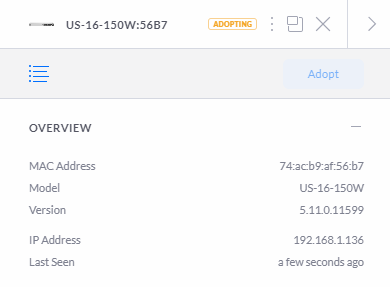
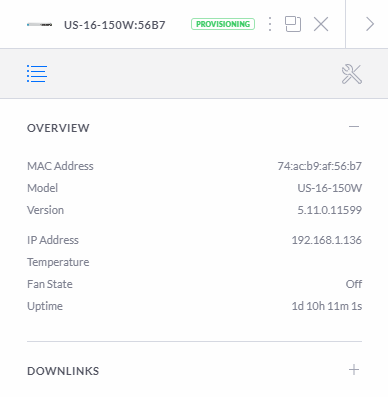
Next you will see the status move through to the Provisioning status. The provisioning status means that the device is in the process of applying updates and/or changes to the configuration and will temporarily reboot so the changes take effect. In this specific example, this makes no real difference as you are just getting setup but in any real world scenario this can result in a momentary blip in the connectivity for your users. Depending on your wider network configuration, you may need to schedule these types of activities to happen at times of low network activity. This is a very difficult thing to balance in corporate environments as you’ll generally find that backups and similar activities are also happening at off-peak times so you really need to fully understand your network and infrastructure architecture at all levels to be able to safely perform these activities. Otherwise, you’re just acting on a “click and hope” mentality. For a single managed switch setup that we’re working through here, this is not really an issue either way. But for larger networks you really need to understand which configuration changes have propagated through to each and every device on the network. If you are getting issues with provisioning configuration settings on specific devices this is really going to screw with your network and cause lots of random problems all over the place.
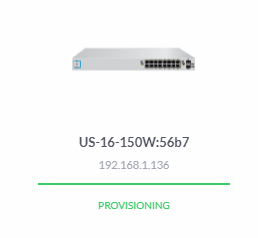
Once this is complete, you’ll start to see your devices listed as being in the Connected status;
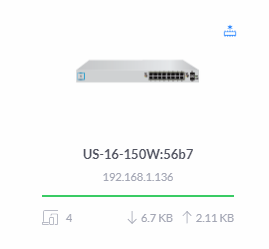
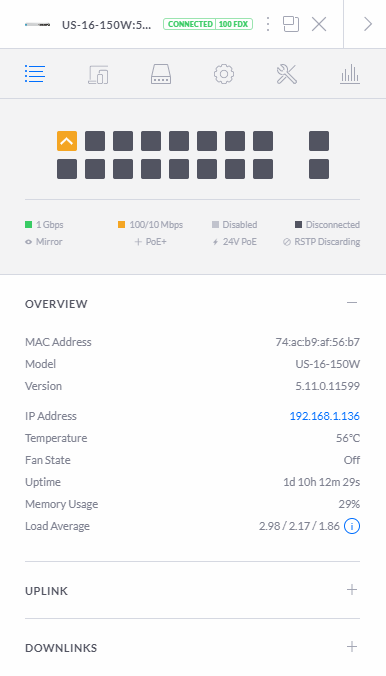
What is interesting in the image above is that you’ll notice that this port diagram exactly represents the port connectivity in the photograph from the very start of this blog posts that shows you how you have connected your physical UniFi managed switch into your network. This is showing you your physically connected ports in a digital view to help you visualise what is currently connected and what availability you have for future planning. While not that relevant for this blog post, it’s worth noting that this is a very handy feature particularly for larger networks spanning multiple geographical locations, knowing what is plugged in where and how this is all configured is extremely valuable so you can plan for future growth and projects as your networking needs expand.
Once you’ve done you’ll notice that your network on your dashboard now looks like the following;
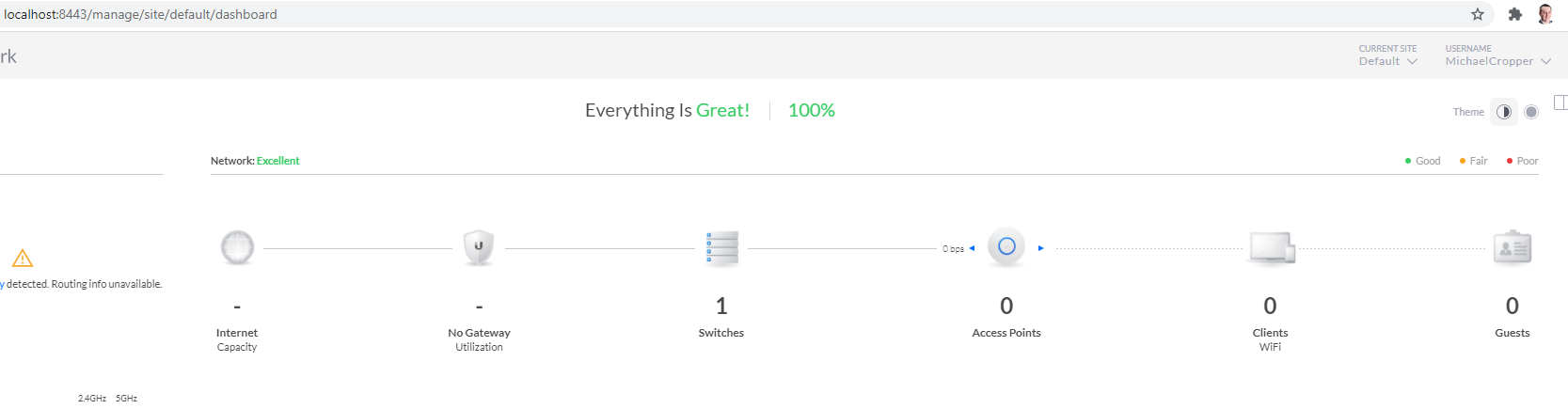
UniFi Cloud Connectivity
What is interesting once you’ve logged into your local UniFi Controller Software locally is that if you view your UniFi account on the UniFi website, you’ll notice the exact same details listed. This is extremely handy to see what is happening on your local network from anywhere in the world. The reality is though is that this functionality is only

In the above image you’ll notice a “Launch” action on the right hand side. What this does is it enables a connection from the UniFi cloud platform straight through to the computer that is running the UniFi Controller Software. Generally these things are powered by the powerful UPnP (Universal Plug and Play) Protocol. I’ve not dug into the details of how this specifically works for the UniFi kit, but I’m going to take an educated guess that it is highly likely that it is UPnP that is powering this functionality. Either way, awesome, as this is a cool piece of tech.
This functionality is basically what the UniFi Cloud Key does, the only difference being that the UniFi Controller Software doesn’t need to be running on your laptop, but instead there is basically a RaspberryPi-like device plugged into the network to perform this feature. The UniFi Cloud Key is actually very similar to how one of the products we’ve designed and built works, the GeezerCloud platform which monitors temperature controlled environments remotely with ease for companies including restaurants and food manufacturing businesses.
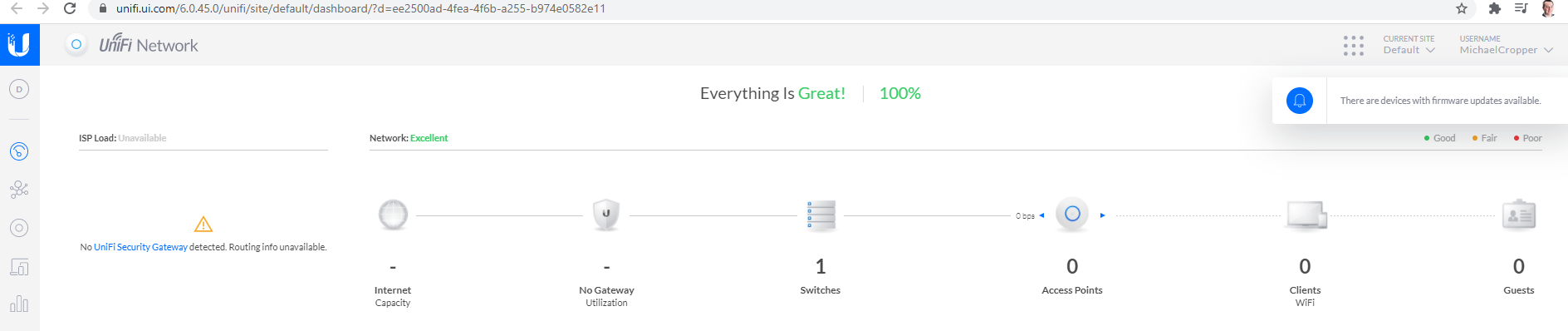
Back to looping at the specifics of the UniFi Cloud Platform and how this works though. Once you have clicked on the Launch option, you’ll notice that the UniFi cloud platform is completely aware of your local UniFi network as you have seen in previous images – the only difference is the URL that you are accessing this information from. If you understand what this means, you’ve probably got your eyes raised too as you realise how amazing this feature is. If you don’t understand what this means, add 10+ years to your career and it will sink in why this is so awesome – Apologies on that point but it is difficult at times to convey breakthrough moments in technology like this without understanding the technology stack in a serious way both wide and deep, that stuff only comes with years of experience and knowledge and can’t be easily conveyed in a basic blog post – but – if you have questions, do put them in the comments on this blog post to get the answers you seek.
Back again to once you’ve clicked that Launch button mentioned earlier. What you’ll notice is that once you’ve clicked that, the URL is on the UniFi Cloud Platform, yet it is displaying information from your local network exactly as if you were viewing the information via your locally installed UniFi Controller Software;
All Connected Now Time to Configure
Awesome, now your managed switch is part of your network you are good to start to configure it in the way you like. We’re going to stop this blog post here as the configuration elements of a network can get very detailed so we’ll pick that up in a future blog post.
There are so many different ways to configure your UniFi managed switch that this all depends on the entire network architecture and devices (both UniFi and non-UniFi) that you are working with throughout your network.
Summary
Hopefully this has been a useful insight and tutorial on how to set up a Ubiquiti UniFi managed switch on your network. This guide has been focused on a starting point from nothing, so if you are working with an established network, very similar principles apply, although you’ll need to take extra precaution and understanding of the wider network piece before randomly plugging an additional managed switch into your network.