Well Tuesday was a fun evening watching someone relentlessly try and hack into the blog. Thankfully, they didn’t get in. Seriously though – why? Go & waste your time somewhere else instead of trying to actively cause harm. Anyway, I thought it was worth covering what this looks like on a WordPress blog and how it could quite easily have turned into a distributed denial of service attack (DDoS) due to the way it was being done. And I guess the most important bit, how you can prevent this type of attack on your WordPress blog with the help of a simple plugin, which thankfully I had installed already.
The Cool DDoS Hacking Attack Visualisation
While I’m sure all of the information in this post will be useful, by far the coolest bit is the fancy visualisation that I was able to create with some handy software. Feast your eyes on this;
The above video shows the attack trying different passwords/usernames on wp-login.php by attempting to force access by guessing the password. The video is just a small snapshot of the attack which was happening for almost 9 hours on and off, I guess someone had the afternoon off work then…
The Data
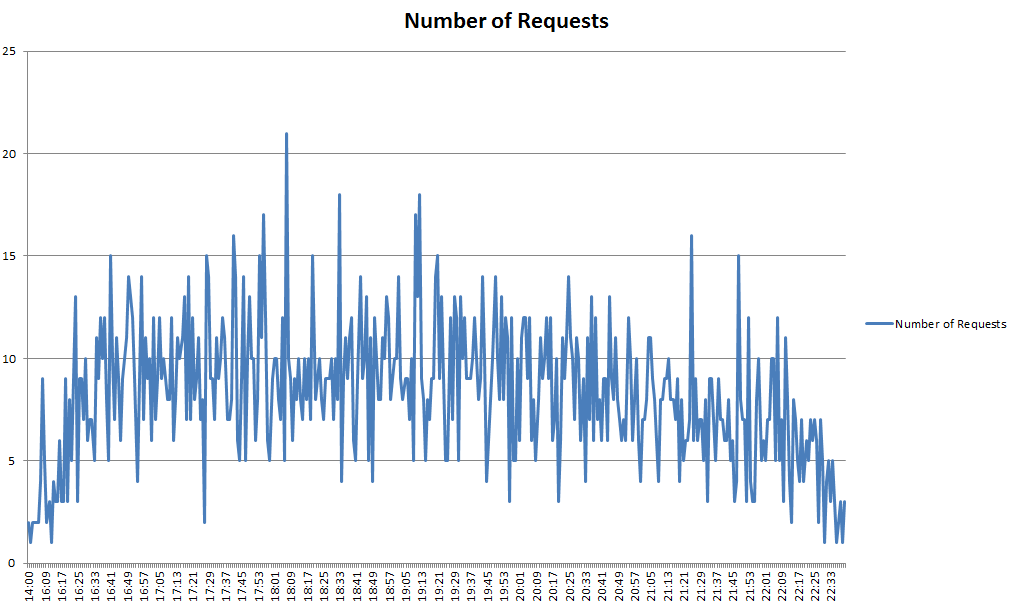
Being a bit of a data geek, I couldn’t resist the opportunity to dig into this a little deeper. Below shows the number of requests per minute between the time the attacks started to when they finally gave up.
(click for larger graphic)
While these figures aren’t enormous, when the blog isn’t on enterprise class hosting this can slow the website down and more than anything it is just a bit annoying.
Why A DDoS?
Why is this attack different than someone just simply attempting to guess a password? Well, this person is clearly well equipped with a bag full of IP addresses. I’ll explain about how to prevent your WordPress blog being hacked via this method a little later, but what I can say that if it wasn’t for the plugin that was installed, this could have been a lot worse.
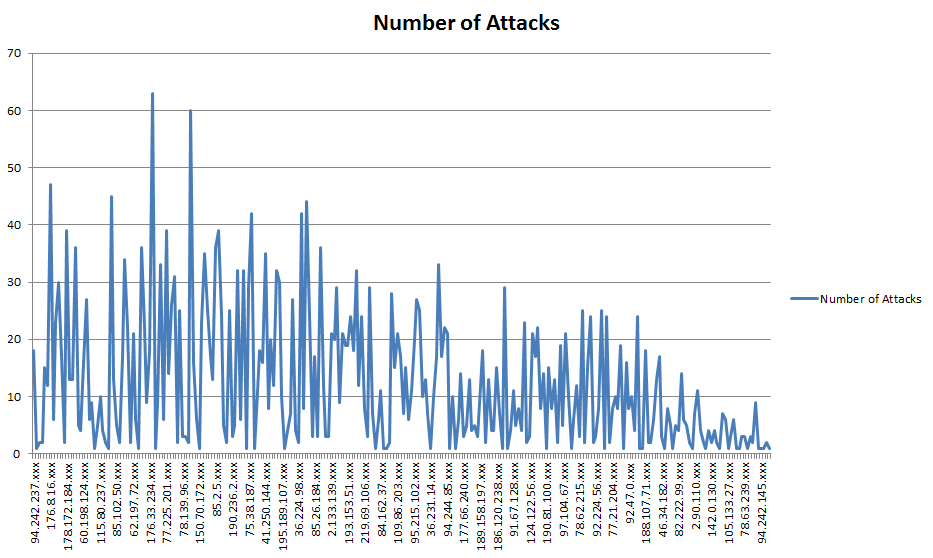
Another beautiful graph showing the number of attacks per IP address (this is only a selection);
(click for larger graphic)
I’ve not posted the IP addresses fully as, unlike the people doing this, this isn’t right as they could be hacked computers where these requests were coming from. In total there was 268 IP addresses used during the attack, which is quite considerable! The average number of attacks per IP address was at 12.38, which was no doubt limited by the plugin that was installed to stop people attempting this type of hacking attempt.
How to Prevent a DDoS Hacking Attack on Your WordPress Blog
Do you have a WordPress blog? Then I seriously suggest installing a plugin called “Limit Login Attempts”. What this plugin does is, well exactly as you an imagine, it limits the login attempts based on the users IP address. If someone guesses your login details incorrectly for 2, 4, 8, 12, whatever, number of times then the IP address will be blocked for a set period of time. This type of plugin can further block IP addresses longer term, all automatically, if the same IP address keeps coming back and trying again.
Had this plugin not been installed, I can’t imagine how many requests all 268 IP addresses would have tried during this period. While this was an interesting experience and has produced a cracking visualisation, I hope it doesn’t happen again either to me or anyone else.
WordPress is a great piece of software but at the same time it can be a real pain. It assumes that people who use it don’t know a thing about HTML which can be quite annoying since when trying to add anchor links to your blog posts then you will see that WordPress actively removes these! Anchor links are an extremely important and useful function when creating longer blog posts where it is necessary to jump around the post for easier usability.
By the end of this post you will be able create an anchor link within WordPress.
Have a go yourself and you will see what I mean. Try adding the following code to one of your blog posts to see how WordPress treats anchor links.
<a href=”#section2″>Go to section 2</a>
some text here
some text here
some text here
<h2 id=”section2″>Section 2</h2>
When you click on either ‘publish’ or ‘preview’ you will notice that this does appear to work (as long as you haven’t already saved the post after entering that code), the code behaves correctly so that when you click on the “Go to section 2” link then you are thrown further down in the post to “Section 2”. Ok so should be working fine then, yes? No.
When you re-save / re-publish (i.e. update the post) then WordPress actively messes up the section “<h2 id=”section2″>” so that it escapes the double quotes surrounding the id attribute name. Very frustrating because this then translates into the following code;
<a href=”#section2″>Go to section 2</a>
some text here
some text here
some text here
<h2 id=”\”section2\”“>Section 2</h2>
Notice the additional \” which has been added at either end of the idattribute. This means that the anchor link is no longer called ‘section2‘ but it is now called “section2” with the double quotes as part of the name.
There must be some issue with how WordPress interprets certain information by assuming this is an error on the webmasters part and tries to automatically fix it, but instead it is actually breaking the valid HTML markup and messing everything up.
There is some good news though…..
How to add anchor links in WordPress
The issue I mentioned above about how WordPress tries to ‘fix’ things is actually a setting within WordPress that can be switched off (thankfully).
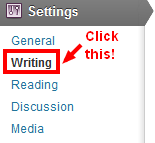
If you click on Settings > Writing as seen below;
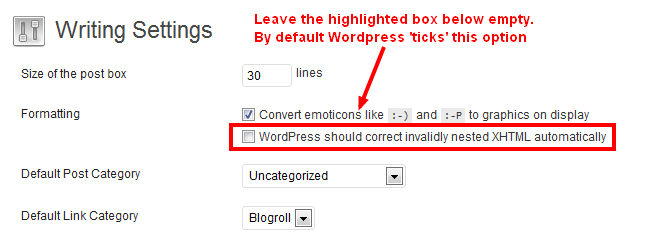
By default WordPress automatically ticks the section which says “WordPress should correct invalidly nested XHTML automatically”. This is the setting which is overriding the code id=”section2″ to becomeid=”\”section2\””. Keep this box blank and save your settings so that WordPress will no longer correct invalid markup.
The next step is to actually markup the previous anchor link in an invalid way. Unfortunately this is the only way around the problem so it may annoy anyone who loves clean code, but hey at least it achieves the same end result!
Previously the actual anchor was…
<h2 id=”section2″>Section 2</h2>
Now to add the anchor you need to code this up as follows…
<h2 id=section2>Section 2</h2>
You will notice there is no double quotes surrounding the actual name of the id attribute. Now when you publish or save the blog post as many times as you like then WordPress will no longer overwrite your hard work
In addition, it has been spotted over on StackOverflow that certain plugins may be affecting anchor links. In particular, SEO Smart Links and if you uncheck the “prevent linking in heading tags (h1,h2,h3,h4,h5,h6)” in the settings of the SEO Smart Links plugin, the back slashes are removed. So if you have this installed then this may also solve the problem.