This is a fairly common issue that happens randomly on WordPress websites which has the catastrophic impact of bringing the entire website offline resulting in users seeing the error whenever they try and load a page on the website.

This can feel quite daunting when you first see this error, but don’t worry as there is a methodical process to solving this issue. As with many things with WordPress, there are many different root causes of these kinds of issues, so it’s simply a case of debugging things to identify what is causing the issue which will allow you to identify the next steps to solve the issue.
The common root causes of the “Error establishing a database connection” on WordPress can be;
- Incorrect database connection details in your /wp-config.php file (unlikely if you haven’t actively changed this recently – more common for new manual installations of WordPress)
- Corrupt Plugin files which can often occur after recent updates to Plugins
- Corrupt database table(s) which need repairing
So let’s look at how to debug each of the common problems.
Check Database Connection Details
Simply open your /wp-config.php file and confirm that the details are correct for the following settings;
- define(‘DB_NAME’, ‘your_database_name’);
- define(‘DB_USER’, ‘your_database_username’);
- define(‘DB_PASSWORD’, ‘your_database_password’);
- define(‘DB_HOST’, ‘localhost’);
Unless you’ve recently changed these settings between the last time the website was working and the time you are seeing the “Error establishing a database connection” error appeared, then it is unlikely that this is the root cause of the issue.
Check for Corrupt Plugin Files
Whether you are manually updating your Plugins or you have these configured to automatically update (which is highly recommended) both failed or successful Plugin updates can result in this error showing. To quickly debug this, simply rename the /wp-content/plugins folder to /wp-content/plugins-disabled
When WordPress cannot find a Plugins folder it simply disables all plugins from running whenever you load a page on your website. So this is a quick test where you can simply rename the folder, then try refreshing the website again to see if the error has disappeared.
If that has solved the problem, then you simply need to rename the folder back to it’s original name, then methodically disable one plugin at a time by repeating that same process on the sub-folders for the individual Plugins to determine which plugin is causing the issue.
Repair Corrupt Database Tables
This one is a little more challenging to debug manually, but thankfully recent versions of WordPress have a handy tool to identify issues and try and automatically fix the problem.
Firstly, you need to edit your wp-config.php file and add the following line in;
define(‘WP_ALLOW_REPAIR’, true);
Once that setting is turned on, you can visit https://example.com/wp-admin/maint/repair.php (naturally replacing the domain name with the one you are working on)
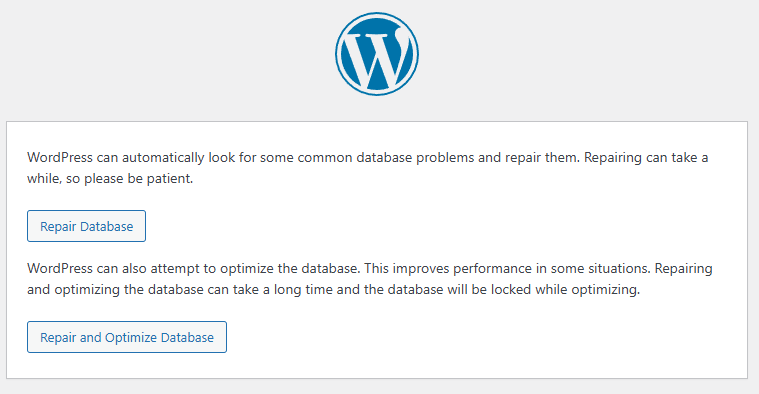
You may see a page similar to the above or one full of errors and database tables – either way, you will see the options to either;
- Repair Database
- Repair and Optimize Database
So give those a go.
All being well, this will solve the issue and your website will be back online.
There are also a few other handy debugging steps related to this such as if you’re running phpMyAdmin then you will probably notice that the table appears locked and will often say that the table is “in use” which is a strong indicator that there is an issue.
It is possible to fix this issue via phpMyAdmin by selecting the table and selecting the option to Repair Table which effectively does the same thing the above automated process has done.
And if you’re running on cPanel, then it’s handy to view the cPanel error log for the specific cPanel account by running the command via SSH;
cd /home/cpanel-account-username/public_html
tail error_log
Which will output any errors that the site is having. It’s important to note that for this step to work, you must have your WordPress error logs turned on in your wp-config.php file and must have loaded the page again so the errors actually get written to the log.


Michael Cropper
Latest posts by Michael Cropper (see all)
- How to fix “Error establishing a database connection” on WordPress - May 19, 2026
- General Scheme of the Regulation of Artificial Intelligence Bill 2026 - February 4, 2026
- WGET for Windows - April 10, 2025